

Platform Campaign
12/13/2022
1. Introduction of livestream registration system
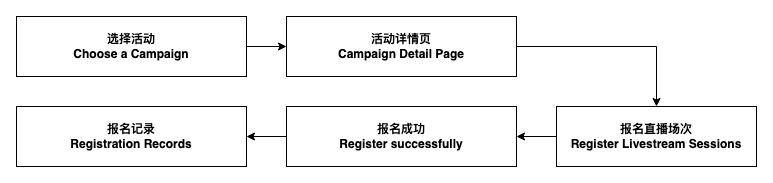
The main carrier of the major campaigns is to sell products in the live room. The livestream registration system can realize the online registration of the creators for livestreams in platform campaigns, simplify the registration steps, and the platform will implement the online management of the information of the livestream.2. Creator operating steps
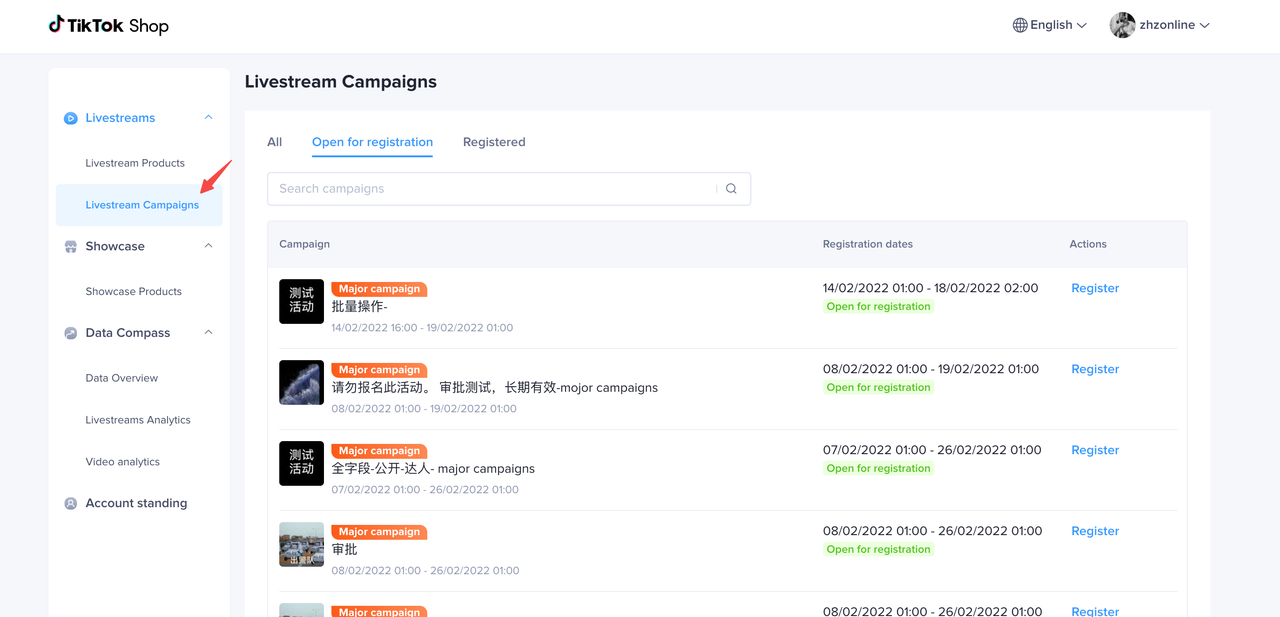
 Registration entrance: Streamer Desktop - Livestreams - Livestream CampaignsNotice:
- The creator account needs to have e-commerce permissions to register for livestream campaigns
- If the creator account is not an official account bound by the merchant, the registration record will only be displayed on Streamer Desktop, but not in Seller Center
| PC- Seller center | APP |
 |  |
Training video:
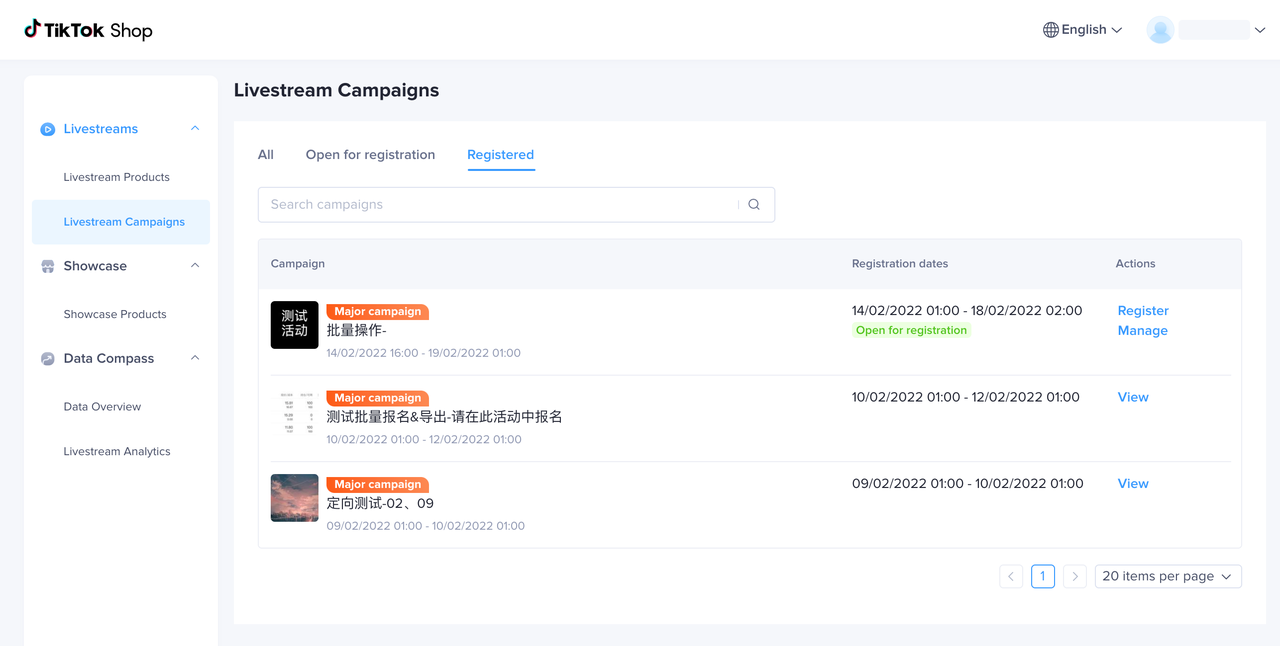
2.1 Check the campaigns that can be registered
- 'All' tab displays all livestream campaigns: click on the upper right corner 'show ended' to display the ended campaigns
- 'Open for Registration' tab displays livestream campaigns that can be registered
- 'Registered' tab displays the livestream campaigns that the sellers/creators have registered. If the merchant's official account has registered in Seller Center, the registration record will also be displayed here
- If the campaign that needs to be registered is a private one, it will not be displayed in this list, and can only be viewed through the registration link shared with you by your AM
- You can filter the campaigns you want to register in according to the campaign name
2.2 Choose a Campaign to Register
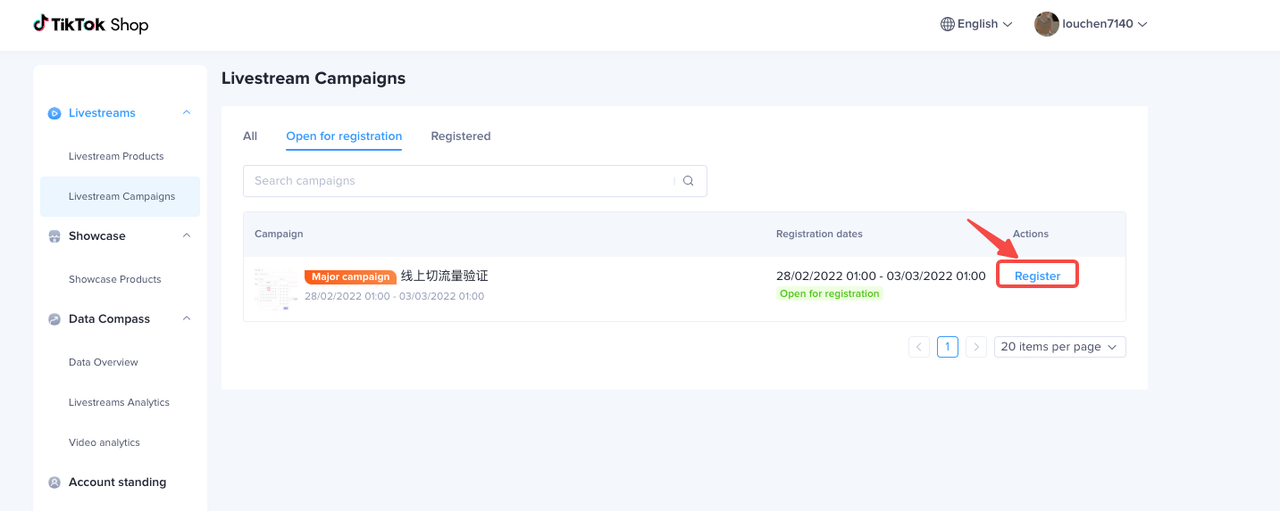 According to the information displayed on the campaign list page, creators select the campaign they wish to register for, and click 'Register' button to enter the livestream registration process
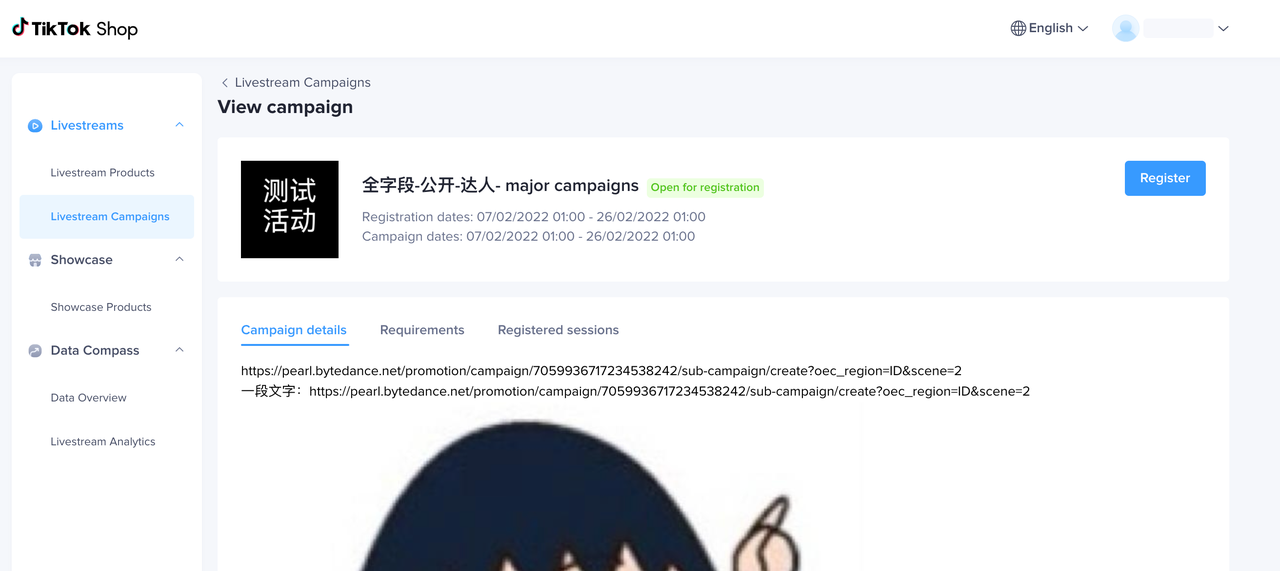
2.2.1 Check Campaign Details
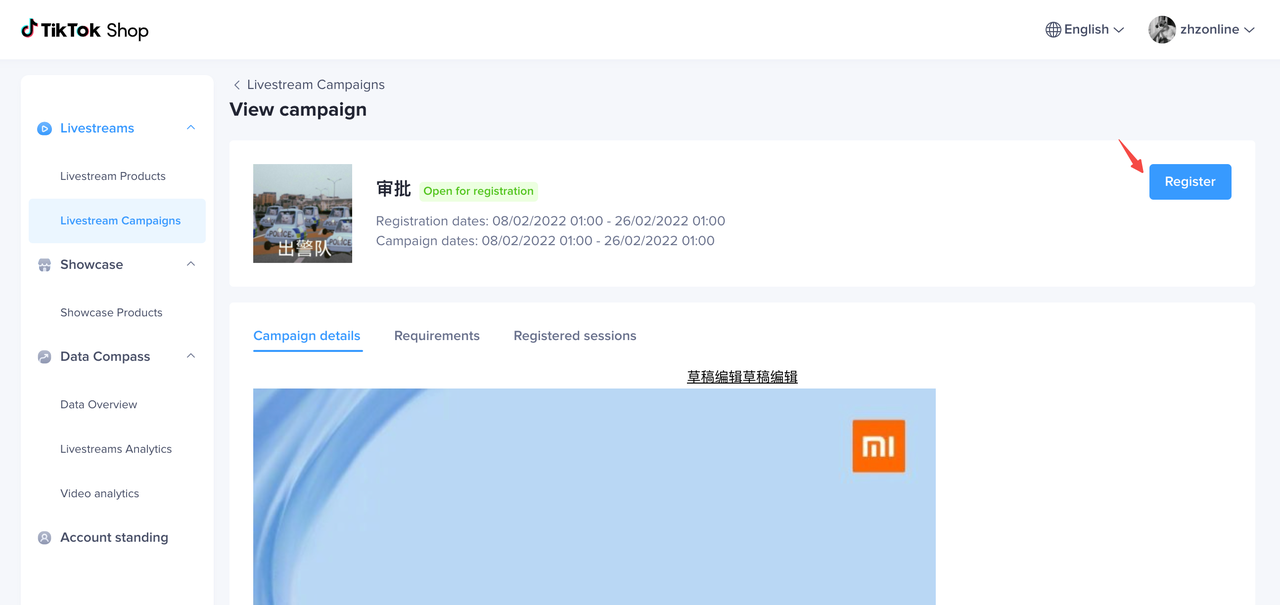 | Campaign Details
|
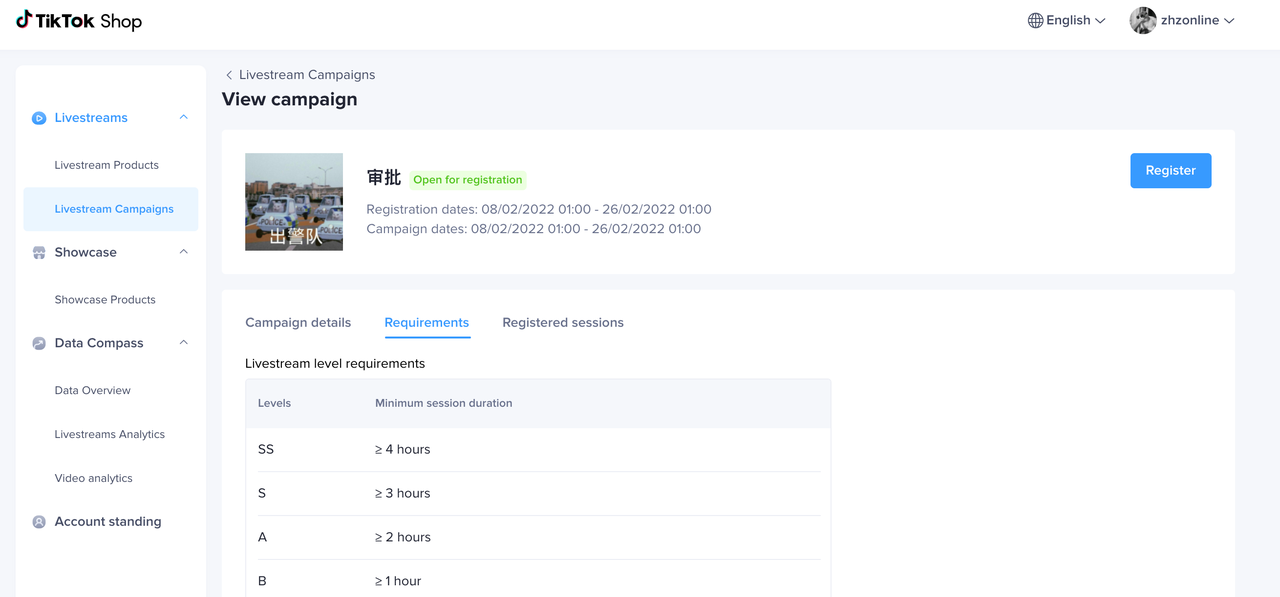 | Campaign Requirements:
|
2.2.2 Register for Campaign
- Click 'Register' in the upper right corner of the campaign details page to register for this campaign:
- In the same campaign, the total number of registrations that merchants can register in Seller Center and Streamer Desktop cannot exceed 100
- This button can be clicked when the creator meets the conditions and is eligible for registration
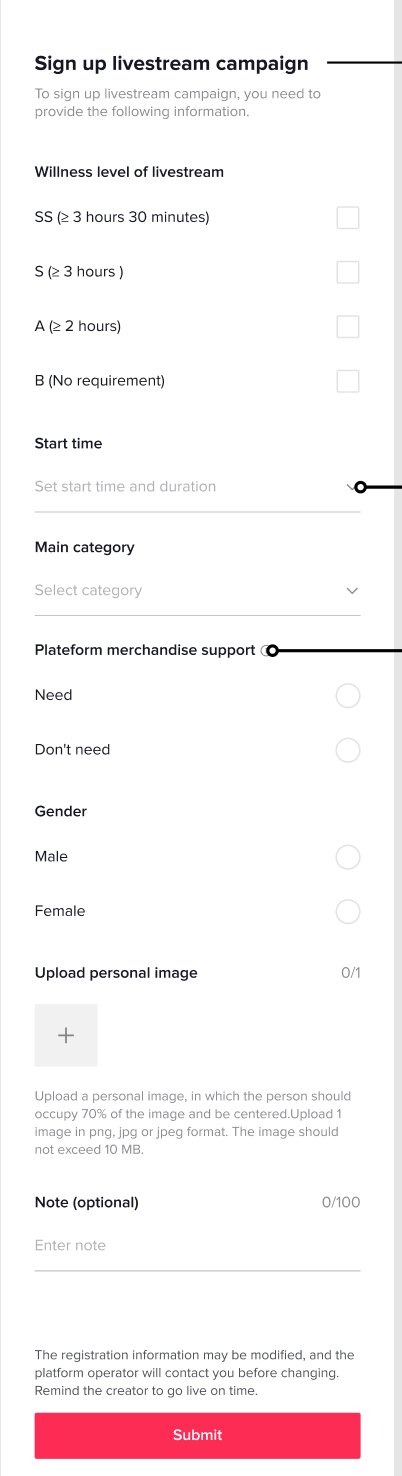
2.3 Fill in the registration information
Registration instructions:- The registration information may change, and the platform operator will contact you before the modification;
- Please start the livestream on time after the review has passed.
2.3.1 PC
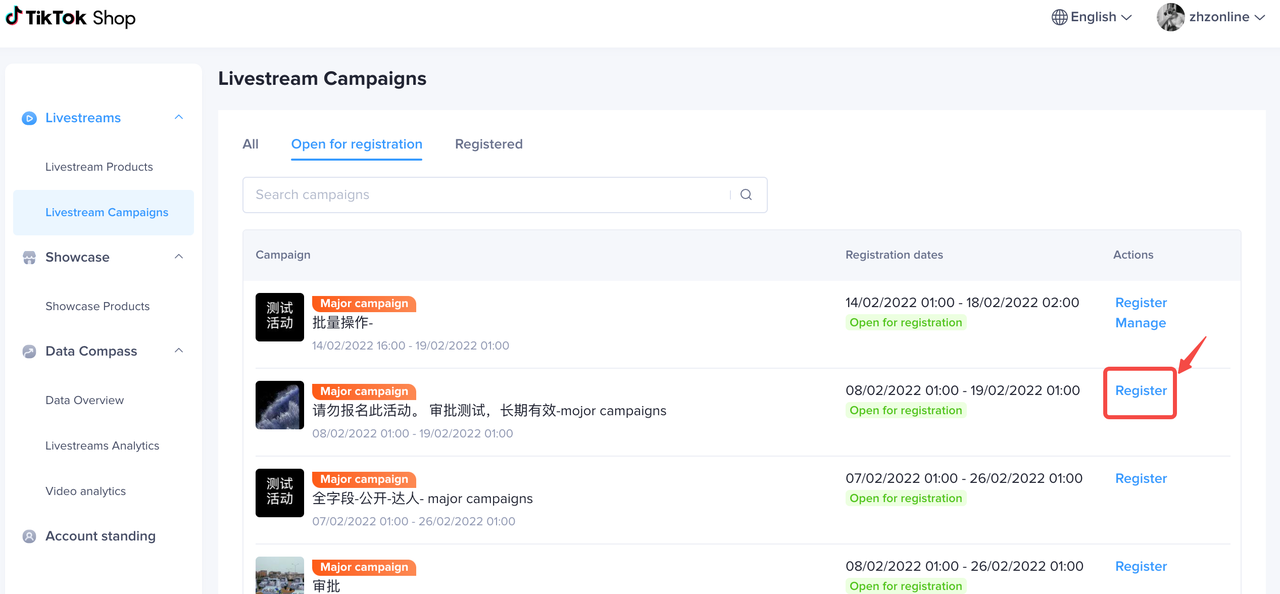  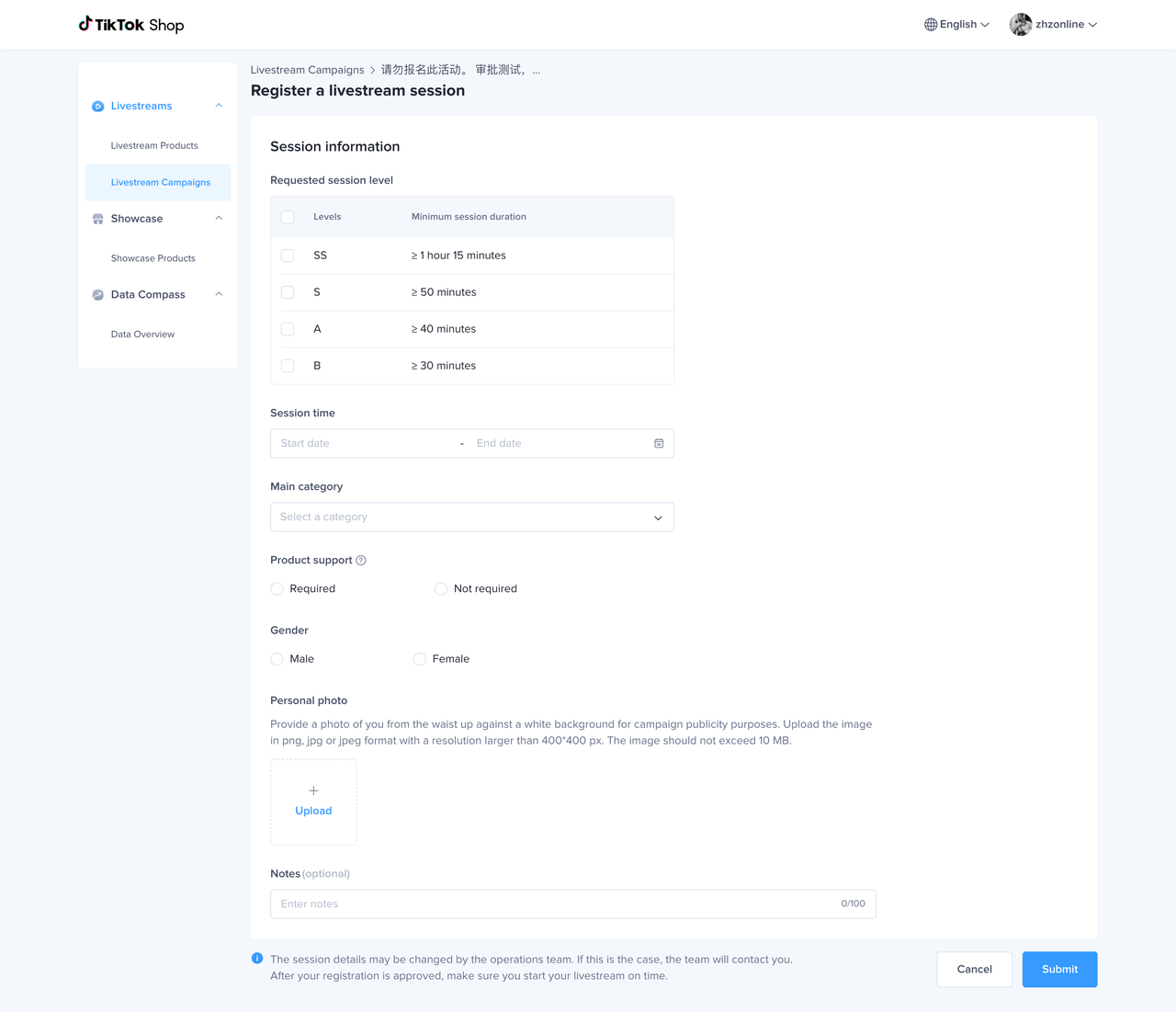 | Information to be filled in for registration:
|
2.3.1 TikTok App
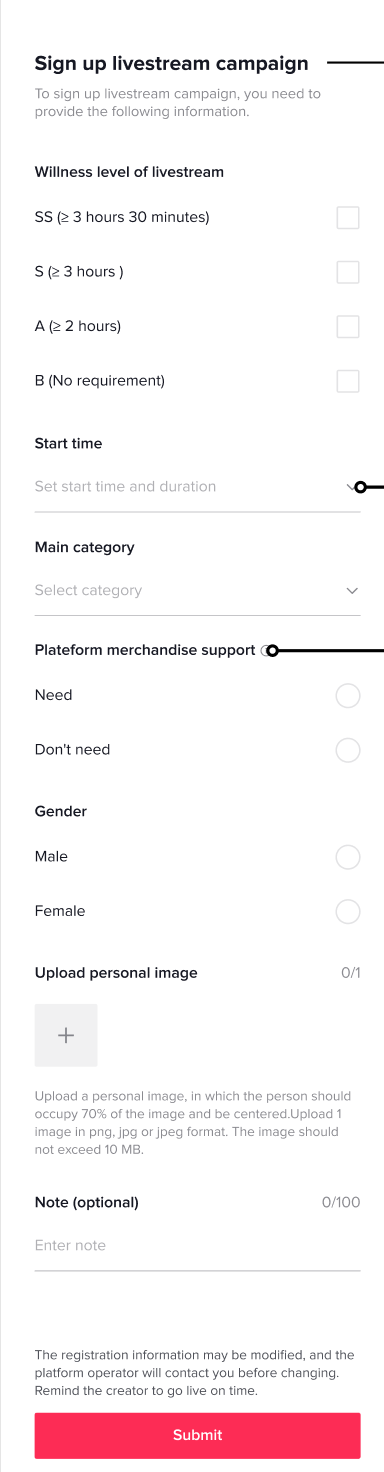 | Information to be filled in for registration:
|
2.4 Check Registration Records
In the Registered tab of the campaign list page:- Select an campaign that has been successfully registered and click 'Manage' to enter the registered livestream session management
- For campaigns that have ended, you can click 'View' to view campaign details and registration records, but private campaign registration records are not displayed here
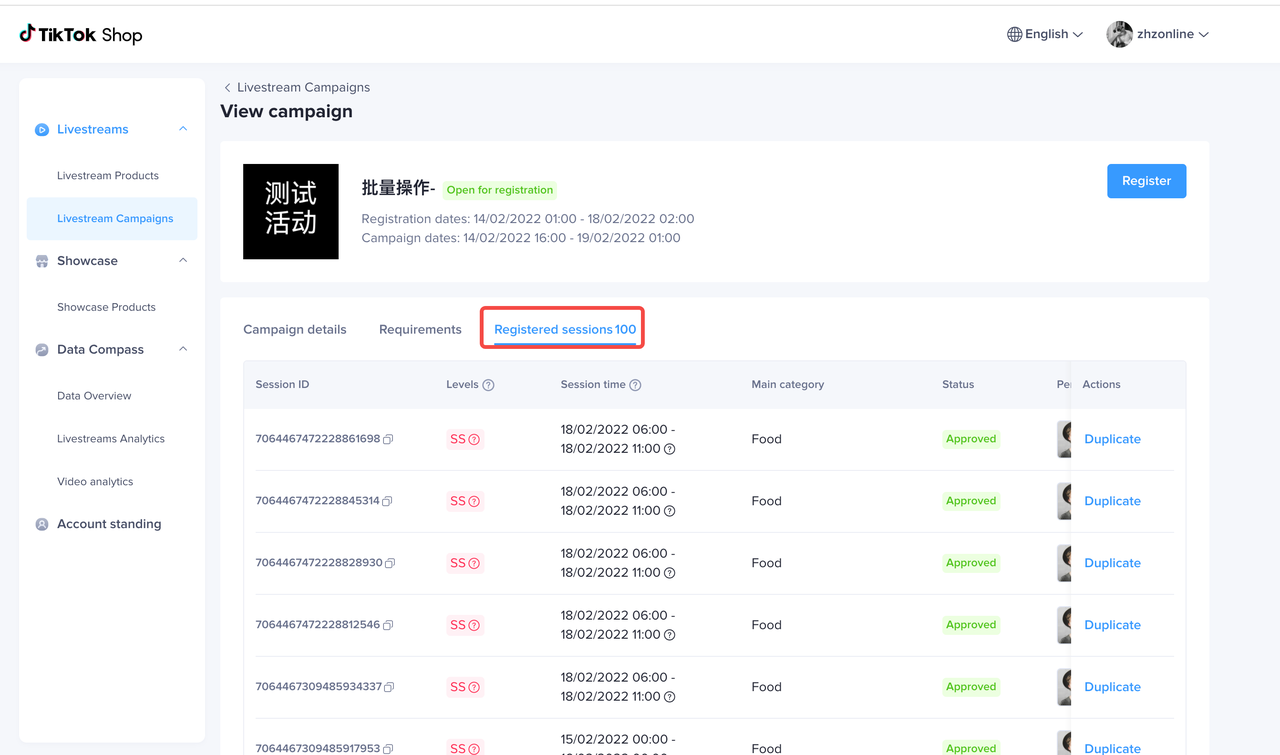
Registered Sessions
- Reminder:
- The registration information of the merchant and the related official account can be displayed to each other:
- You can see the registration session records in Streamer Desktop and the registration session records of the related official store in Seller Center
- You can see the registration session records in Seller Center and the registration session records of the related official account in Streamer Desktop;
- Display all the registration sessions of this creator in Streamer Desktop + the registration records of the sessions registered in Seller Center with the bounded shop as official account under the same campaign
- After the registration is successful, if the creators applies to withdraw from the campaign when this record is pending review, this record will still be reserved, but no operations can be performed.
- The registration information of the merchant and the related official account can be displayed to each other:
- Display information includes:
- Session ID
- Session Level
- Display the willingness level filled in by the merchant;
- Before the platform assesses the level, the level icon is grayed out. After the platform assesses the level, the corresponding level icon lights up. If the level assessed by the platform is inconsistent with the willingness level filled in by the merchant, the level assessed by the platform will be displayed. It will display the willingness level of the merchant to register when hovering over the level icon.
- Live Period:
- By default, the livestream time filled in by the merchant will be displayed
- If the platform has modified the live time, the modified live time from the platform will be displayed, and the time reported by the merchant will be displayed when hovering.
- Livestream Main Category
- Status
- Under review
- Approved
- Rejected: Hover to check the specific rejection reason
- Expired: Hover to check the specific rejection reason, possible reasons include:
- The registration livestream session has reached the end time of the campaign, and it will automatically be removed
- Removed by platform
- Merchants or creators voluntarily cancel the registration
- Photo material
- Platform merchandise support
- Gender
- Notes
- Registered time
- Registration resource: merchant or creator
Actions that can be done in the registration list:
- Actions for the registration sessions of the creator and the associated shop have the following restrictions:
- The sessions registered in Streamer Desktop can only be cancelled in Streamer Desktop
- The sessions registered in Seller Center can only be cancelled in Seller Center
- Cancel: Exit the campaign
- Creators can withdraw from the campaign when it is pending review
- If the session is registered in Streamer Desktop, this button can be clicked. After clicking, it will jump to the confirmation pop-up window, and after clicking the confirm button again, the registration status will be changed to Expired
- This button cannot be clicked if the session is registered in Seller Center
- Duplicate
- When the campaign is under registration, merchants can use the same information to register for other sessions of the same livestream campaign
- If the session is registered in Streamer Desktop, the button can be clicked, and after clicking, the registration page of the same live campaign will be opened, and the registration information that is the same as the original registration record will be automatically filled in
- This button cannot be clicked if the session is registered in Seller Center
- In the same campaign, the total number of registrations for merchants in Seller Center and Streamer Desktop cannot exceed 100