

Category Management
08/22/2023
What is Store Category Management?
Store Category Management is a feature in Seller Center that can be used by sellers to organize their products which share similar characteristics together into a single group. Apart from the default-system provided categories from TikTok Shop, sellers are able to customize their own categories to be more flexible in creating their own grouping of products.
Benefits of using Store Categories

How to create a Store Category?
Custom Category
Step 1
In Seller Center, go to the "Store" section and click on the "Category Management" tab, then click "Add category" to make a new customized store category. Under the column "Type", these custom categories will have "Customized" labeled to them.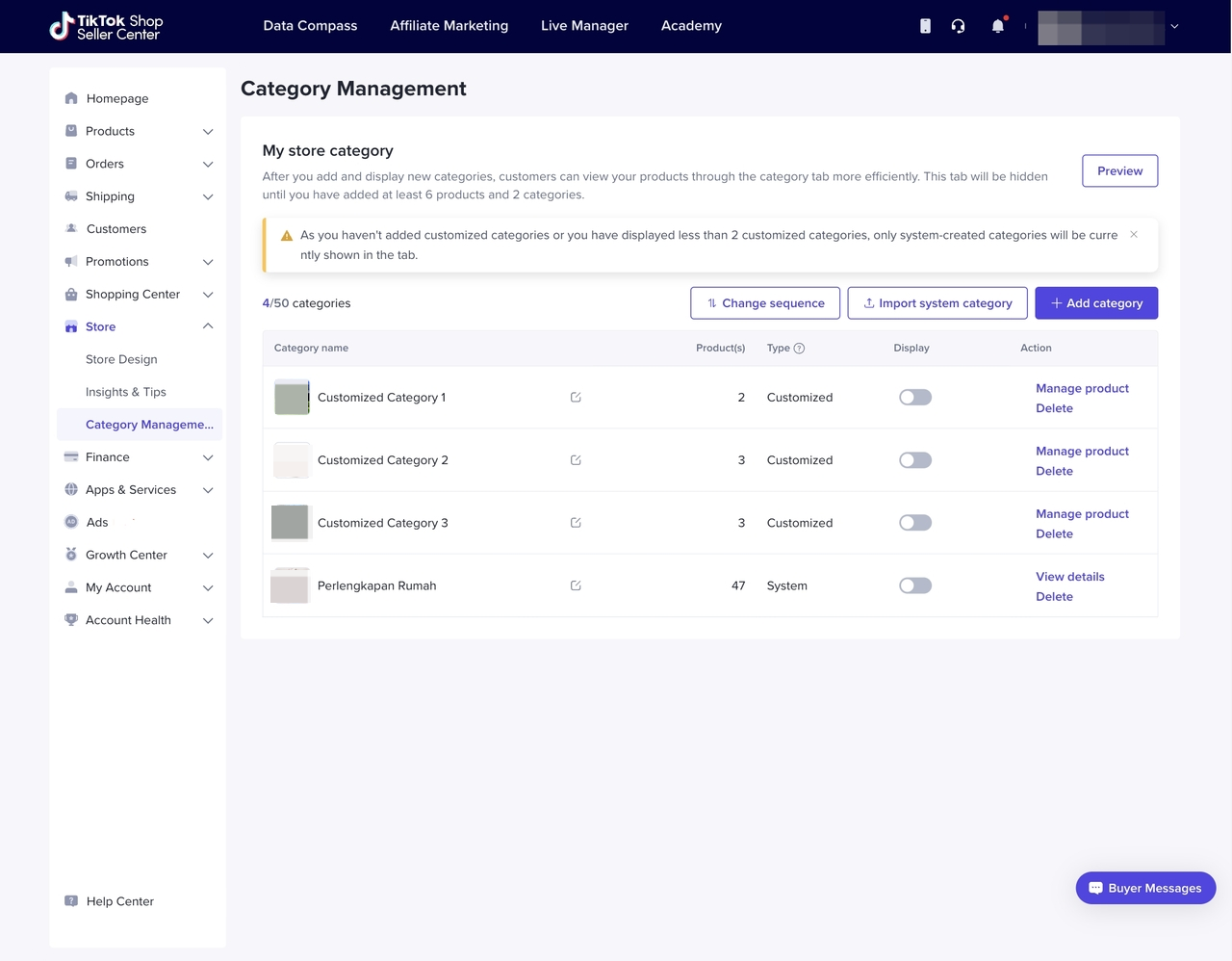
Step 2
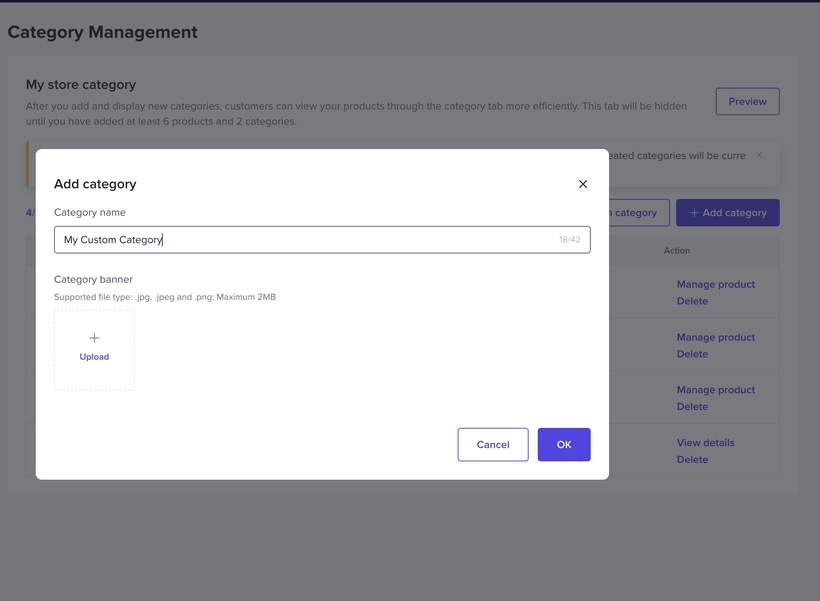
Under "Category name", write down the desired text to represent the customized category.Under "Category banner" choose a picture that will be used as the cover/thumbnail of the customized categories.
Once done, click "OK" to process the submission of the customized category.
Click "Cancel" if you would like to discard the creation of this customized category.
Step 3
Once customized category has been made, by default it will have 0 products inside of it. Click "Add product" on the specific category you would like to add products into or for existing products, click "Manage product" to manage the products inside of it.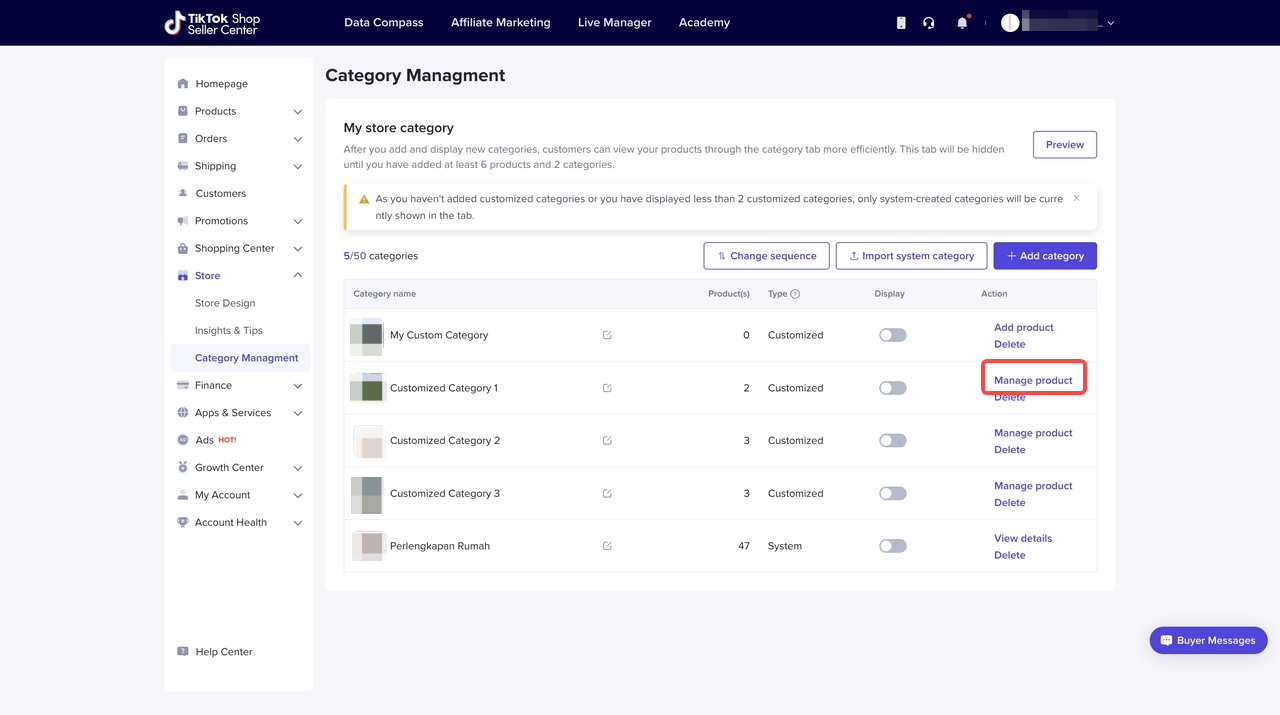
Step 4
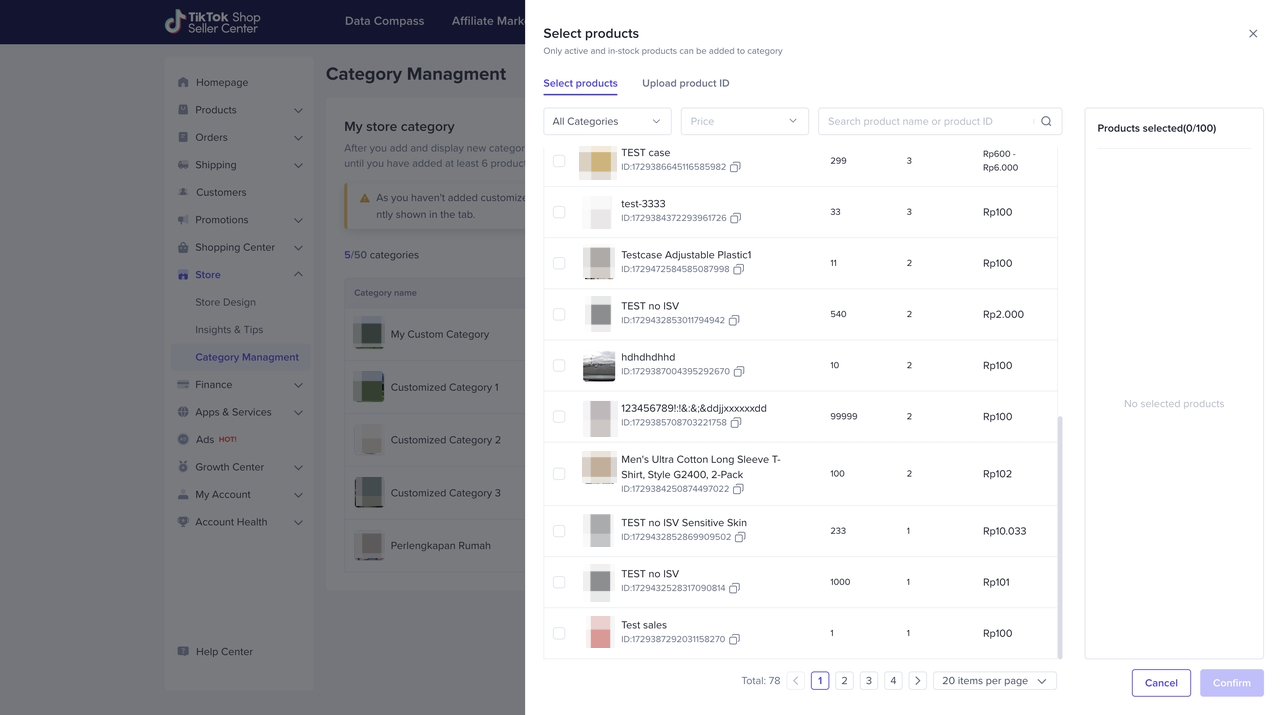
You will be redirected to the product selector screen and can choose the desired products that you want to group under that category.Once done, click "Confirm" to include the selected products into the category.
Step 5
After including the products, you can choose to display the categories or not by toggling on/off the toggle under the "Display" column for each category made.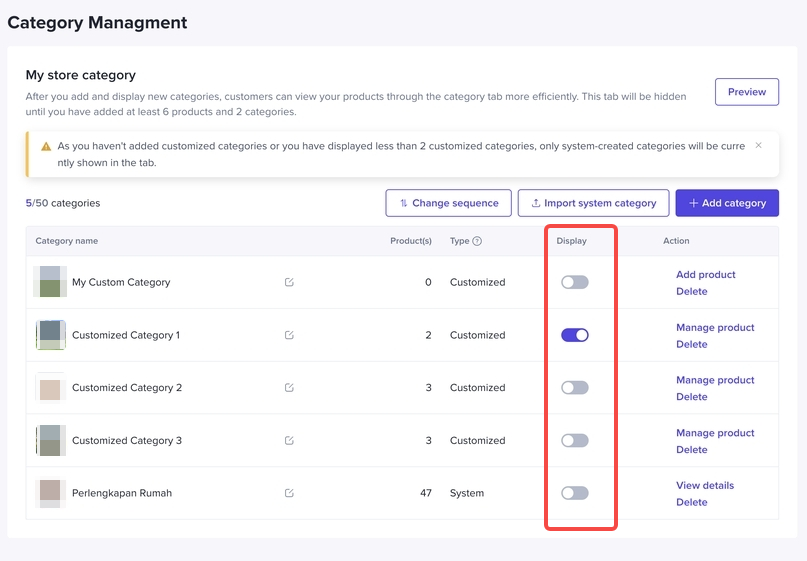
System Category
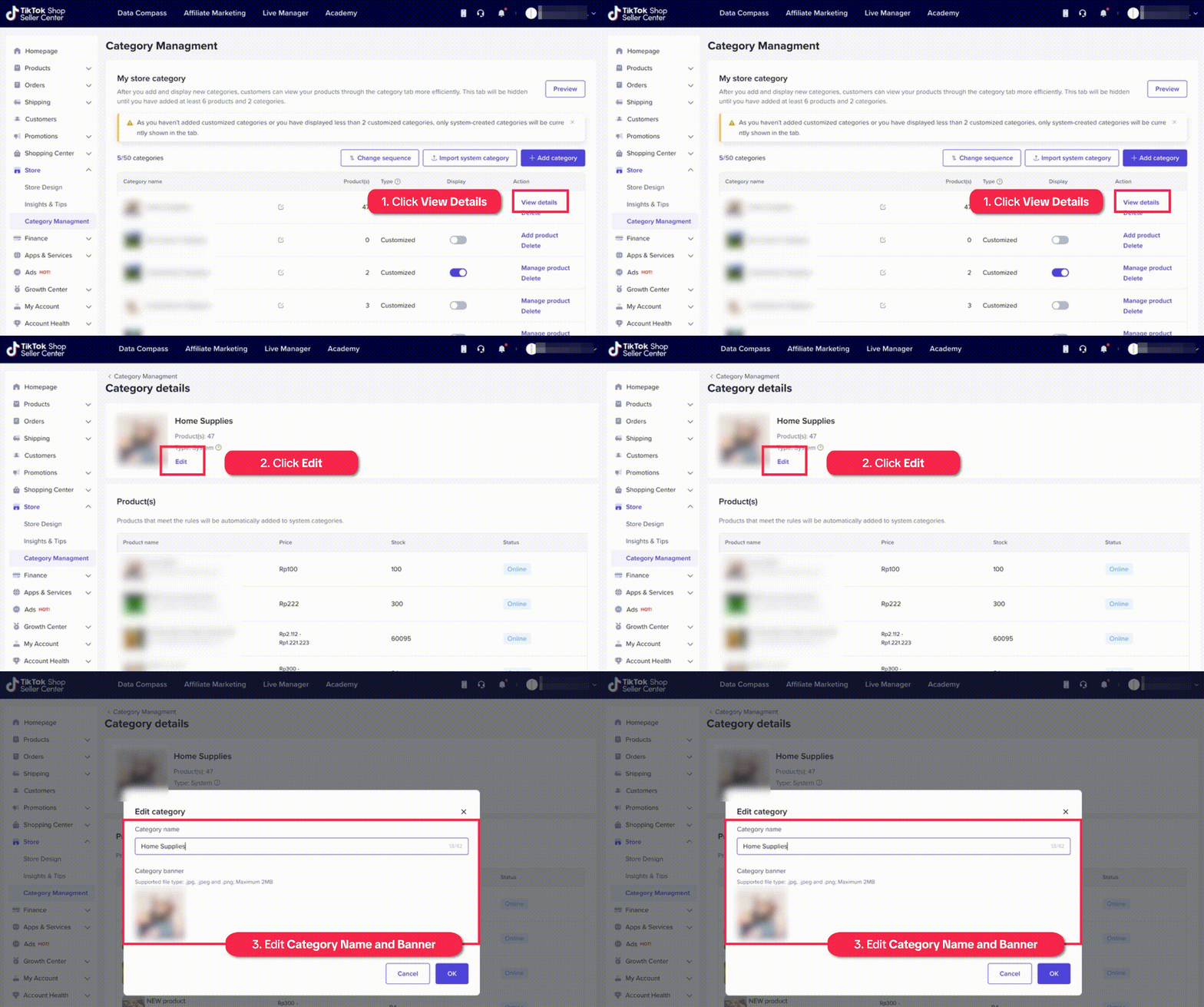
If you would rather use the system-default categories, click "Import system category" and choose from the available categories to be included in category management. Products under the category will be automatically included based on the imported category chosen and not editable. Under the column "Type", these imported categories will have "System" labeled to them.For the title/naming of the category and its image banner are still customizable through clicking "View details" and clicking "Edit".

FAQ
- Why is my store page not showing the "Categories" tab?
- I have made some customized categories. Why is my store page showing default categories instead?