

ตั้งค่าคำถามที่พบบ่อยพร้อมการตอบกลับอัตโนมัติ
28/03/2566
คำถามที่พบบ่อยคืออะไร
คำถามที่พบบ่อยคือ ชุดคำถามที่ลูกค้ามักจะถามฝ่ายบริการลูกค้าบ่อยๆ ในชุดคำถามที่มีคำถามและคำตอบคล้ายๆกัน
แนวคิด | ความหมาย | ตัวอย่าง |
คำถาม | คือคำถามที่ลูกค้าปรึกษากับฝ่ายบริการลูกค้าของผู้ขาย | "ใช้เวลาในการจัดส่งสินค้าเท่าไหร่" |
คำถามที่คล้ายกัน | คำถามที่คล้ายกันที่ลูกค้าถามฝ่ายบริการลูกค้าของผู้ขาย | "ฉันจะได้รับสินค้าที่ฉันซื้อเมื่อไหร่" |
คำตอบ | คือคำตอบทั่วไปที่ฝ่ายบริการลูกค้าของผู้ขายตอบคำถามนี้ | "สวัสดีคุณลูกค้า ระยะเวลาในการได้รับสินค้าจะขึ้นอยู่กับพื้นทีปลายทาง สภาพอากาศ ฯลฯ หลังการจัดส่ง อาจใช้เวลา 3-5 วันในการจัดส่งไปยังพื้นที่ธรรมดา และ 5-7 วันในการจัดส่งไปยังพื้นที่ห่างไกล" |
เพื่อความสะดวกของผู้ขาย แพลตฟอร์มจึงได้จัดเตรียมคำถามที่พบบ่อยและคำตอบที่แนะนำไว้ล่วงหน้าจำนวนหนึ่ง รวมถึง การสนทนาสั้นๆ การบริการก่อนการขาย โลจิสติกส์ บริการหลังการขาย และปัญหาอื่นๆ ผู้ขายจะสามารถปรับและเพิ่มข้อมูลตามสภาพความเป็นจริงของร้านค้าของตน เพื่อเพิ่มประสบการณ์การบริการลูกค้าให้สูงขึ้น
จะนำคำถามที่พบบ่อยมาใช้อย่างไร?
ในปัจจุบัน ฐานข้อมูลคำถามที่พบบ่อยจะมี 2 สถานการณ์การใช้งาน โดยแพลตฟอร์มจะมีการปรับแต่งและเพิ่มสถานการณ์เข้ามาในระบบเพิ่มเติมในอนาคต
รูปแบบการตั้งค่า | ตัวอย่าง |
| 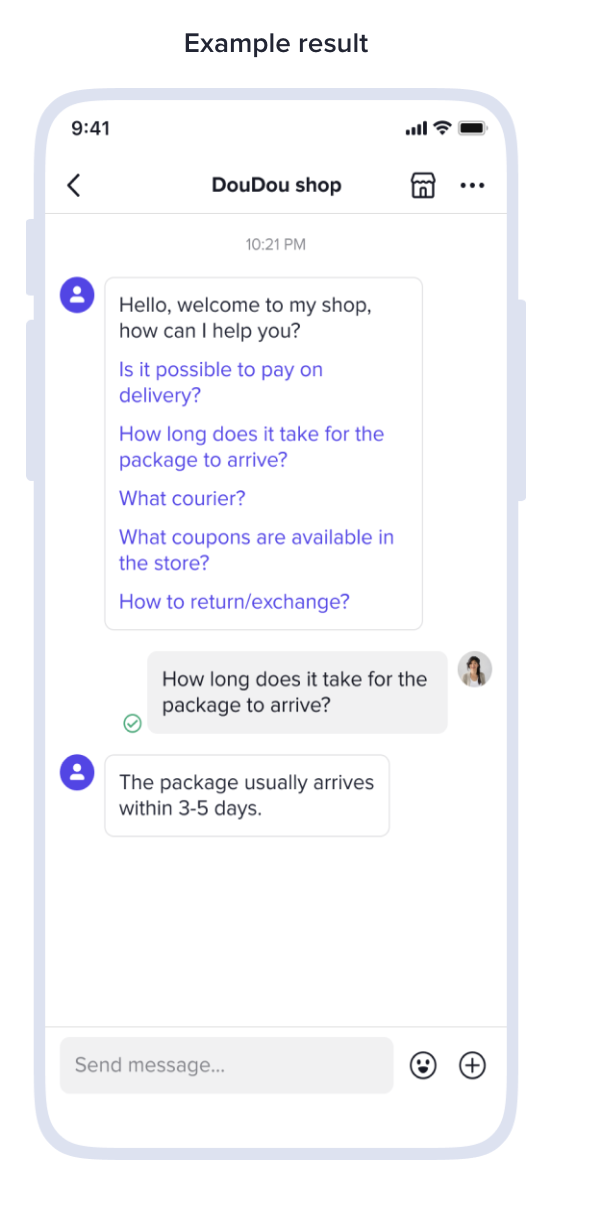 |
| ตัวอย่าง 1 เมื่อลูกค้าพิมพ์คำที่ตั้งค่าไว้ เช่น คำว่า hello ระบบจะขึ้นข้อความคำตอบที่ตั้งไว้ รอให้ร้านค้ากด ส่ง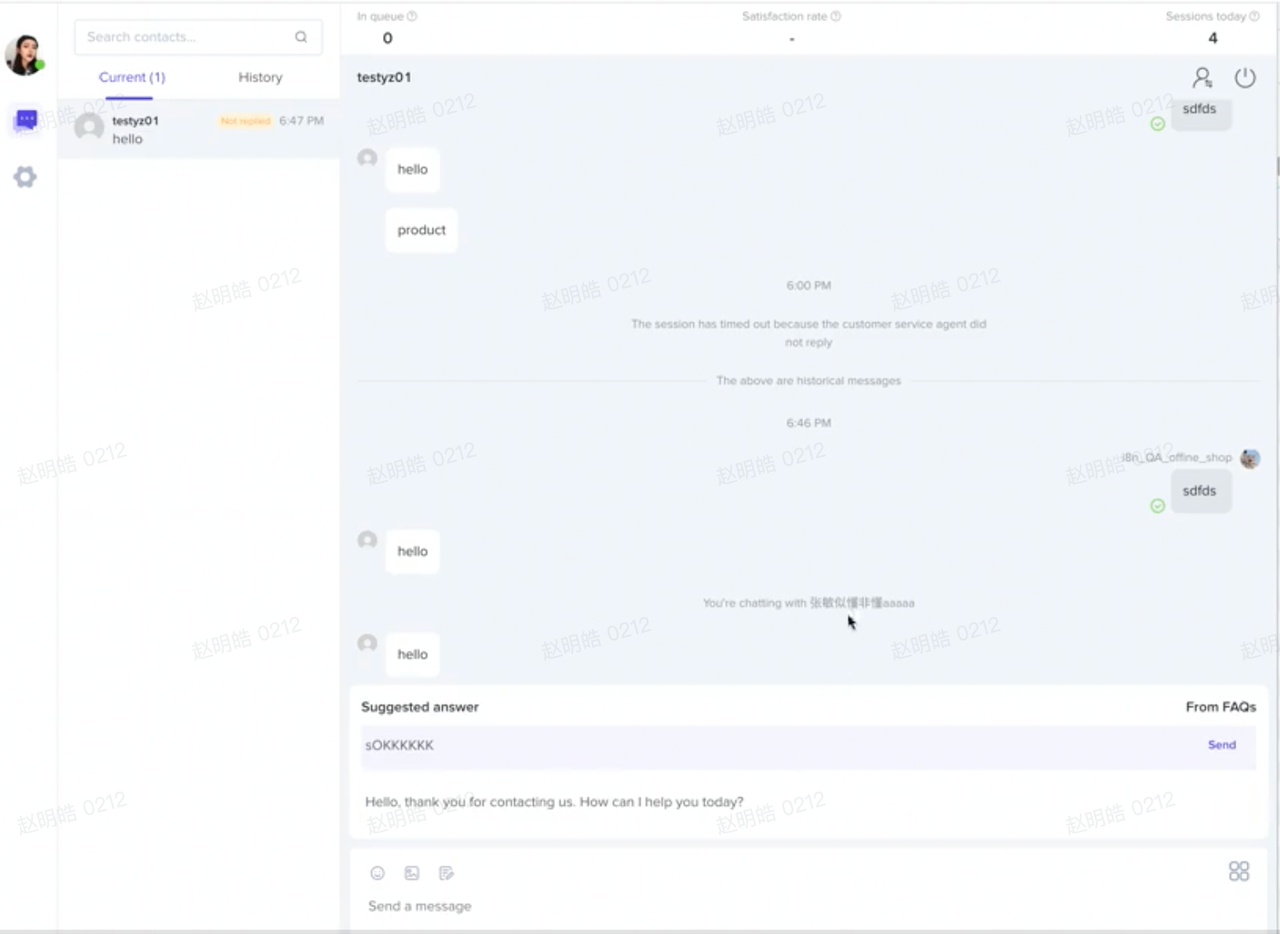 ตัวอย่าง 2 เมื่อร้านค้าพิมพ์คำที่ตั้งค่าไว้ เช่น คำว่า christmas ระบบจะขึ้นข้อความคำตอบที่ตั้งค่าไว้และเกียวข้องกับคีย์เวิรด์นั้นๆ รอให้ร้านค้ากด ส่ง ตัวอย่าง 2 เมื่อร้านค้าพิมพ์คำที่ตั้งค่าไว้ เช่น คำว่า christmas ระบบจะขึ้นข้อความคำตอบที่ตั้งค่าไว้และเกียวข้องกับคีย์เวิรด์นั้นๆ รอให้ร้านค้ากด ส่ง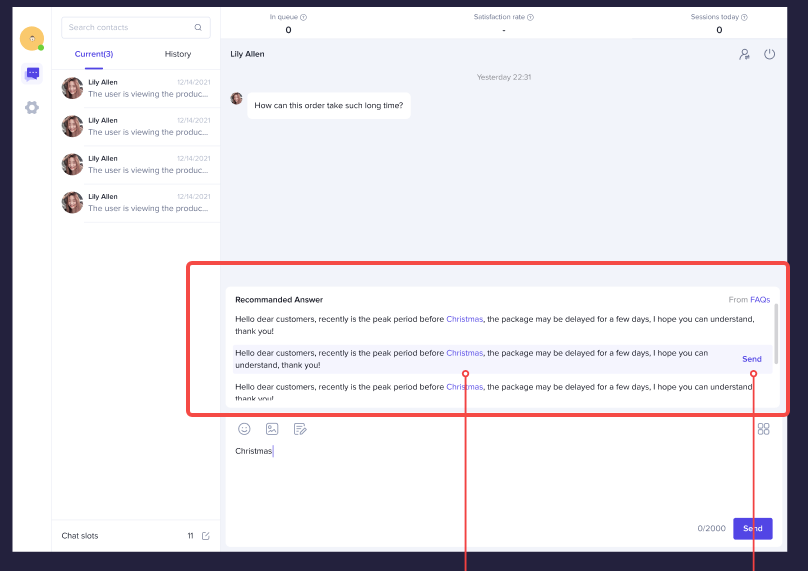 |
วิธีตั้งค่าคำถามที่พบบ่อย
โดยร้านค้าสามารถเข้าสู่เมนูการตั้งค่าคำถามที่พบบ่อยพร้อมการตอบกลับอัตโนมัติได้จากหน้าหลัก ศูนย์ผู้ขาย > มุมขวาล่างของหน้าจอ "ข้อความจากลูกค้า" > กดคลิกเข้าไป เลือกเมนู "คำถามที่พบบ่อย"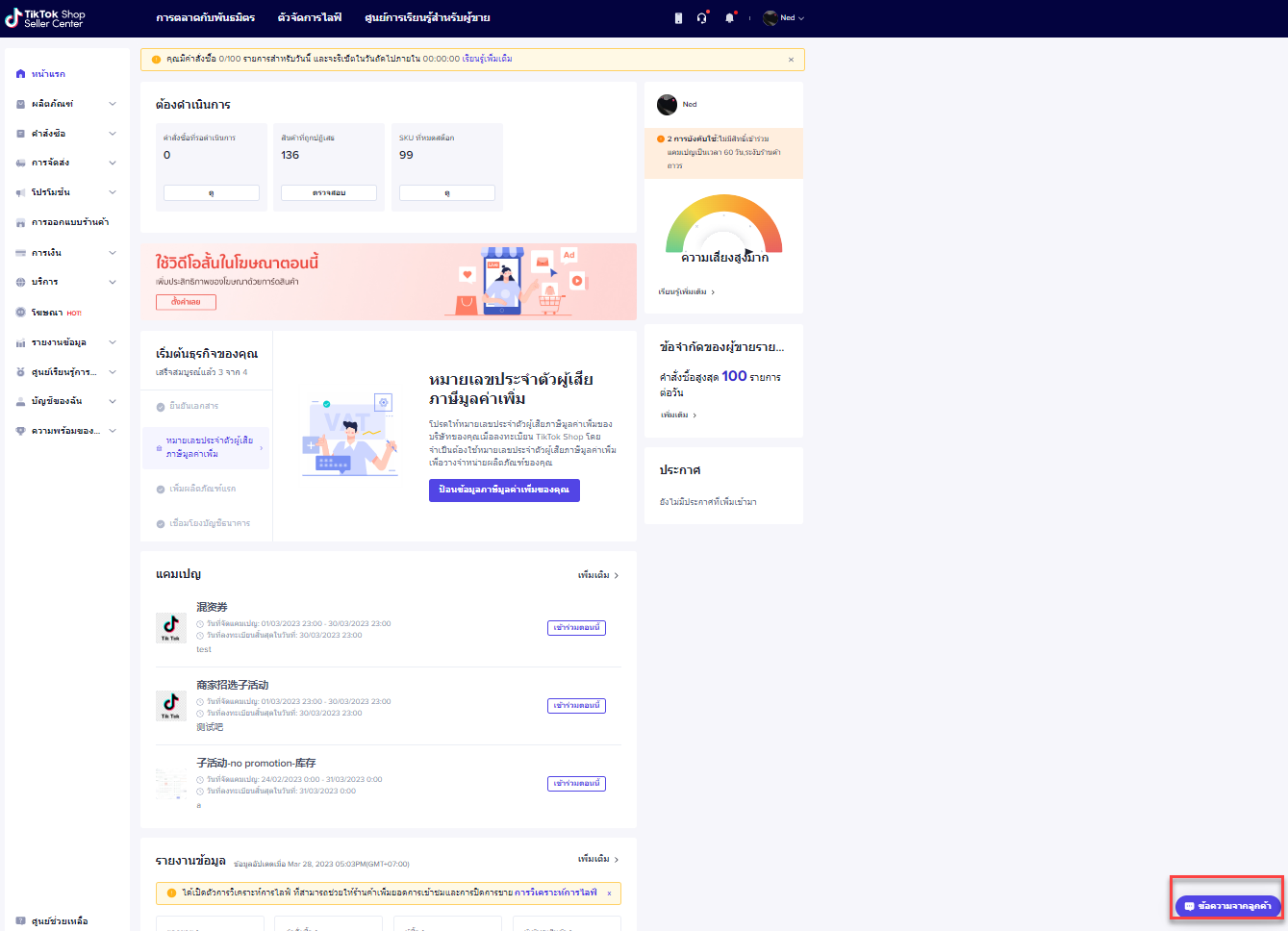
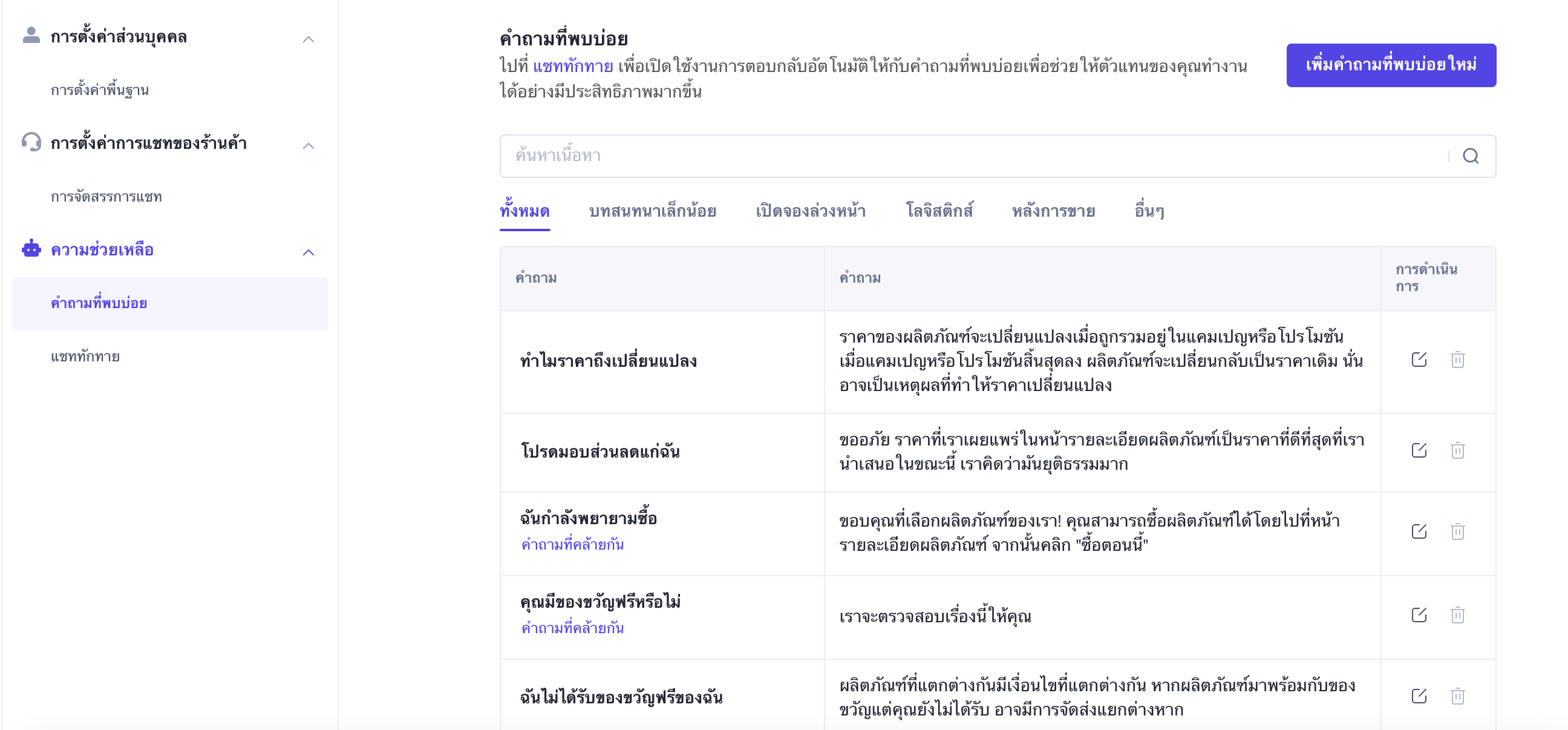
สิทธิ์ในการตั้งค่า
"เจ้าของบัญชี" และ "ผู้ดูแลระบบหลักในบัญชีย่อย" จะได้รับอนุญาตให้ตั้งค่าคำถามที่พบบ่อย แต่ตัวแทนบริการลูกค้าจะไม่มีสิทธิ์ดังกล่าว
ประเภทของคำถาม
คำถามที่พบบ่อยนั้นแบ่งออกเป็น 5 ประเภทตามสถานการณ์ต่างๆ ดังนี้;
- การสนทนาสั้นๆ
- บริการก่อนการขาย
- โลจิสติกส์
- บริการหลังการขาย
- อื่นๆ
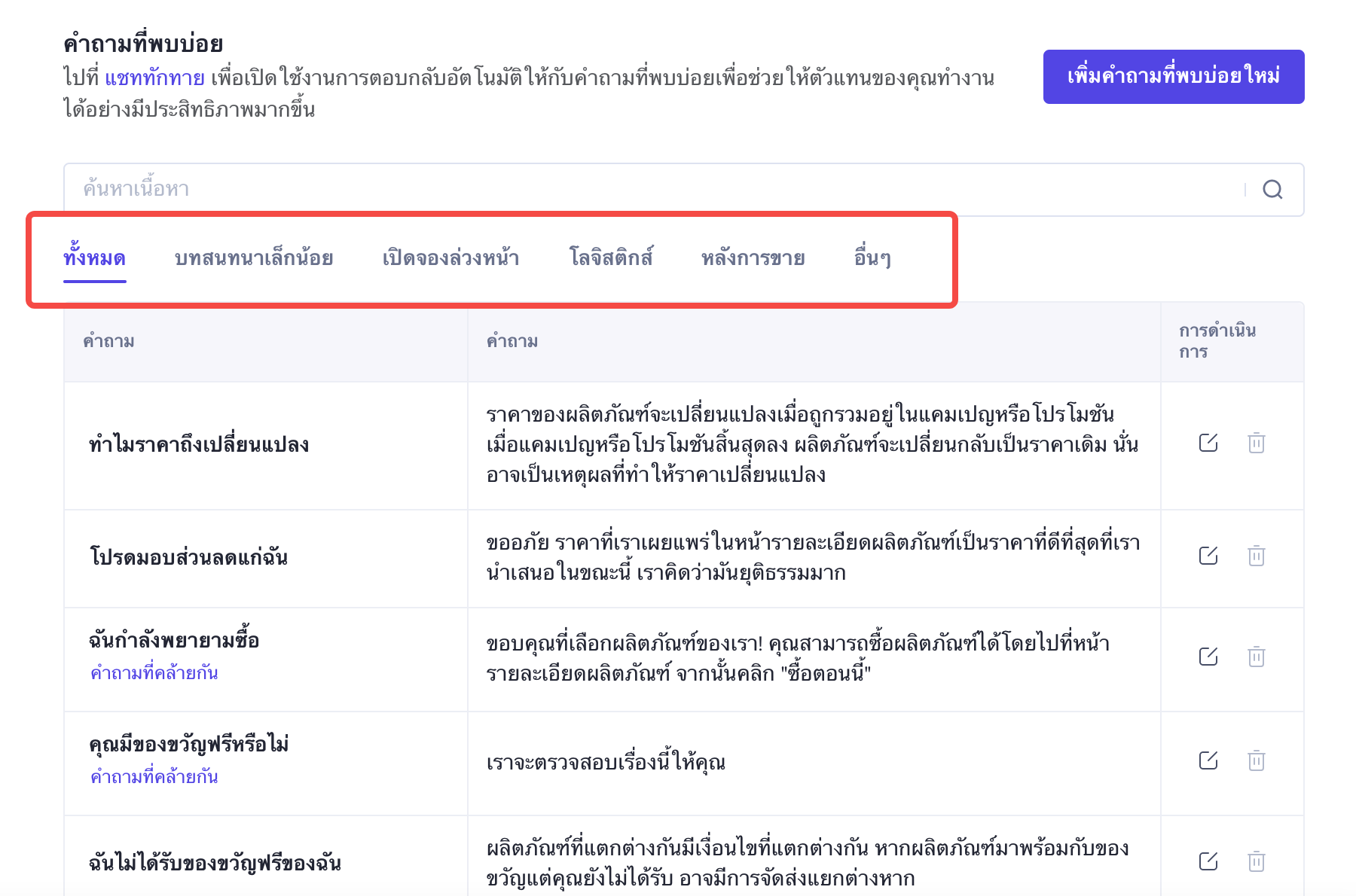
การปรับคำถามและคำตอบของแพลตฟอร์มที่กำหนดไว้ล่วงหน้า
แพลตฟอร์มได้มีการตั้งค่าชุดคำถามและคำตอบที่กำหนดไว้เบื้องต้นโดยระบบให้กับผู้ขาย และผู้ขายสามารถปรับชุดคำตอบให้ตรงกับสถานการณ์จริงของแต่ละร้านค้าได้เอง เพื่อเพิ่มประสบการณ์การช็อปปิ้งให้กับลูกค้า
การดำเนินการ | ตัวอย่าง |
ค้นหาและระบุคำตอบ: เราสามารถใช้การค้นหาด้วยคีย์เวิร์ดเพื่อหาคำถาม-คำตอบ ที่เกี่ยวข้องที่กำหนดไว้ล่วงหน้าโดยระบบ | 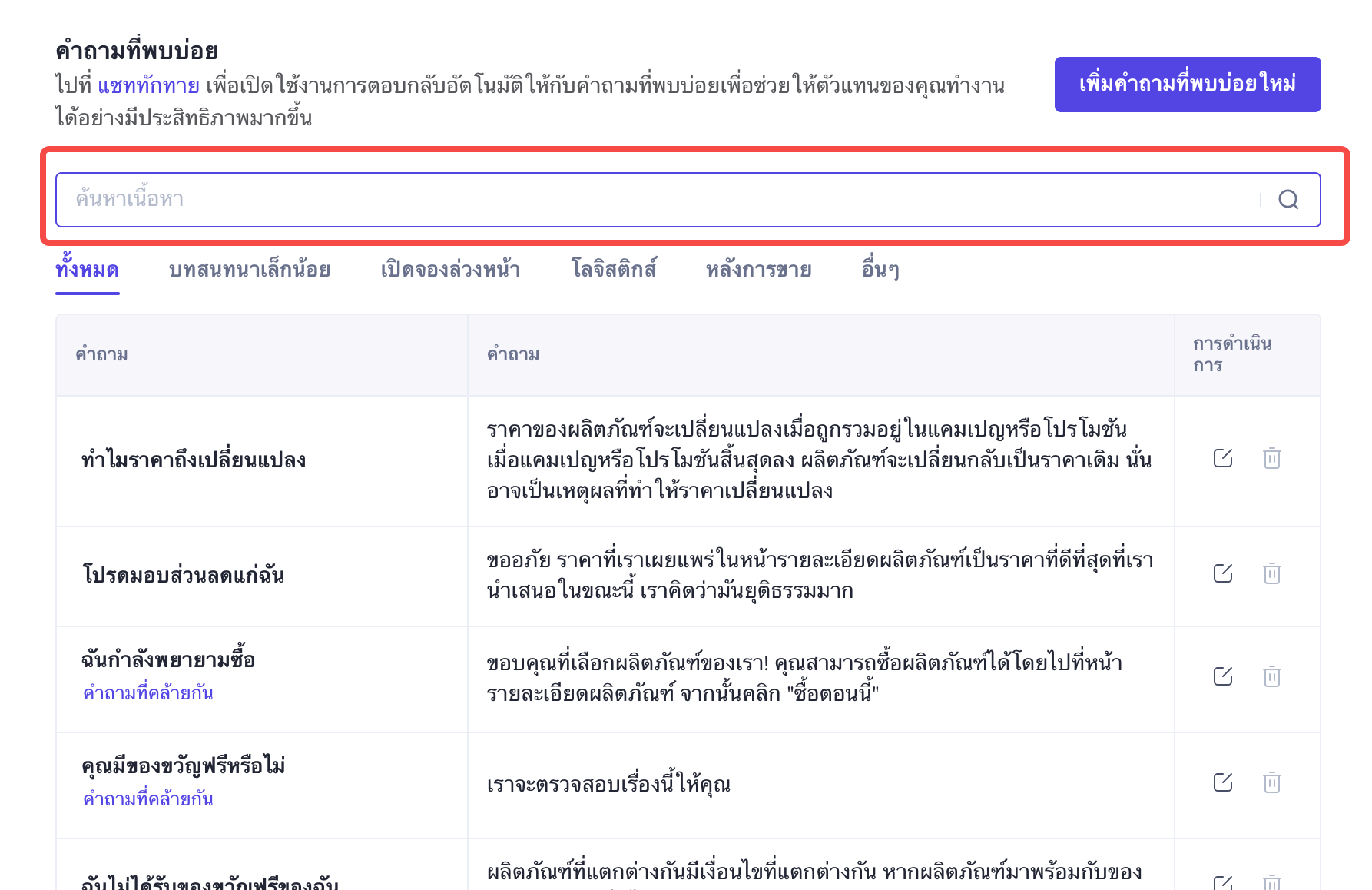 |
ปรับคำตอบให้ตรงกับคำถาม:
| 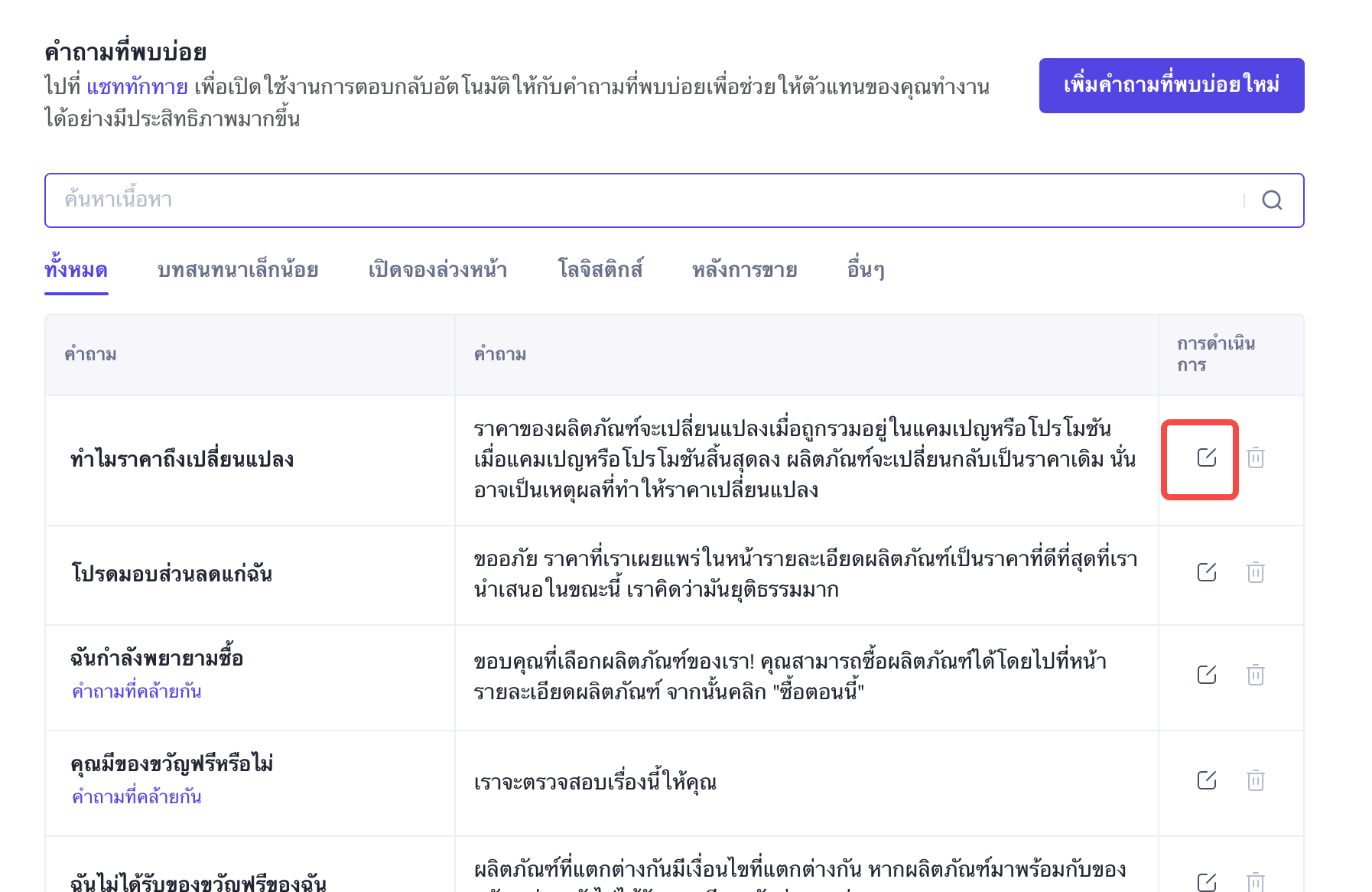 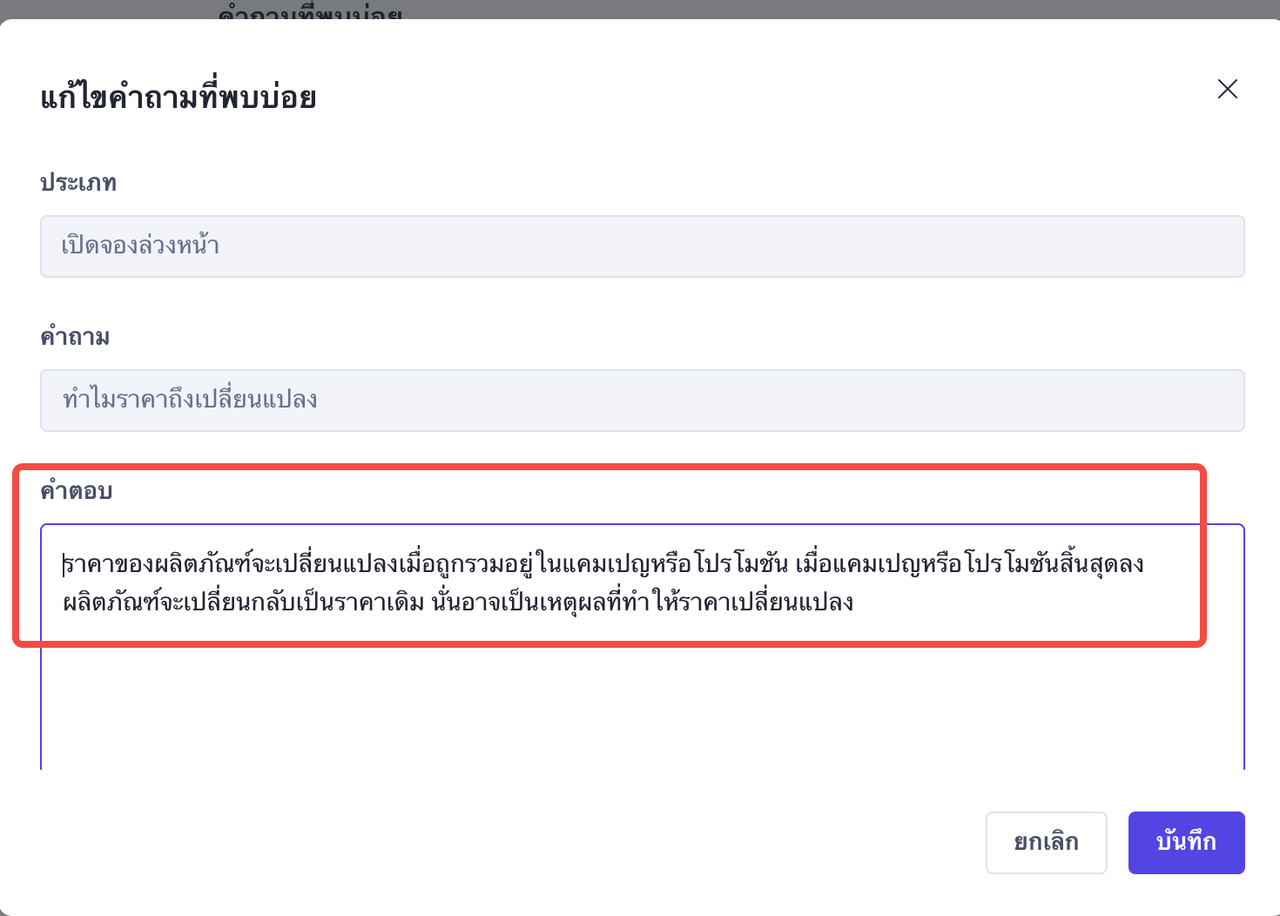 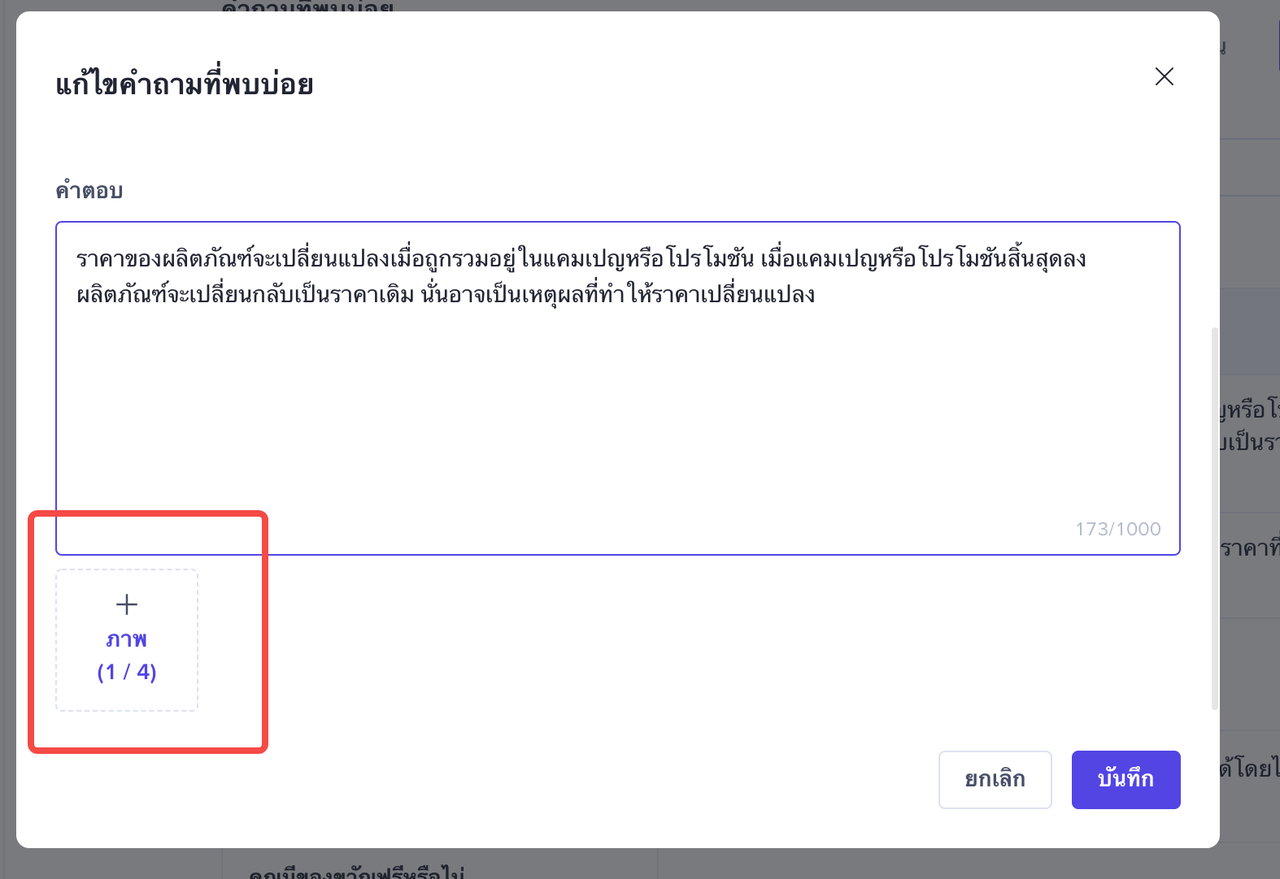 |
คำตอบที่กำหนดไว้ล่วงหน้าของแพลตฟอร์มนั้นเป็นสากลและอาจไม่สามารถแก้ปัญหาเฉพาะของร้านค้าได้อย่างสมบูรณ์แบบ ดังนั้น TikTok Shop แนะนำเป็นอย่างยิ่งให้ผู้ขายทำการปรับคำตอบตามสถานการณ์จริงของสินค้าที่จำหน่ายในร้านค้า โลจิสติกส์ และเงื่อนไขอื่นๆ เพื่อช่วยให้ตอบคำถามได้อย่างถูกต้องและแก้ปัญหาได้ดียิ่งขึ้น
ตัวอย่างเช่น: ลูกค้าอาจถามว่ามีการแจกของหรือไม่ และจะรับของแจกฟรีนั้นได้อย่างไร เพื่อให้แน่ใจถึงความครอบคลุมของคำตอบ แพลตฟอร์มจะแสดงคำตอบให้ "ขอเวลาค้นหาคำตอบนี้ให้คุณ"
สถานการณ์การปรึกษาลูกค้า | คำถาม | คำตอบที่แพลตฟอร์มกำหนดไว้ล่วงหน้า | คำตอบที่ปรับโดยผู้ขาย (คำตอบจะถูกตั้งตามสถานการณ์จริงของของร้านค้า) |
มีของแจกหรือไม่ และจะรับของแจกนั้นได้อย่างไร | คุณมีของขวัญฟรีหรือไม่ | เราจะตรวจสอบเรื่องนี้ให้คุณ | โปรดตั้งใจรับชมไลฟ์สดของเรา ซึ่งจะมีการแจกรางวัล หรือ ขออภัย ปัจจุบันเราไม่มีรางวัลสำหรับผลิตภัณฑ์นี้ แต่ผลิตภัณฑ์นี้กำลังลดราคาอยู่ในตอนนี้ |
การเพิ่มคำถามและคำตอบใหม่
การดำเนินการ | ตัวอย่าง |
สร้างคำถามใหม่: คลิกปุ่ม "เพิ่มคำถามที่พบบ่อยใหม่" | 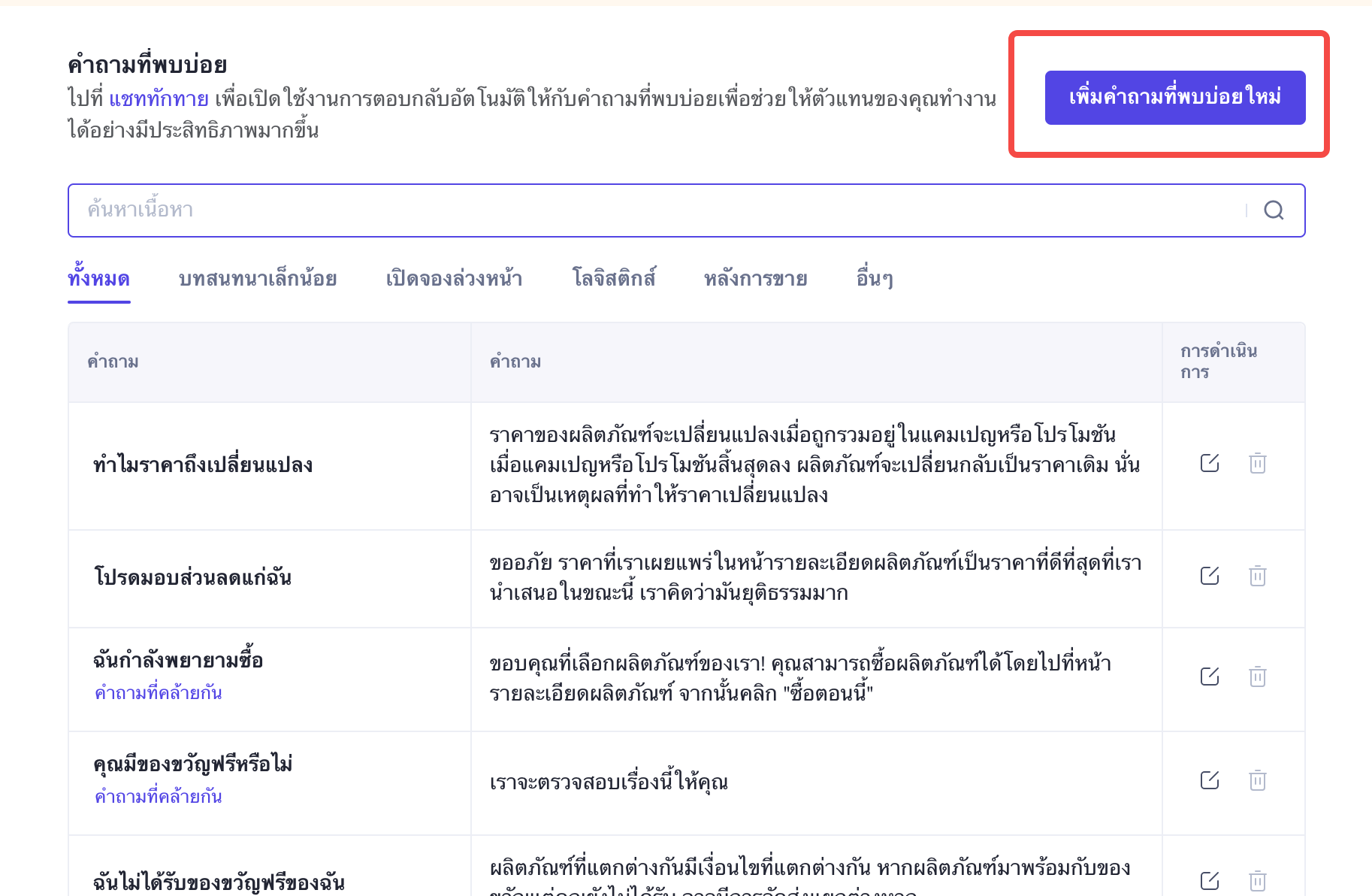 |
แก้ไขคำถามและคำตอบใหม่:
| 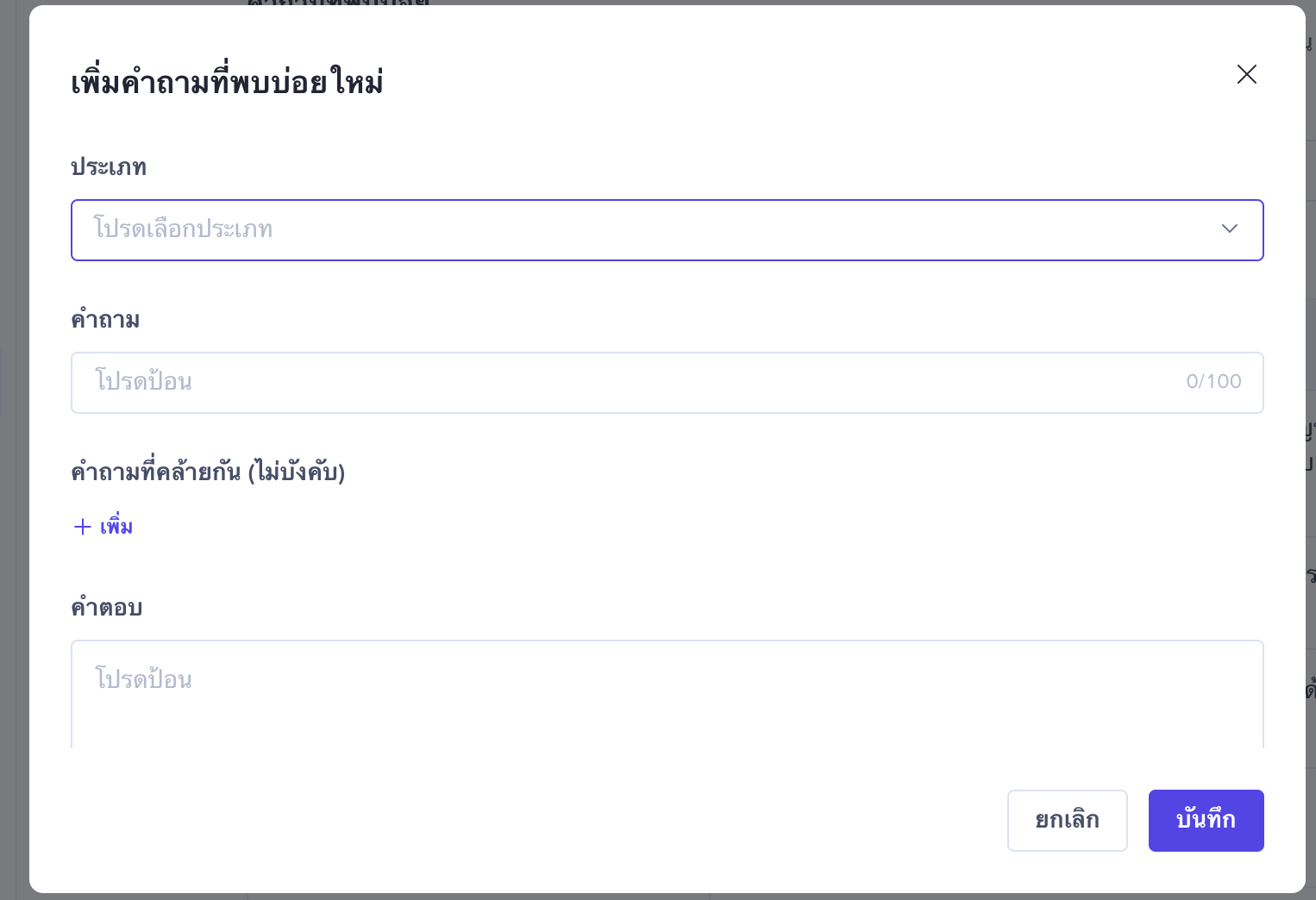 |
วิธีตั้งค่าการ์ดคำถามที่พบบ่อย
เครื่องมือแชท > ความช่วยเหลือ > แชททักทาย
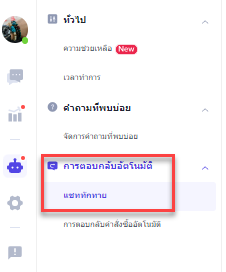
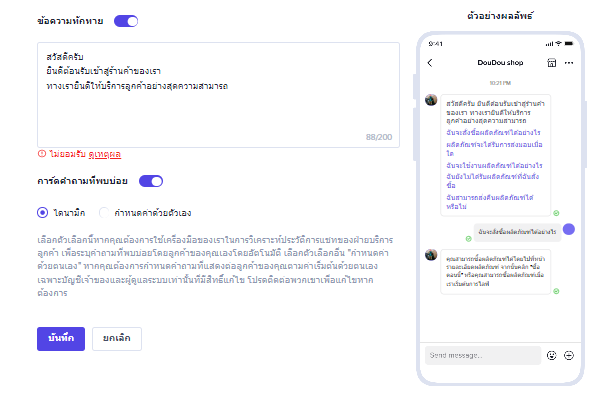
เมื่อเข้าสู่เมนูนี้แล้ว ร้านค้าจะสามารถเริ่มตั้งค่าข้อความทักทายและการ์ดคำถามที่พบบ่อยของร้านค้า
สิทธิ์ในการตั้งค่า
"เจ้าของบัญชี" และ "ผู้ดูแลระบบหลักในบัญชีย่อย" จะได้รับอนุญาตให้ตั้งค่าคำถามที่พบบ่อย แต่ตัวแทนบริการลูกค้าจะไม่มีสิทธิ์ดังกล่าวผลลัพธ์ของการตั้งค่าข้อความทักทายและการ์ดคำถามที่พบบ่อย
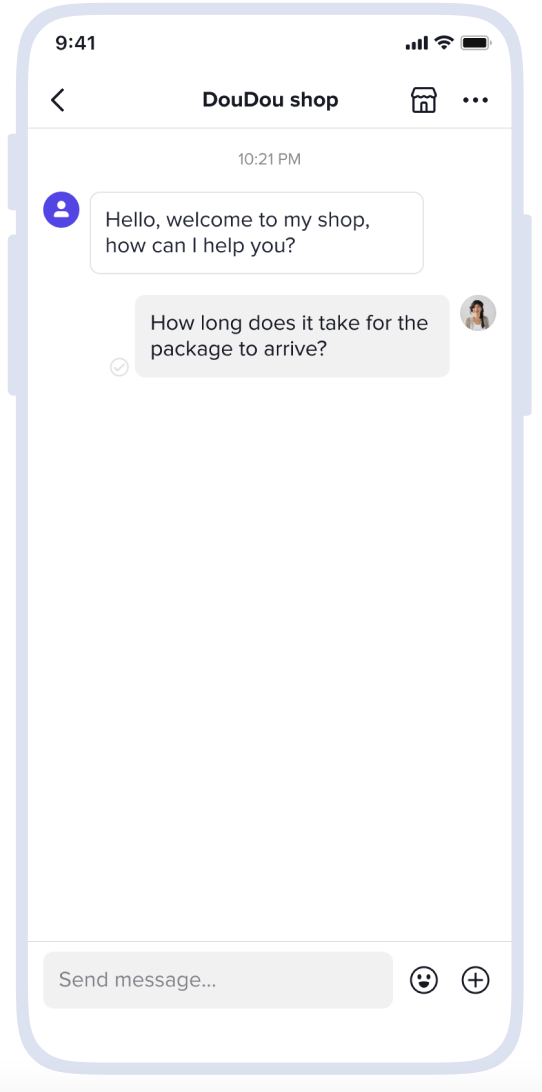
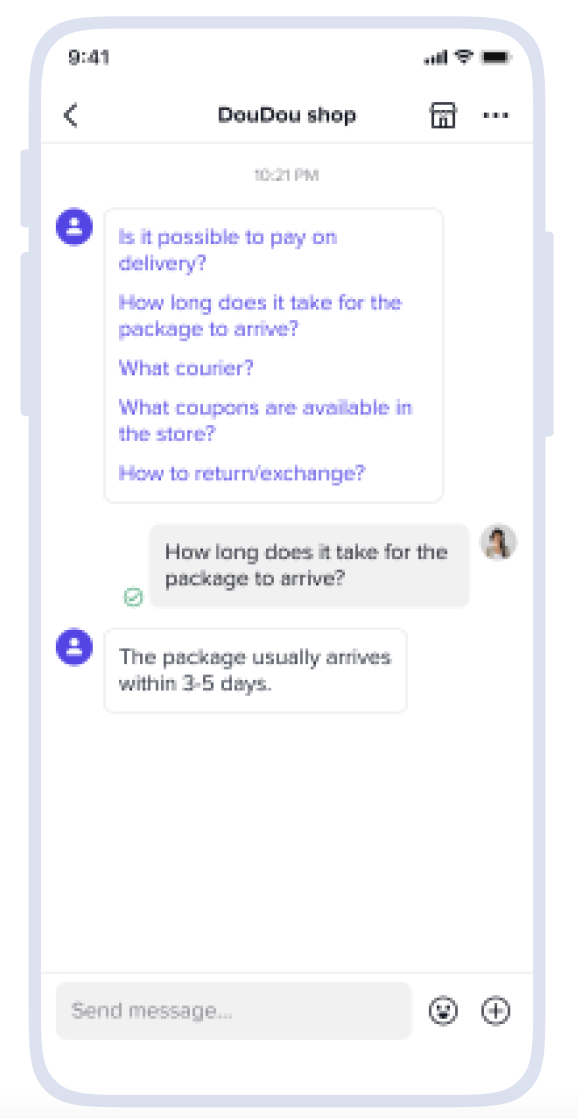
แชททักทายเท่านั้น | สร้างการ์ดคำถามที่พบบ่อยเท่านั้น | การตั้งค่าพร้อมกัน |
 |  | 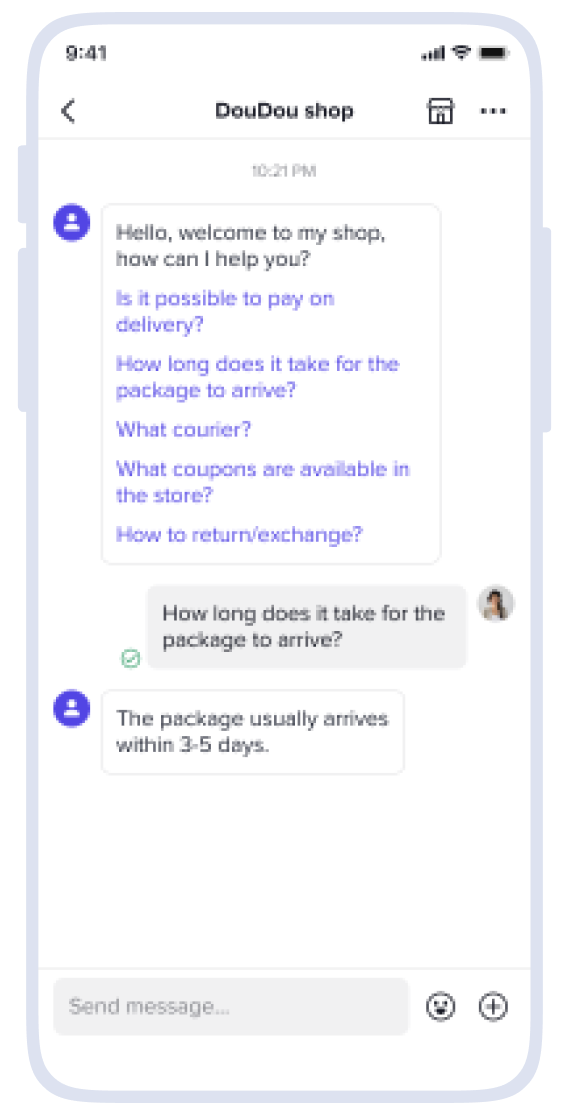 |
สร้าง ข้อความทักทาย
การดำเนินการ | ตัวอย่าง |
ป้อนข้อความทักทาย: คลิก เปิดสวิตช์ ข้อความทักทาย เพื่อป้อนข้อความทักทาย | 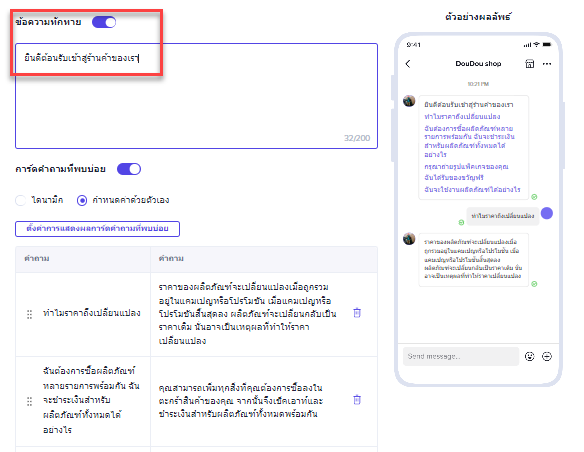 |
สร้างการ์ดคำถามที่พบบ่อย
การดำเนินการ | ตัวอย่าง |
วิธีการกำหนดค่าการ์ดคำถามที่พบบ่อยมี 2 วิธี คือ
| 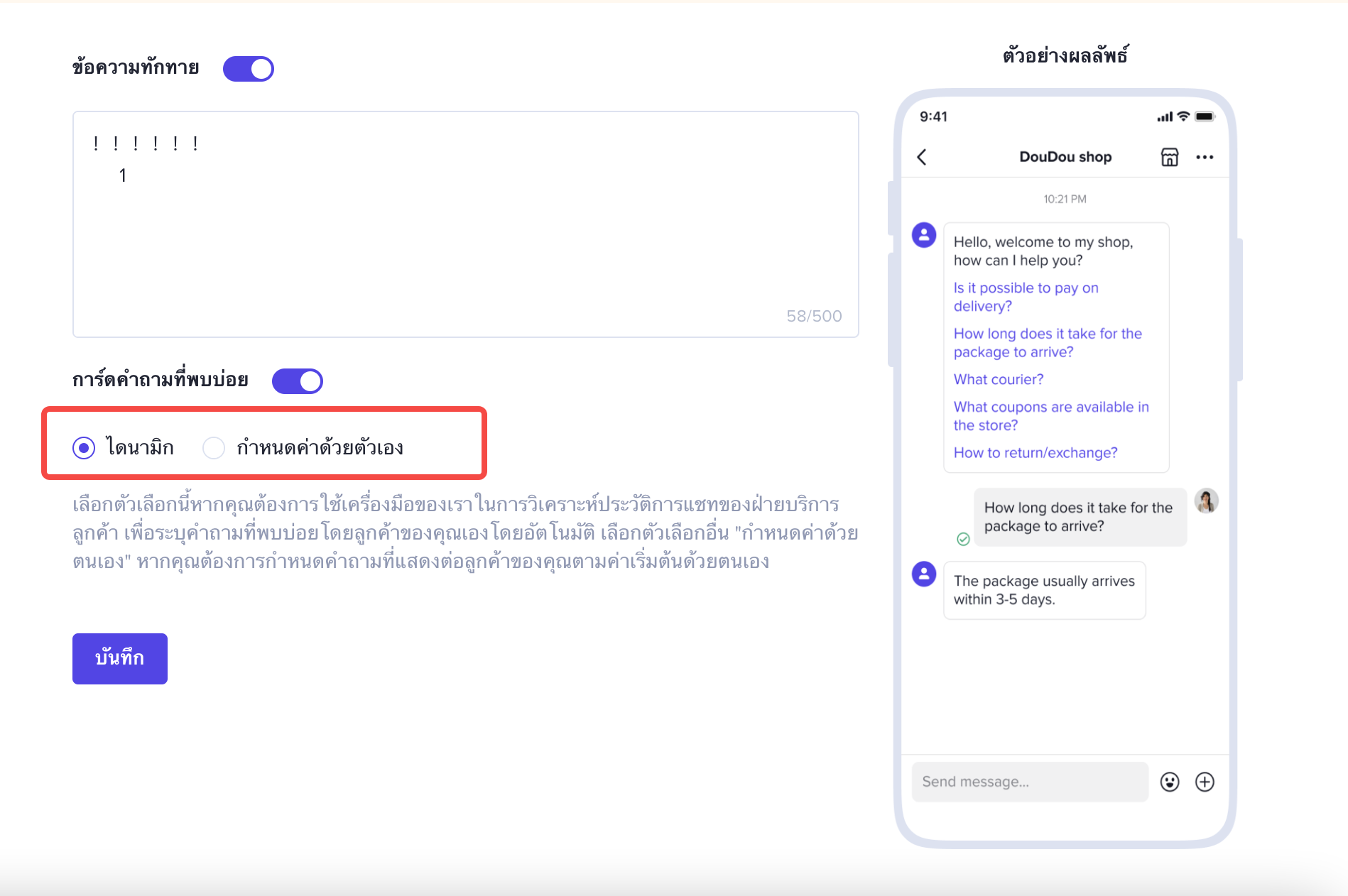 |
หากคุณเลือกไดนามิก: ผู้ขายไม่ต้องทำการตั้งค่าใดๆ และแพลตฟอร์มจะกำหนดค่าแบบไดนามิกโดยอัตโนมัติ | 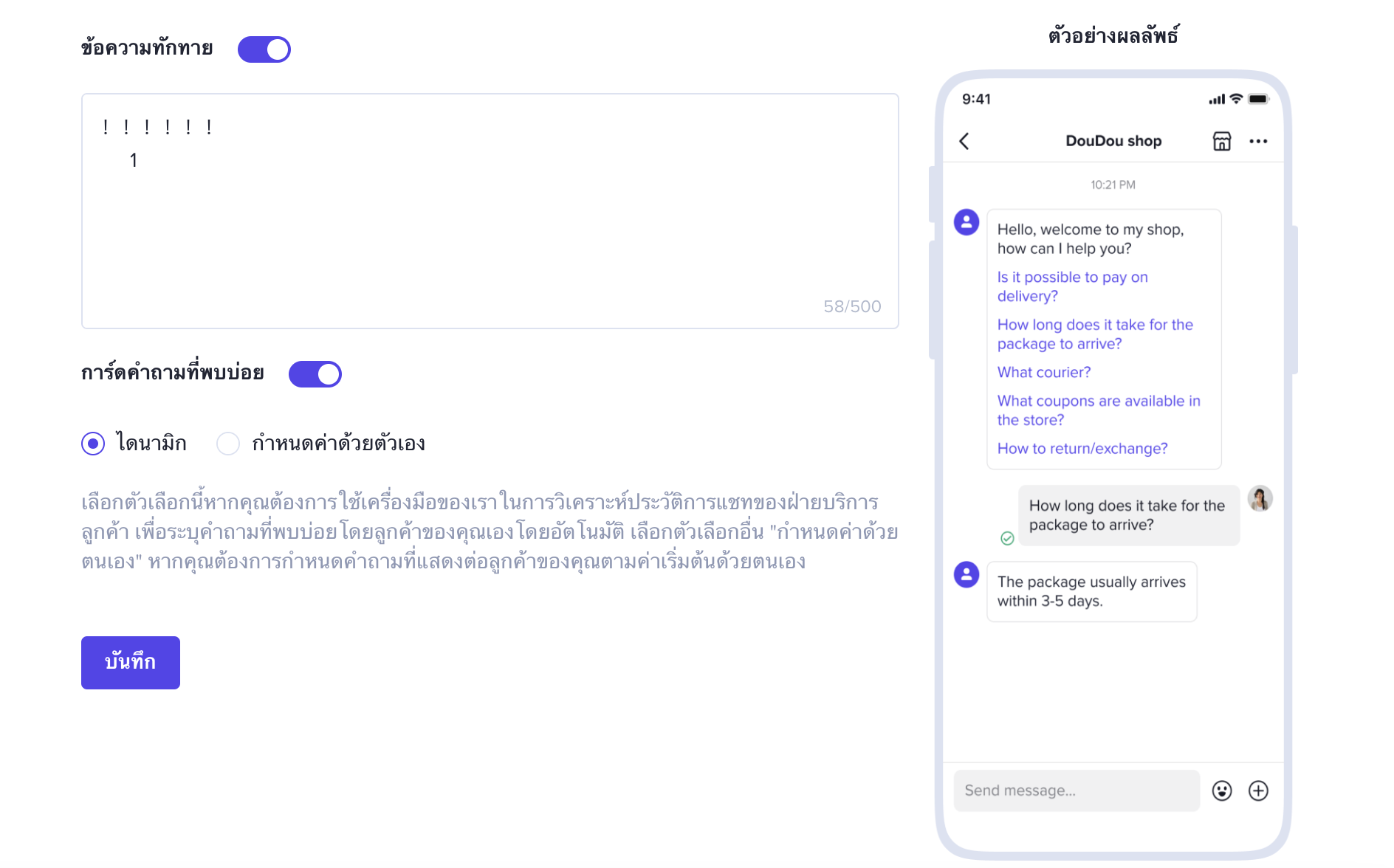 |
หากคุณเลือกที่จะกำหนดค่าเอง:
| 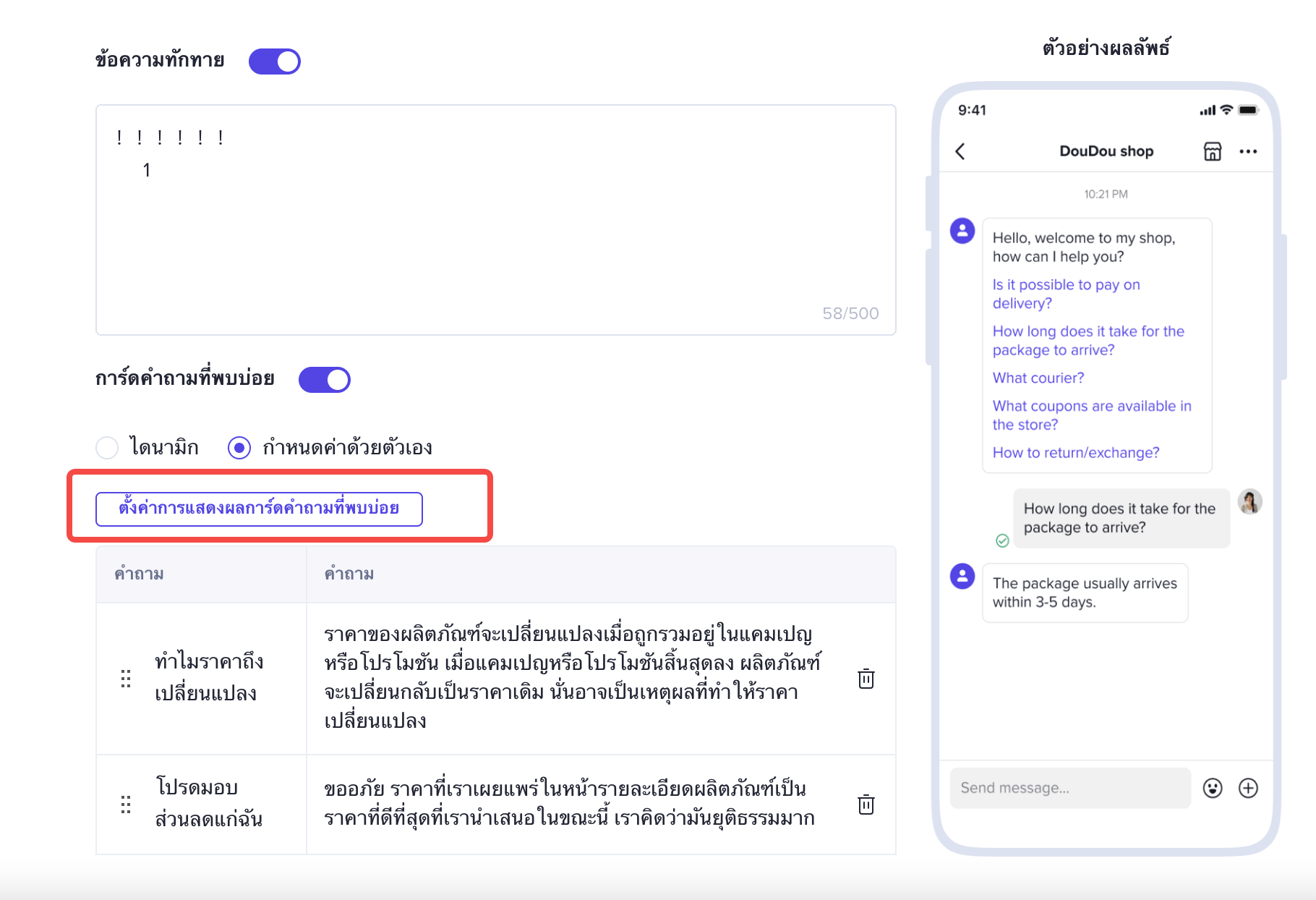 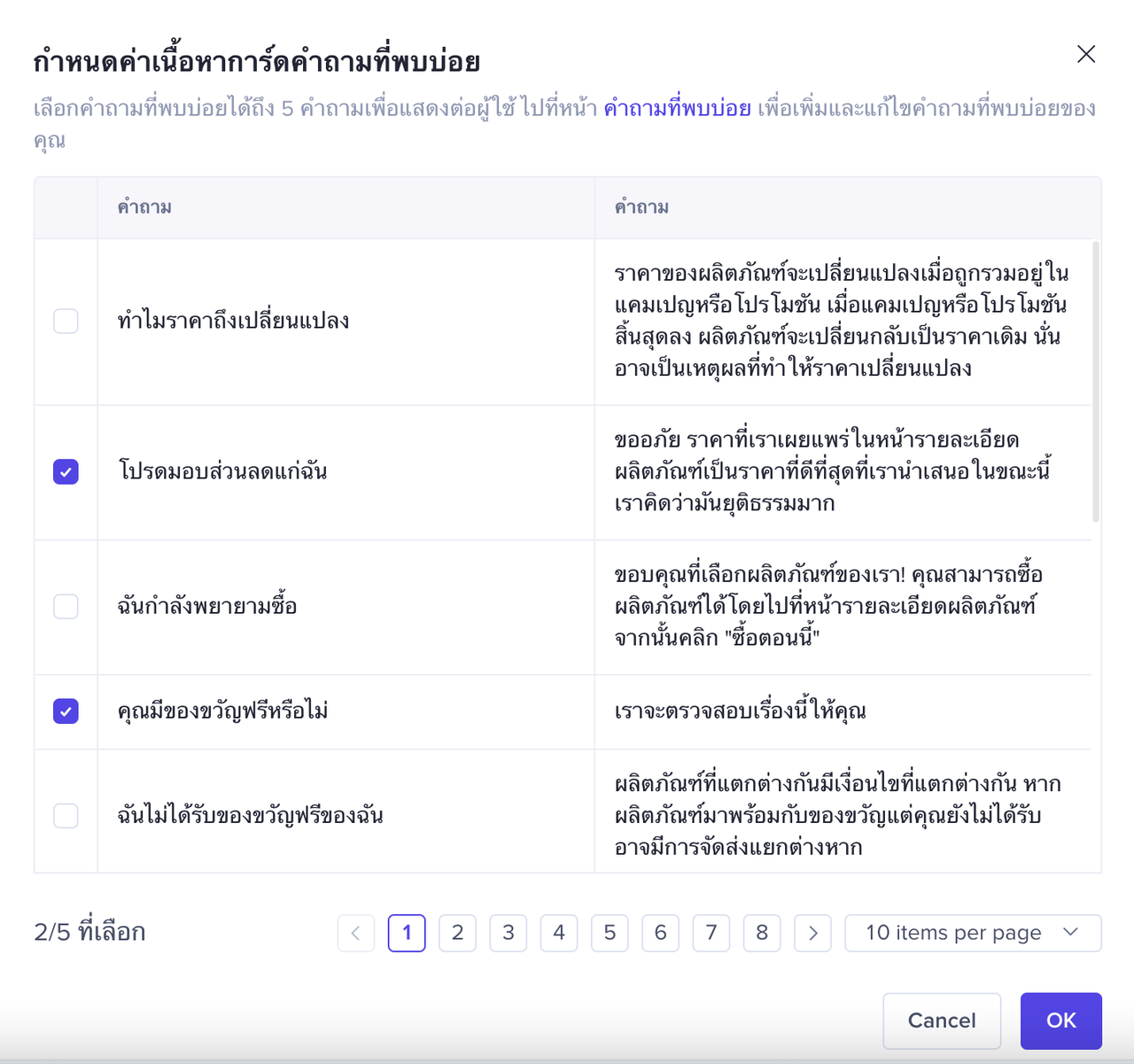 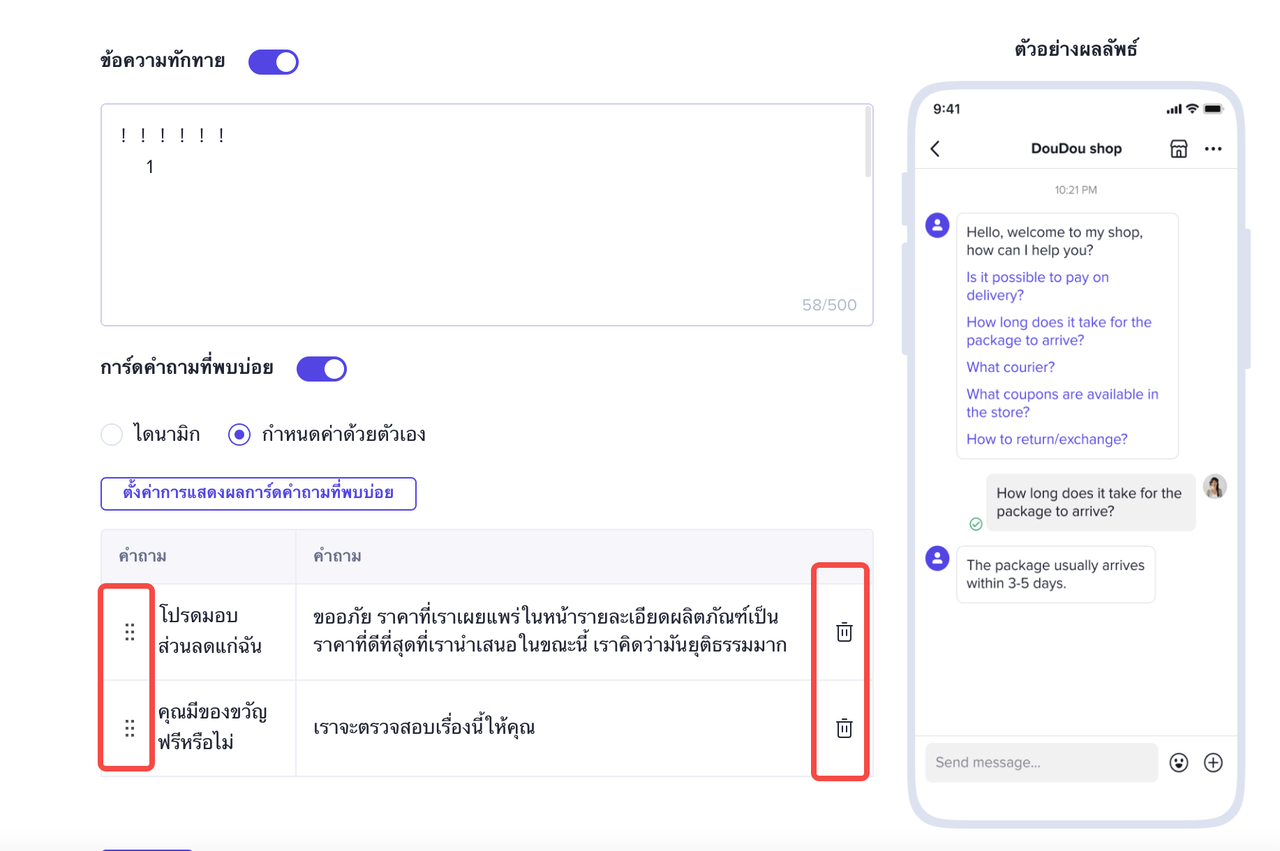 |
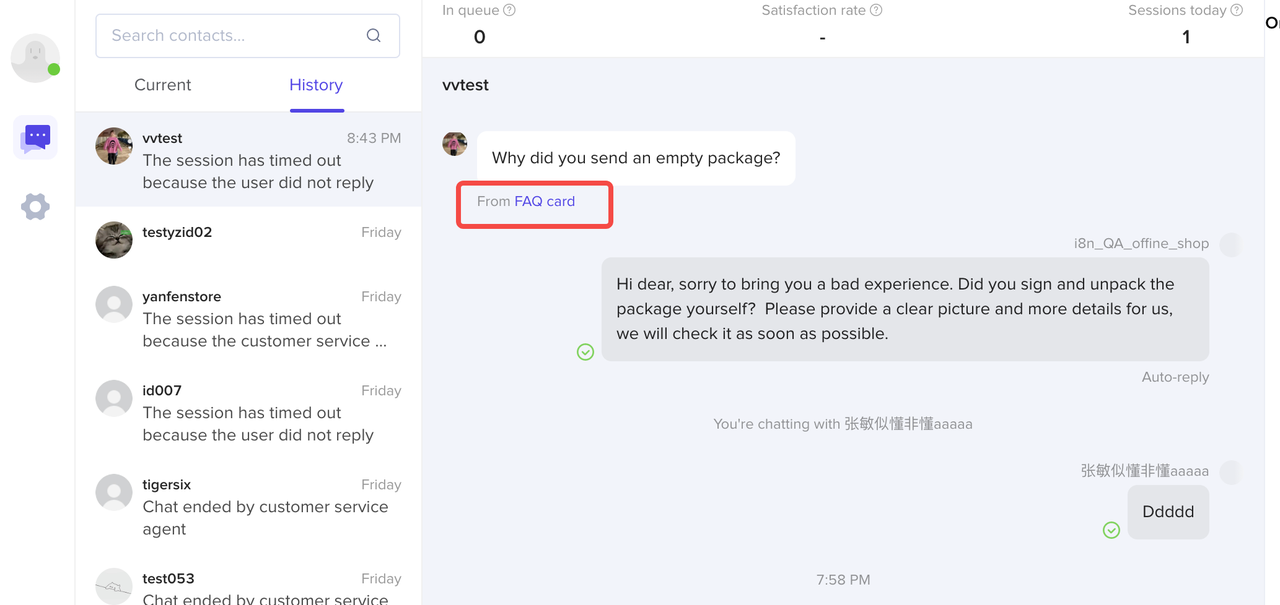
หน้าจอแสดงผลจากการ์ดคำถามที่พบบ่อย
การดำเนินการ | ตัวอย่าง |
|  |
วิธีใช้ตัวช่วยแสดงคำตอบ
เมื่อตั้งเนื้อหาคำถามที่พบบ่อยแล้ว ฝ่ายบริการลูกค้าจะสามารถใช้ฟังชั่นตัวช่วยแสดงคำตอบ เพื่อเพิ่มประสิทธิภาพในการสนทนาได้
การดำเนินการ | ตัวอย่าง |
คำตอบ Smart Match: เมื่อฝ่ายบริการลูกค้าตอบคำถามของลูกค้า ระบบจะสามารถจับคู่คำตอบที่เกี่ยวข้องจากฐานข้อมูลคำถามที่พบบ่อยตามคีย์เวิร์ด: (1) ส่งโดยลูกค้า (2) หรือป้อนโดยฝ่ายบริการลูกค้า ซึ่งระบบจะแนะนำคำตอบให้กับฝ่ายบริการลูกค้า ส่งคำตอบได้ด้วยคลิกเดียว: หากมีคำตอบที่เหมาะสม ฝ่ายบริการลูกค้าสามารถคลิกโดยตรงที่ปุ่ม "ส่ง" เพื่อส่งคำตอบด้วยคลิกเดียว การปรับแต่งคำตอบ: ถ้าจำเป็นต้องปรับแต่งเนื้อหาที่แนะนำ คุณสามารถคลิกโดยตรงที่ "คำถามที่พบบ่อย" ที่มุมบนขวาเพื่อไปยังหน้าการตั้งค่า เพื่อทำการแก้ไข | 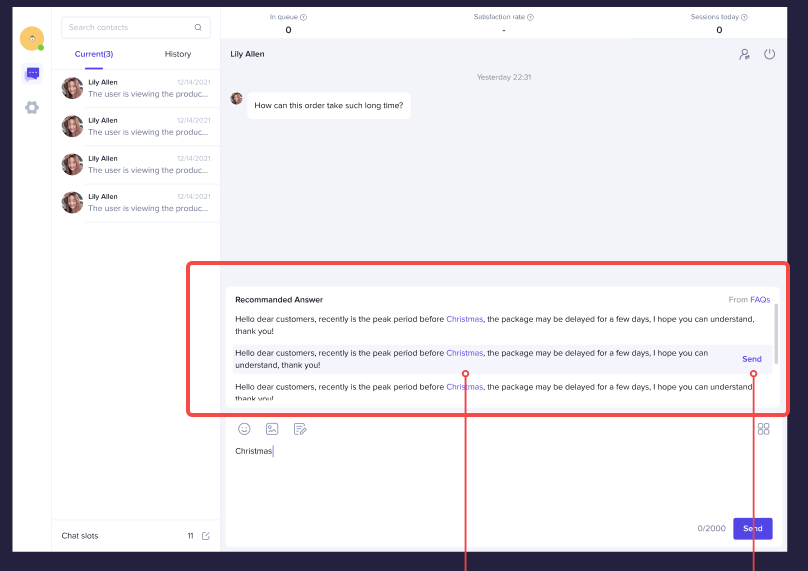 |
หมายเหตุ
เมื่อลูกค้าคลิกการ์ดคำถามที่พบบ่อย ลูกค้าจะได้รับคำตอบโดยอัตโนมัติตามที่ตั้งค่าไว้ แต่ในหน้าจอของร้านค้าจะยังแสดงผลว่าเป็นบทสนทนาที่ยังไม่ได้รับคำตอบจากเจ้าหน้าที่บริการลูกค้า TikTok Shop หวังว่าฝ่ายบริการลูกค้าจะให้ความใส่ใจว่าระบบการตอบคำถามอัตโนมัตินั้นจะสามารถตอบคำถามของลูกค้าได้อย่างถูกต้องหรือไม่ รวมถึงการให้คำตอบด้วยตัวเองถ้าจำเป็น และคอยปรับแต่งการตอบคำถามแบบอัตโนมัติอย่างสม่ำเสมอ