Create Shoppable Videos Easily with AI Video Maker

Overview

AI Video Maker is a tool available in Seller Center PC that instantly transforms product images and videos into shoppable videos. It supports:
  • Image-to-video generation: The AI will use your product images to create videos
  • Video-to-video generation: Allows sellers to upload videos from local files and use it for the AI's reference
  • Prompt customization: Enables sellers to provide detailed prompts for more tailored video generation
  • Language, voiceover, and music customization
  • Unlimited edits before publishing videos
    image

Benefits of AI Video Maker

Powered by Seedance 2.0 & Seedance 2.0 MiniCreate faster, post moreFull control before publishing
Experience ByteDance’s newest AI video technology with smoother motion, audio-video generation, and a more lifelike, immersive result. Seedance 2.0 also drives 3-4x higher GMV per video!Produce more video content with less manual effort, making it easier for sellers to stay active and visible on TikTok.Preview and edit videos before they go live, then publish seamlessly to any linked seller account.
image

How to Access This Feature

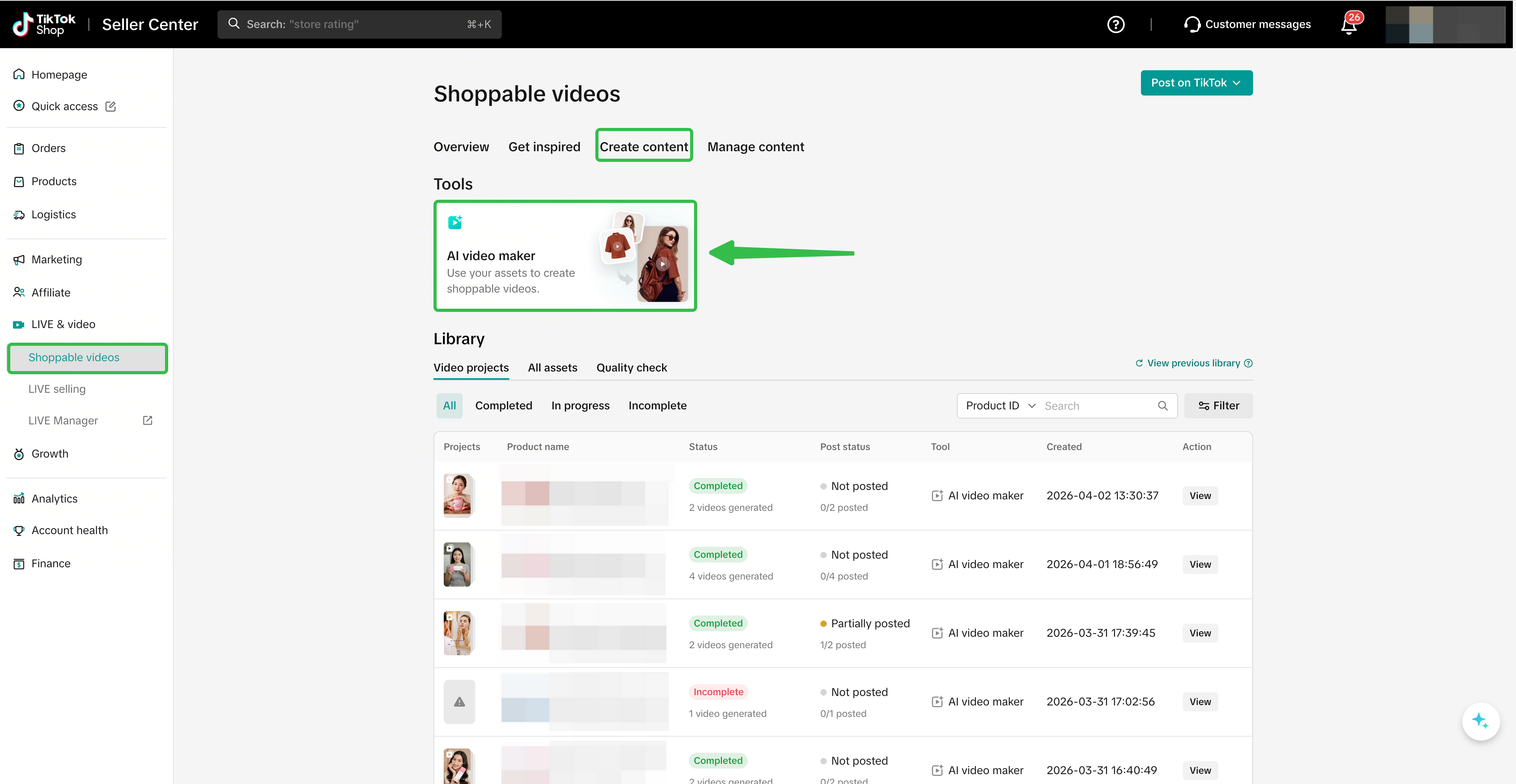
Navigate to: Seller Center > LIVE & video > Shoppable videos > Create content > AI video maker
image
image

How it Works

Once you have entered the AI Video Maker page, follow these steps:

Step 1: Purchase Tokens

image
image
Creating AI videos requires tokens, which you can buy from BytePlus through Seller Center.The number of tokens needed depends on:
  • the type of AI video you create, such as a fully AI-generated video or a video mixed with real footage
  • the length of the video
The more AI resources your video uses, the more tokens it will consume. Tokens can be purchased from BytePlus. To buy tokens, hover over the (?) icon next to your remaining token balance, then click Purchase Tokens.This will prompt you to first create a BytePlus account. After finishing the sign up process click [Sign Up for BytePlus] and it will take you to BytePlus webpage
Seedance 2.0:
image
Seedance 2.0 mini:
image
AI Video Maker uses two AI models to create videos: Seedance 2.0 and Seedance 2.0 Mini. You will see the plan details of these two models on BytePlus. You may use either model individually when creating AI videos. However, you need to buy tokens for each model separately.Each model has different plans. For example, the Seedance 2.0 Mini Light Plan gives you 14 million tokens for US$29.40*. A fully AI-generated 15-second video with Seedance 2.0 Mini uses about 648,000 tokens. So with this plan, you can make about 20 videos.Choose a plan to continue. *Plan pricing is for reference only and is subject to change
image
Then, confirm your selection and complete the purchase.Please note that you need a BytePlus account before you can buy a plan. You can create one on the same page before buying a plan. For your first purchase, you will receive a US$10 discount voucher.After the purchase is complete, go back to the AI Video Maker page and start generating your AI videos!

Step 2: Select a product and Upload Assets

image
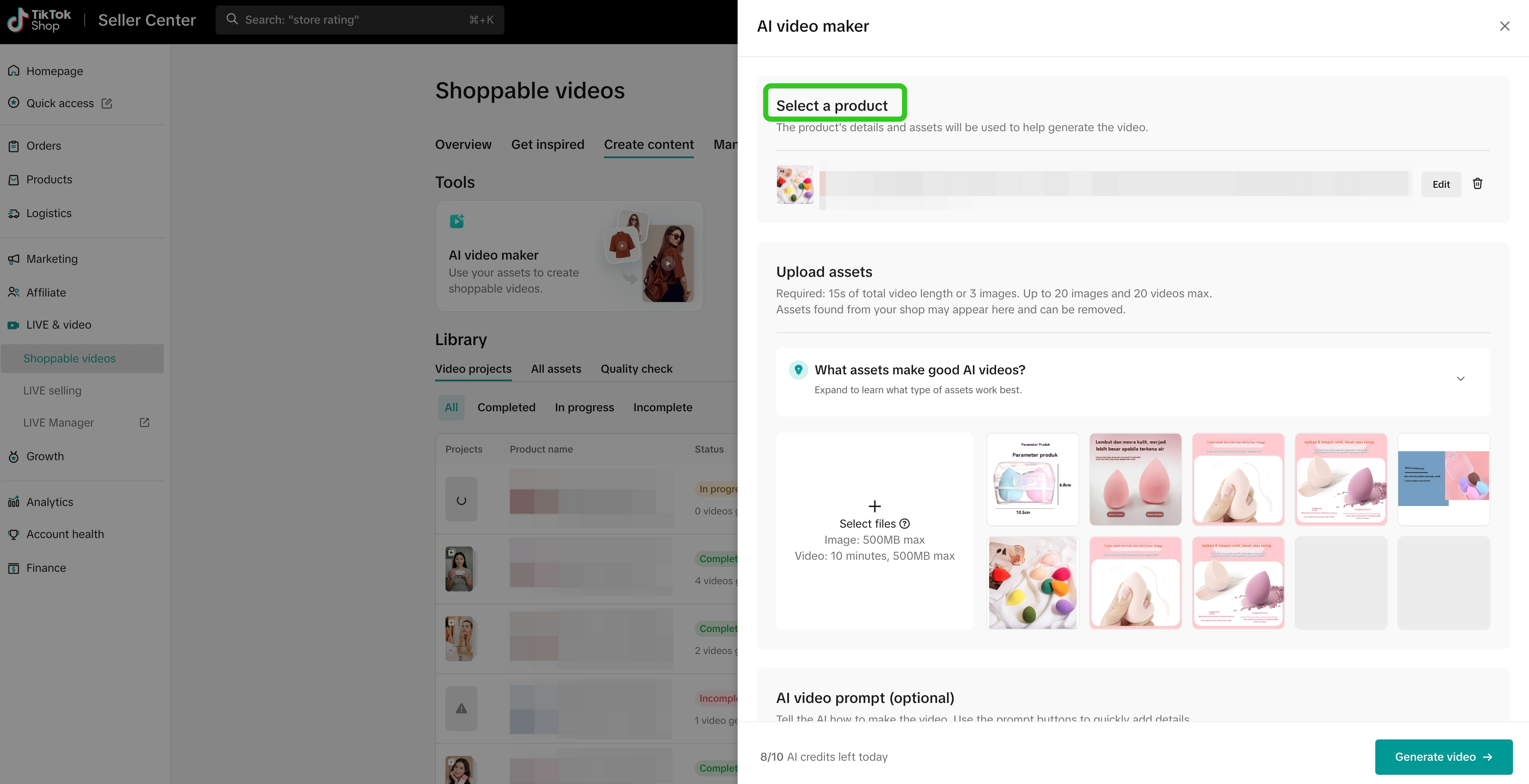
  • Choose a product that you'd like to generate a video for.
Only active, approved products will appear in the list.
image
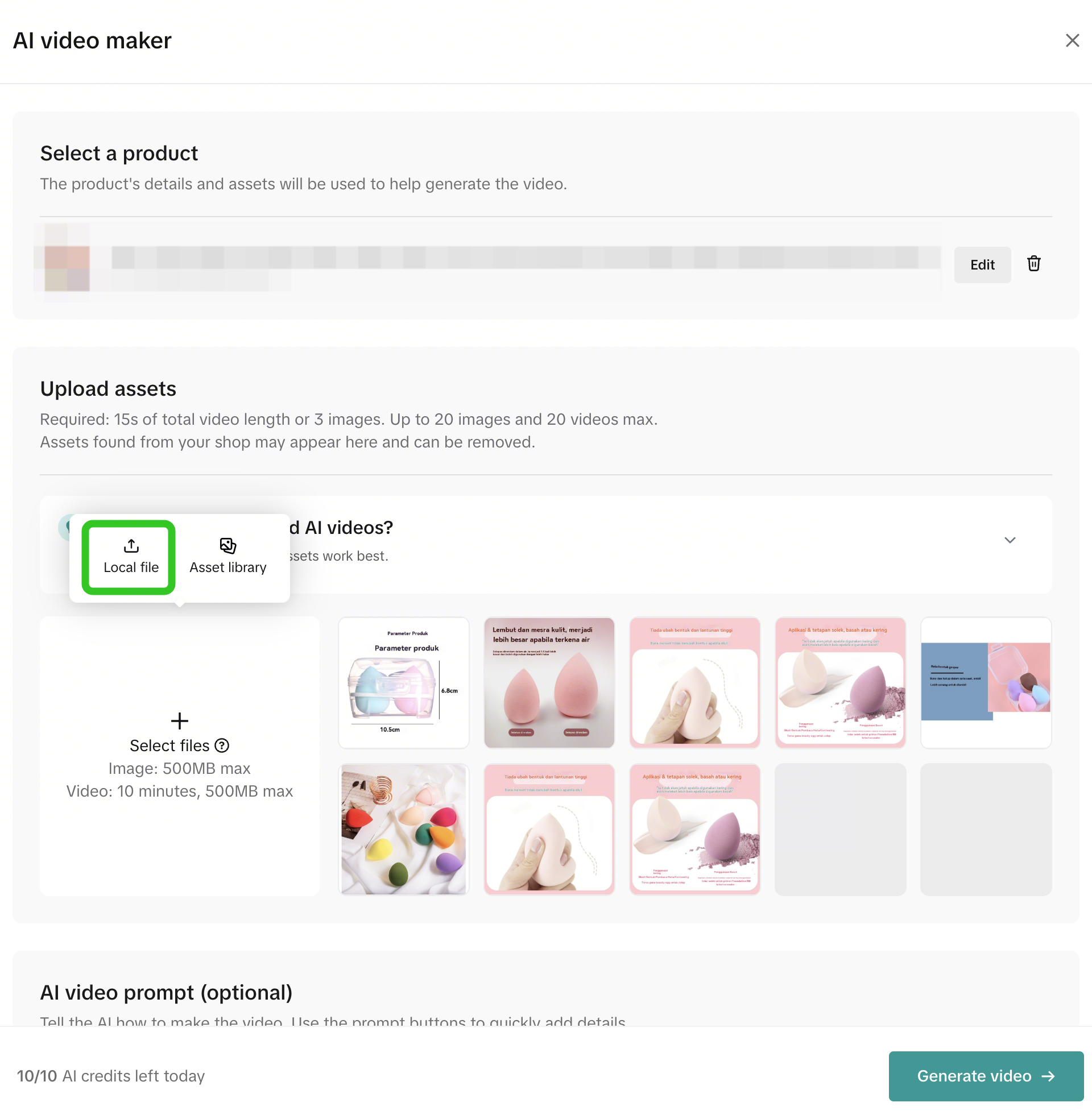
  • Available product images or videos will be auto-populated based on your product's available PDP information. Ensure there are at least 3 valid images or a video with a duration of minimum 15 seconds, to generate a video.
  • In addition to images, you can upload existing product videos to remix this into a new video.
  • Important tips:
    • Do not reuse the same images or videos when making AI videos for the same product. If the videos look too similar or repeated, they may be seen as repetitive and less likely to be shown or recommended to users.

Step 3: Choose How the Video Will Be Generated

  • Choose whether you want to create a video using a mix of real and AI footage, or make a fully AI-generated video
  • You can track token usage both during the creation process and after the video is completed. The number of tokens used will depend on how much AI footage needs to be generated.
  • You can choose either Seedance 2.0 or Seedance 2.0 Mini, depending on your available tokens. You can only select a model if it has available tokens.
Mix of Real & AI Footage
Create a video by combining AI-generated clips with videos uploaded from your local files for a more authentic result at a lower cost.
Full AI Generation
Create a video entirely with AI-generated footage.
image
  • Video Duration: You can create a video from 15 seconds up to 30 seconds.
  • AI Footage Format: You can choose how many seconds of AI footage to include and where it should appear in the video, such as at the beginning, middle, or end.
    • For example, if the total video length is 30 seconds and your uploaded non-AI footage is 20 seconds long, you can add up to 10 seconds of AI footage.
image
  • Video Duration: For a fully AI generated video, you can only generate 15 seconds video

Step 4 (Optional): Generate AI prompts and AI scripts

image
Select Template:
  • A template helps the AI understand the video style you want
Video settings:
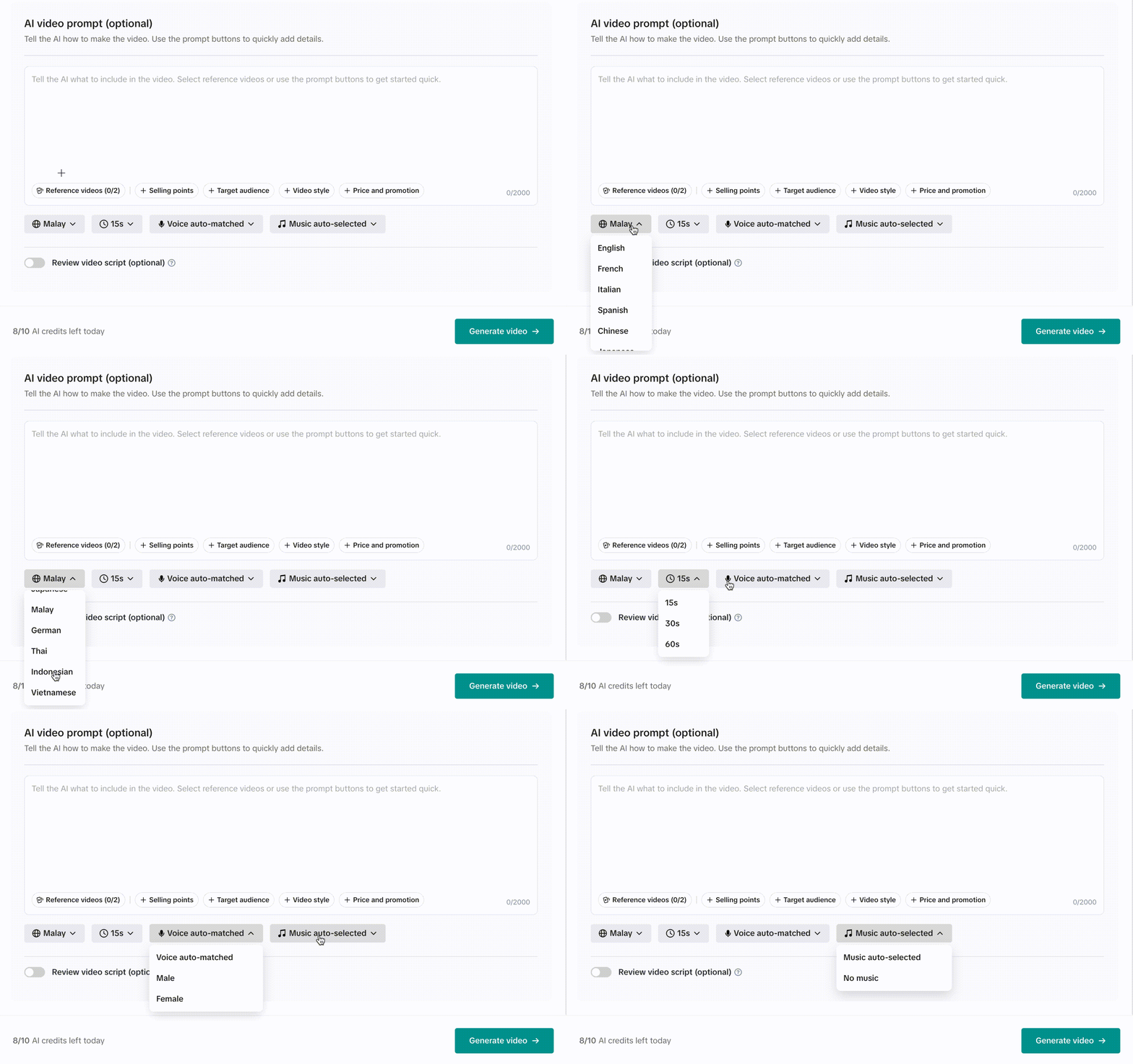
  • You may click the preset prompt buttons below (selling points, target audience, video style, price and promotion) to quickly generate a prompt template, and then manually edit each prompt to guide the video generation output.
You can switch between languages, adjust video duration, select voiceovers (male or female), and choose background music (auto-selected or none).
Make sure to finalize all your video settings before generating the script for the best experience. Once your script is generated and edited, keeping the settings unchanged will ensure your edits are preserved without needing to regenerate the script.
image
Video script:
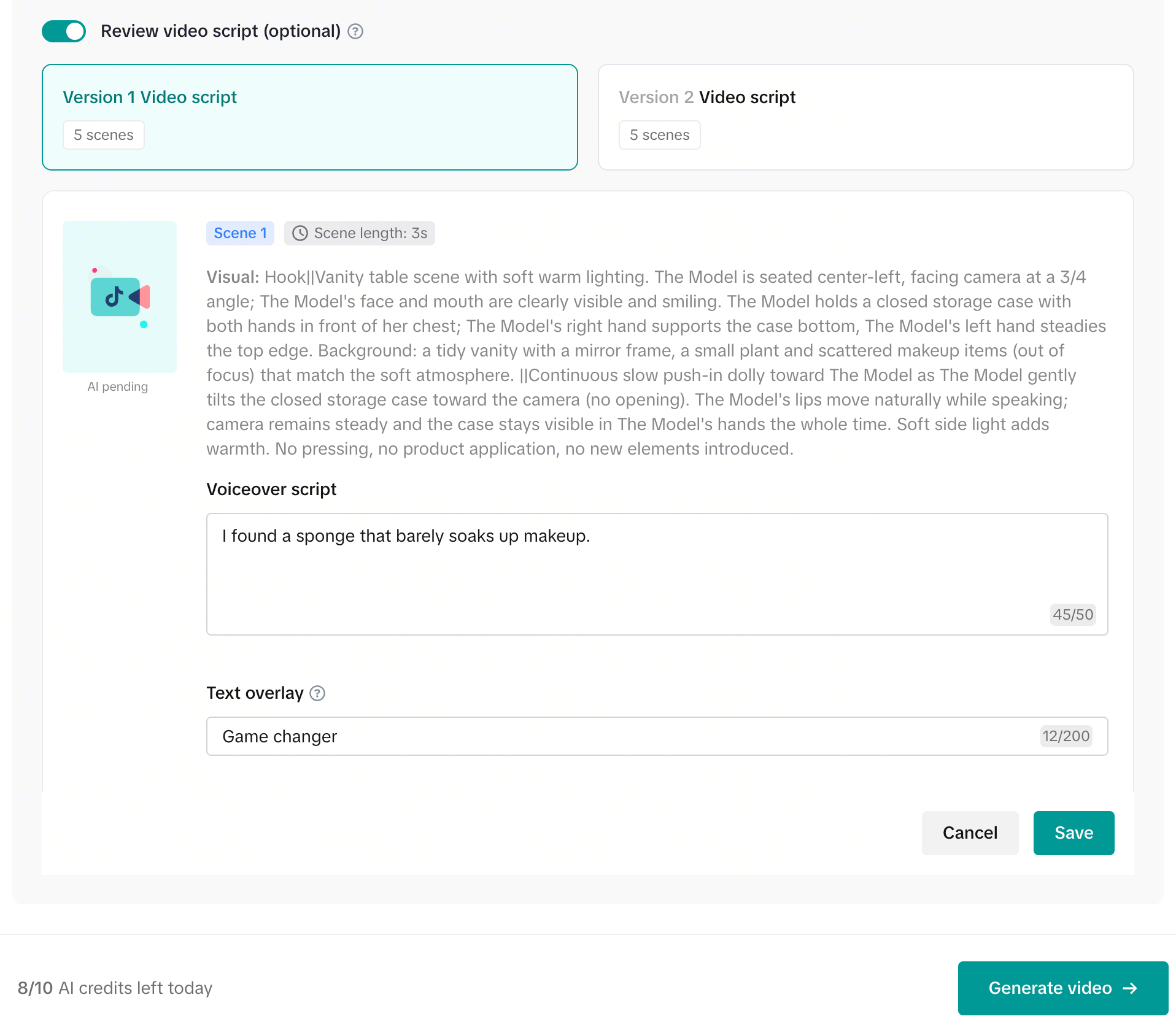
  • Toggle on [Review Video Script] to generate a complete video script based on your settings and prompts.
Preview or edit it before generating the video.

Step 5: Generate Your Video

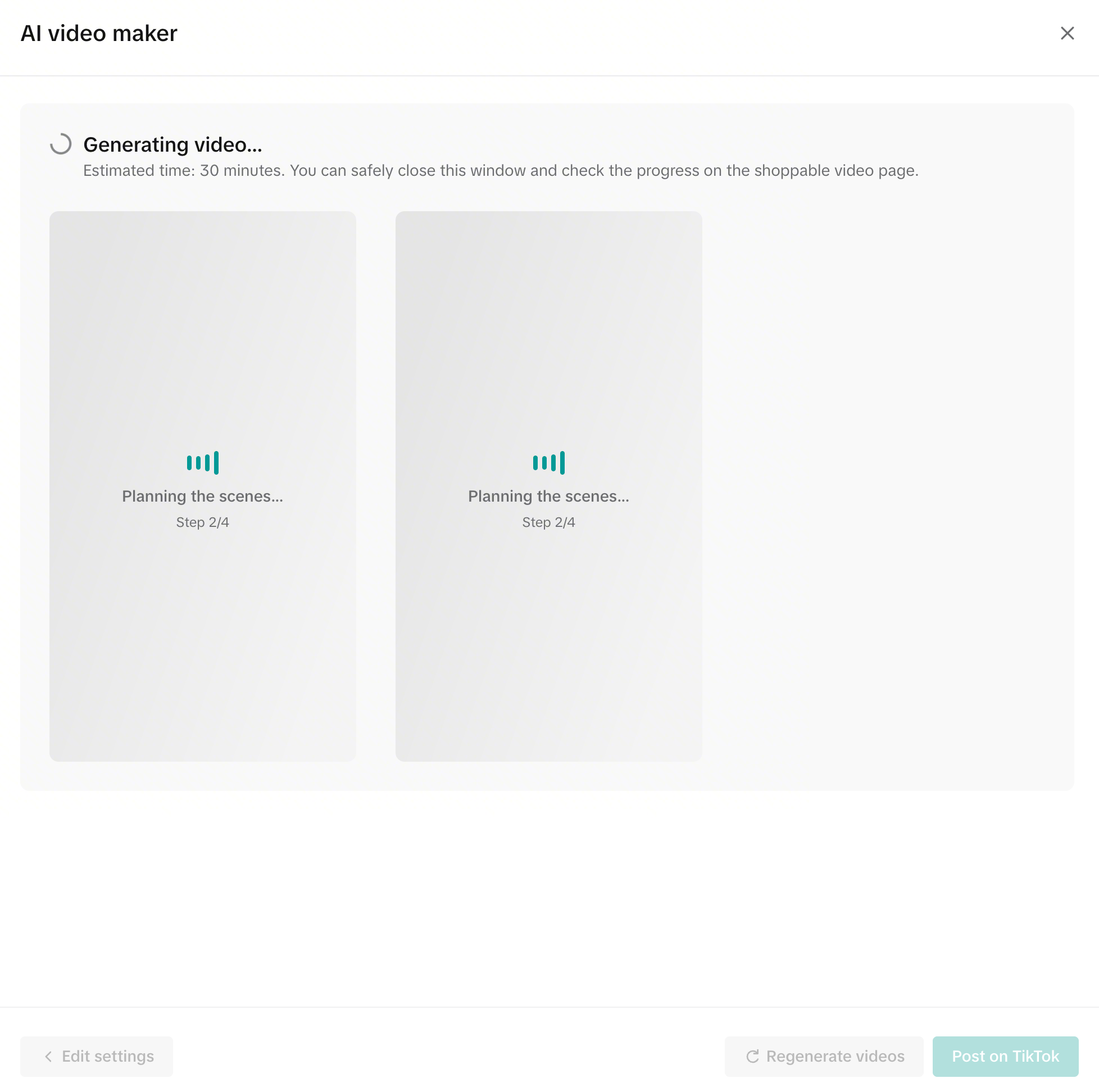
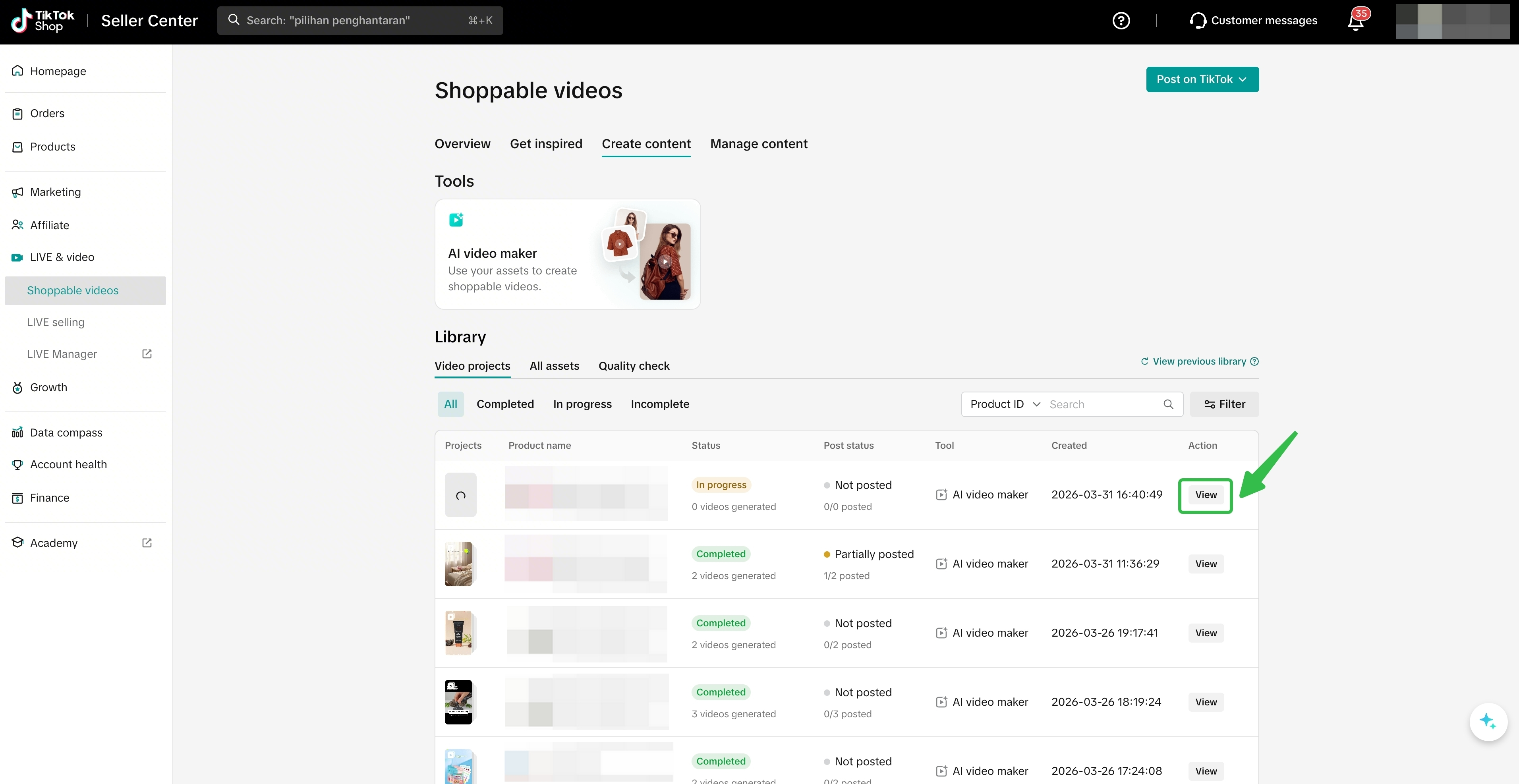
Once you have completed customising your video settings or adjusting the video script, click "Generate Video". Each video generation task provides you with 1 video in around 30 minutes.
image
image
Click "view" to check your video's progress

Step 6: Preview and Edit Video

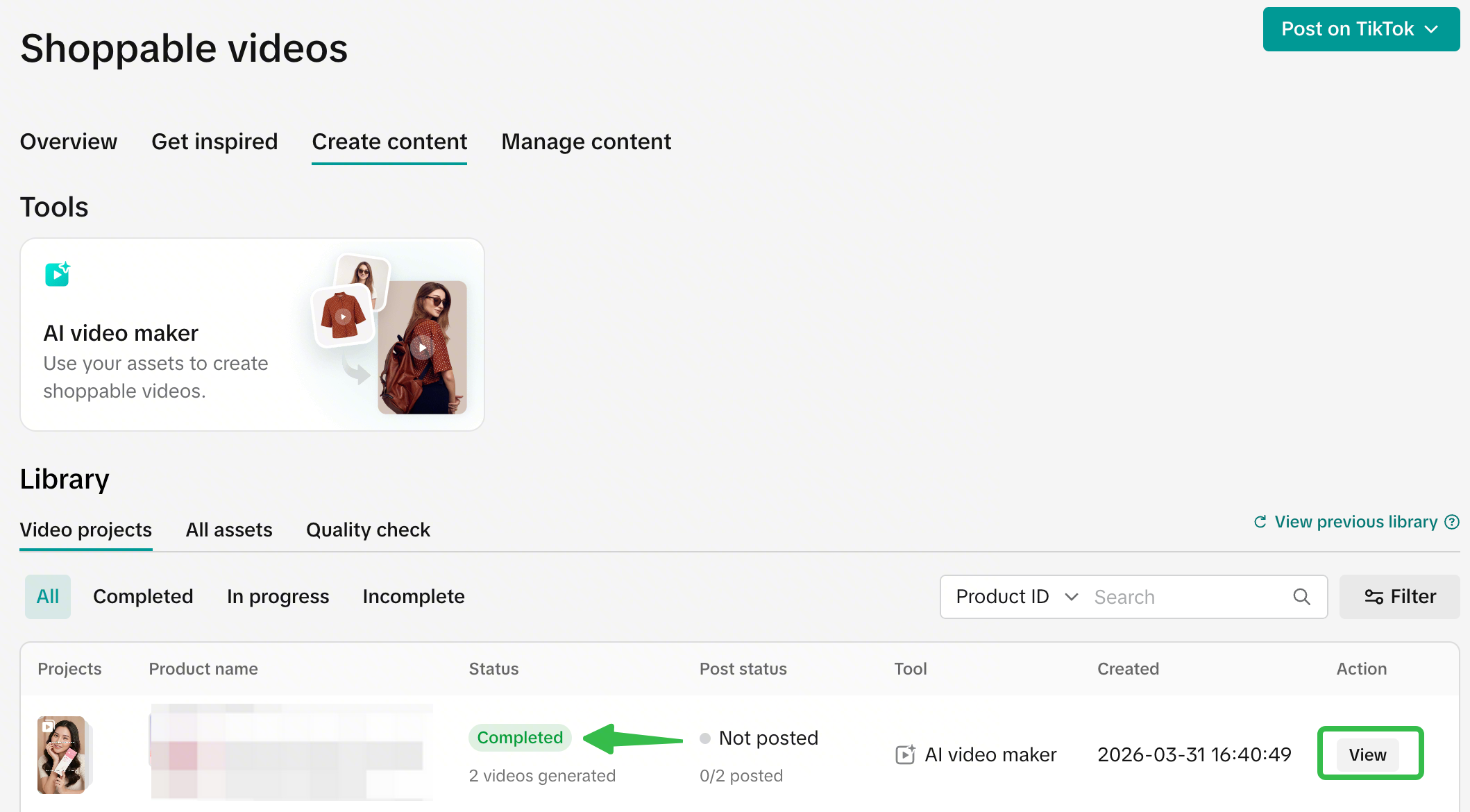
  • Once the generation status shows [Completed], click “View” to review the generated video in the library. If multiple videos have been generated, you can choose to post either one video or all of them.
  • You can edit a video before posting it. Simply hover over the video, and the Edit button will appear. Once a video has been posted, it can no longer be edited or reposted.
image
Clicking the Edit button will take you to the Video Editor page. In addition to general editing tools such as crop, split, and delete, you can also customize several aspects of the video:
image
Assets
  • Add other video assets to your generated video or replace the existing scenes in the video.
  • Assets can come from AI-generated videos, videos uploaded from your local device, videos you have already posted, or even from your product listing.
    • AI-generated videos can also be regenerated and reused in the video you are editing. Please note that regenerating a video will consume credits.
    • To regenerate a video, return to the previous preview page, hover over the video, and select the regenerate option.
image
Stickers
  • Add multiple stickers to make the video more engaging and interactive.
You can choose from our recommended sticker or upload your own stickers.
image
Voiceover
  • Generate a new voiceover in your preferred language to add to your video or replace the original one.
Simply input the voiceover script. You can write your own script or let AI help you generate one, then choose the desired voice tone.
image
Text Overlay
  • Add new text, replace the original text, or remove it entirely.
image
Music
  • Change the background music of your video.
All available music options are approved for commercial use.
image
  • Once you have finished editing, click Create Video. The process usually takes a few minutes, and the edited version will be generated as a new video. You can track its progress in the Library.
  • Editing an unposted video does not consume any credits and can be done multiple times.

Step 7: Publish video

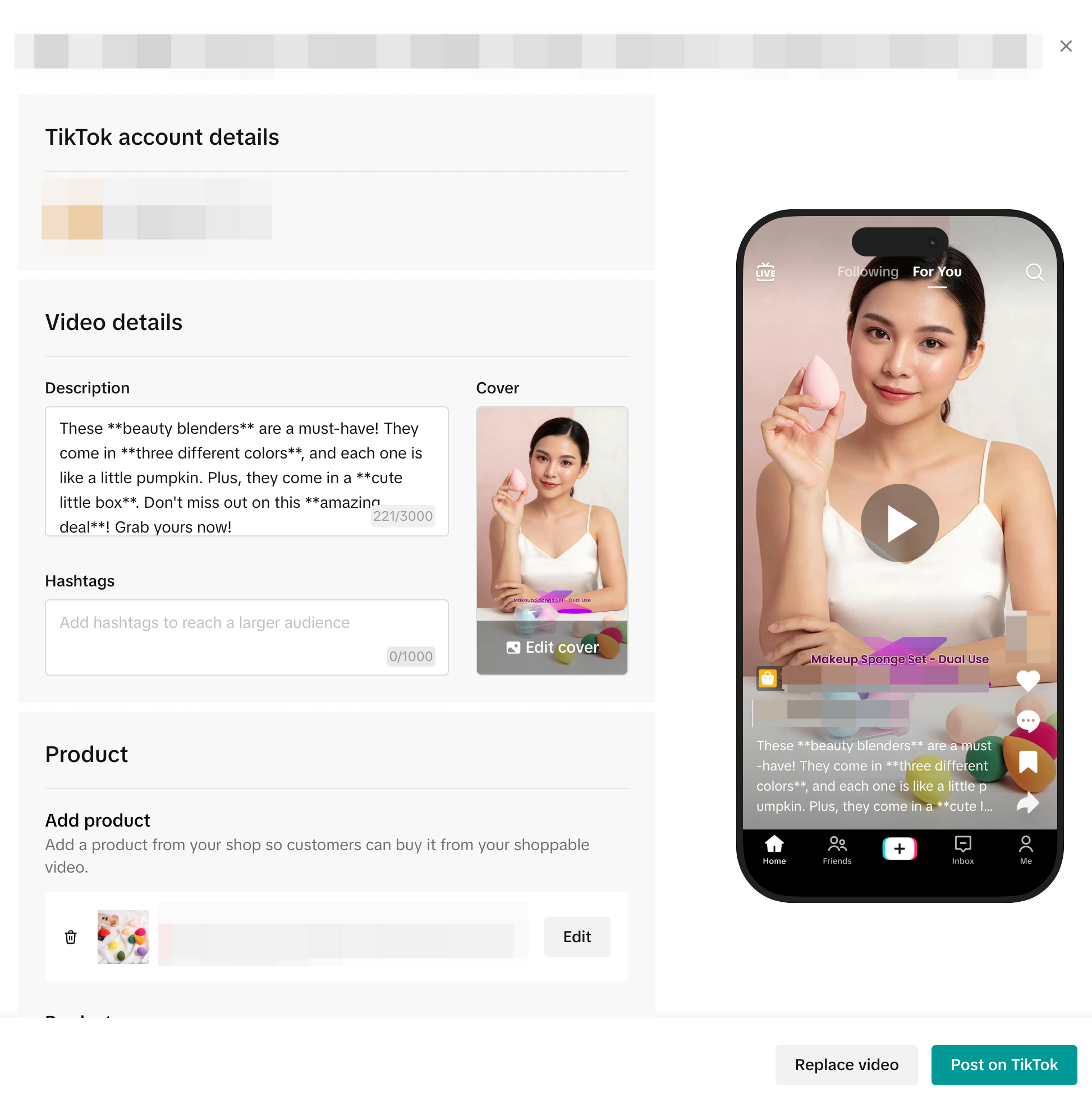
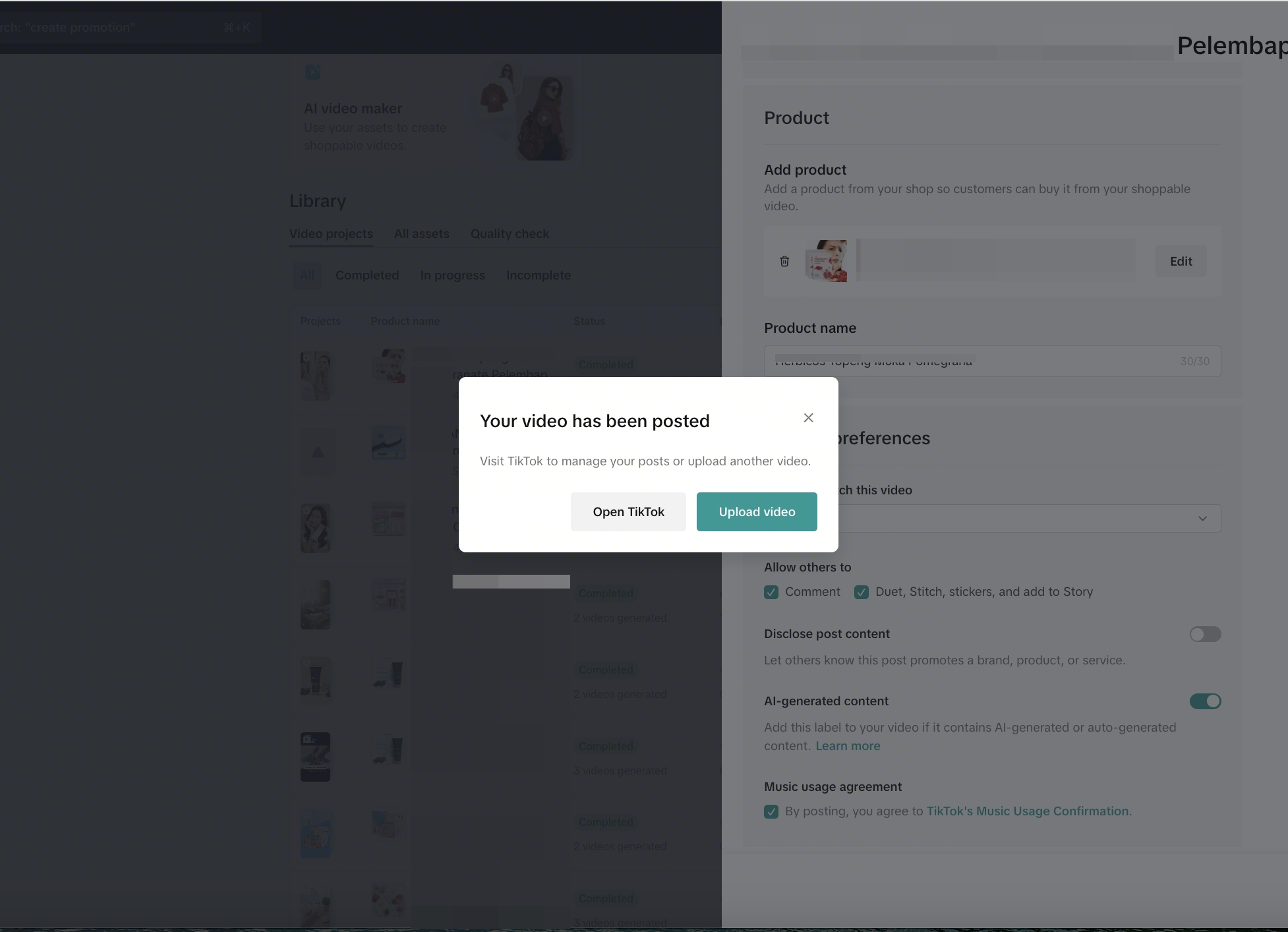
  • Next, click "Post on TikTok" to publish it directly as a shoppable video. The video description will be auto-filled for you, simply add your own hashtags and customize your video posting preferences.
    image
  • You can post the video to your linked official account or marketing accounts. To post from the official account, select the account labeled "Official". To post from a marketing account, follow the steps below:
image
image
  • Important Tips:
    • To avoid duplicate content issues, post each video to only one account. Do not upload the same video to multiple accounts. For example, post video A for product X to account A, and video B for product X to account Y.
    • Before posting, review all content carefully to ensure it complies with applicable laws and platform policies. Follow the recommended best practices here to avoid violations.

Best Practices

Avoiding Violations

Before posting, always review your AI-generated video content, including the voiceover, overlay, caption, and hashtags to ensure it complies with platform policies. Below are common issues to watch for:
Issue
What to Check
Duplicate content
Do not use images or videos that have already been posted on TikTok (by your account or others') as source material for AI generation. This also applies to other creators' LIVE recordings.
Product mismatch
Ensure the product shown in the video matches the linked product. Upload clear images showing the full product from multiple angles on a clean background, and avoid images that are cluttered with text or partially covered by packaging. Do not change the product link to an unrelated one after generating the video.
image
Misleading pricing
If any price is mentioned in the voiceover, overlay, caption, or hashtags, make sure it matches the actual product price. For limited-time offers, state the validity period clearly.
Trademark & brand misuse
Remove any brand names or logos from the voiceover, overlay, caption, and hashtags if the linked product is not from that brand or not officially authorised. Do not use other brands' product images or videos as source material.
Off-platform redirection
Do not include phrases that direct users to external websites or platforms (e.g., "Click the link in my bio", "Scan this QR code to buy", "Follow us on [website]").
Medical claims
Remove any references to curing, treating, preventing, or reducing diseases from the voiceover, overlay, caption, and hashtags.
Exaggerated claims
Remove absolute terms such as "the best", "No.1", or "cheapest" from the voiceover, overlay, caption, and hashtags
  • Important Tips:
    • Input AI prompts when creating the video to help ensure the content aligns with your product positioning and business goals.
    • Enable the video script review feature before generation so you can review the script and check the auto-filled caption and hashtags before posting. These are your two key checkpoints for identifying potential issues early.

FAQs

Question
Answer
Are there any minimum requirements to generate a video?To generate a video, upload at least three valid images, or upload an existing product video with a duration of at least 15 seconds.
What types of images are recommended to be uploaded before video generation?Images that clearly show the main product work best. The tool will automatically check your images and let you know if any cannot be used. However, we recommend avoiding:
  • Collages or grid-style photos
  • Images without a clear product
  • Lifestyle images where the product is too small or unclear
Can I cancel videos in the generation process?No, videos that are undergoing generation cannot be canceled. If you wish to generate a new video, simply restart the process from Step 1 and create another one.
The video prompt given was auto-generated in English, how can I change it to my preferred language?Please ensure your Seller Center language setting and the language setting used in AI Video Maker are the same language. Once these 2 language settings are aligned, the video prompts will be generated in that same language selected.
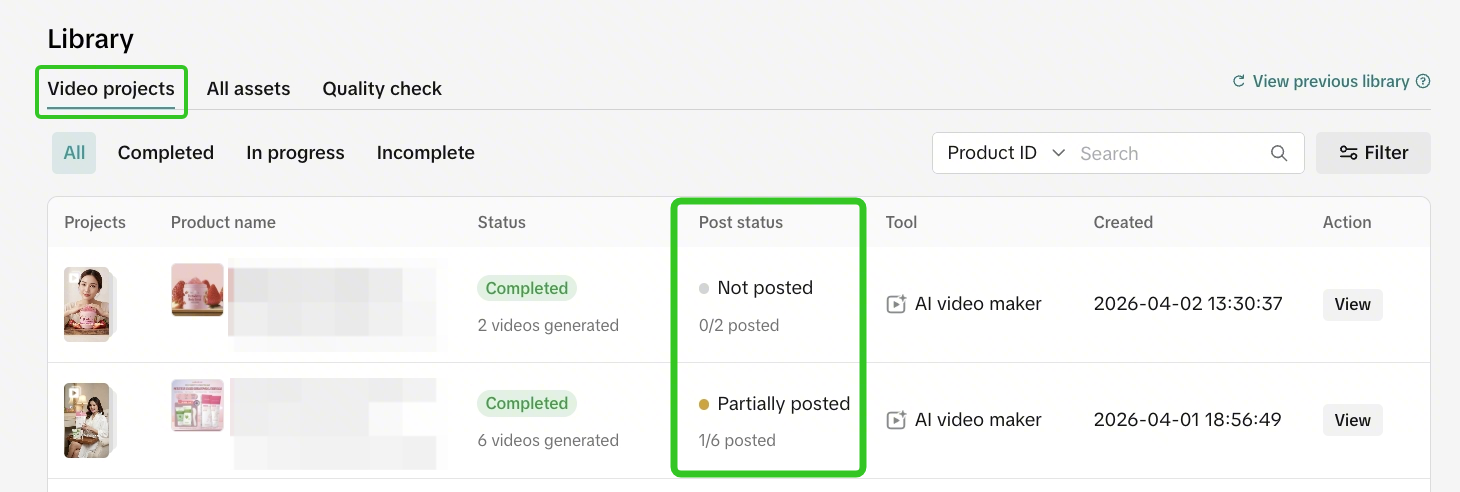
Can I download the videos after generating?Yes, to download a video, go to the Library and click [View] on the video you want to download.
image
I have purchased tokens, but they are not showing in Seller Center. What should I do?After purchasing, go back to Seller Center and refresh the page.
Do the tokens have an expiry date?No, tokens can be used at any time after purchase
Does editing videos require tokens?No, tokens are only used when you add newly generated AI videos to an edited video. Other than that, video editing is free and can be done as many times as needed.
Can I use both AI models at once when generating a video?No, you can only choose one model when generating an AI video.
If I want to generate a mixed-footage video, what is the maximum length of non-AI video I can upload?The maximum total video length that can be generated is 30 seconds, so it is recommended to upload a non-AI video that fits within that limit.
Will I get my tokens back if the video fails to generate?Yes. If the video cannot be generated because it does not meet the required standards, your tokens will be refunded.
Why did my video fail to post?A video may fail to post if it does not meet the platform’s guidelines. To reduce the chance of violations, please make sure your content follows the guidelines before posting.