

Campaign Registration with GMV Max
01/26/2026
GMV Max is now integrated directly into campaign registration and is a requirement for participation in some campaigns. When your designated product is registered and approved for a platform campaign, you will need to create GMV Max Ads yourself or a GMV Max Ads campaign will automatically be created for you. This integration makes it easier to leverage advertising to maximize your sales and visibility during key promotional periods.

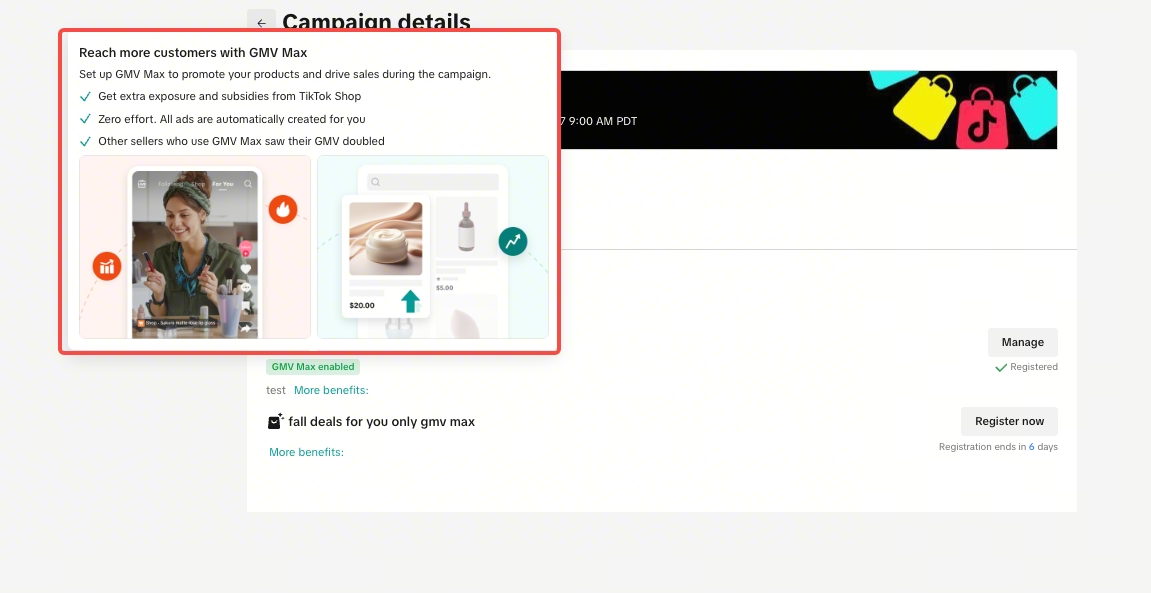
If the campaign is eligible for GMV Max ads, you'll see a new tag "GMV Max enabled" on the campaign list page. If your shop doesn’t have a GMV Max ads account, you can not register for the campaign until GMV Max account setup is complete.
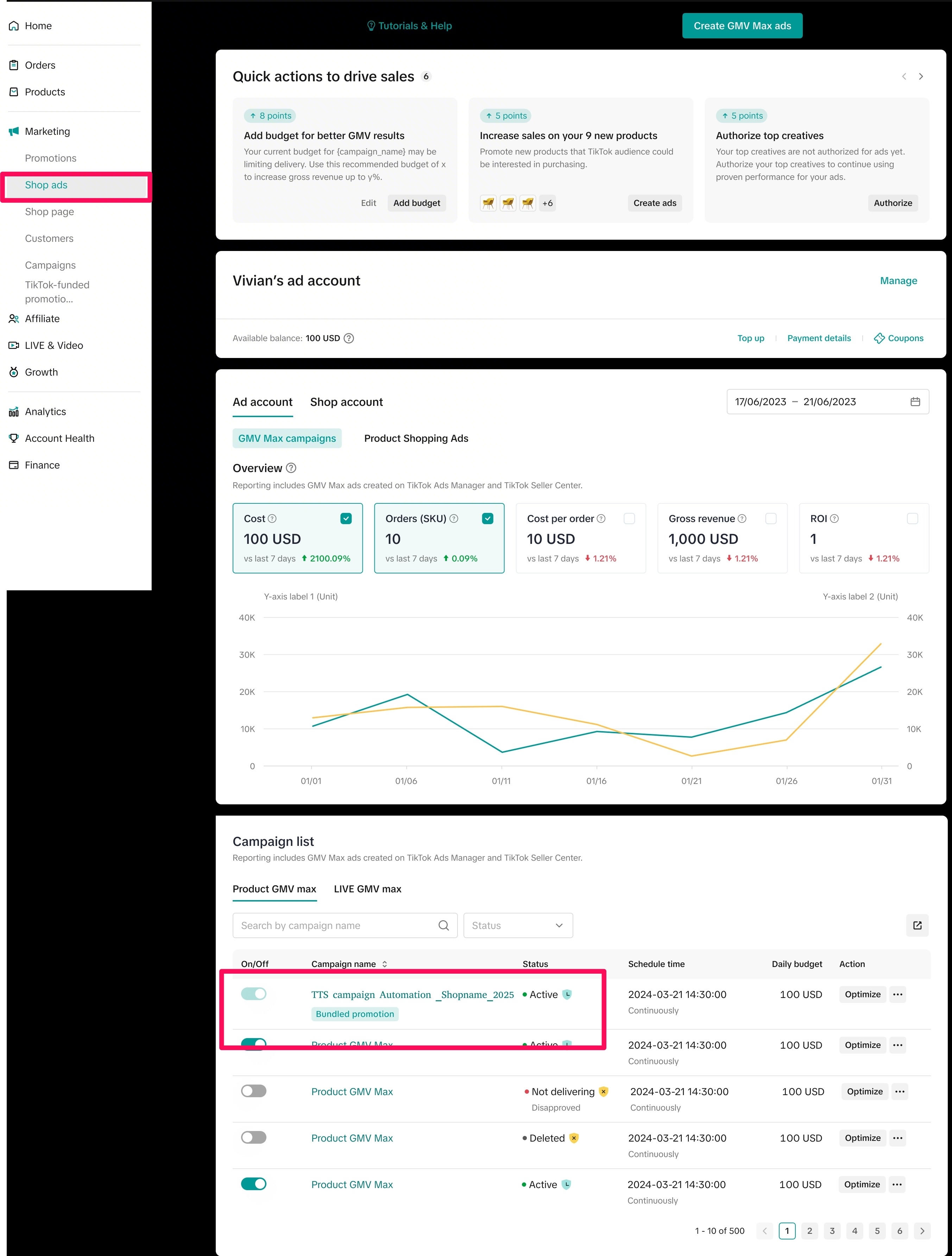
 Note : All products under platform campaigns must maintain an active GMV Max campaign. If GMV Max is disabled, the product will lose eligibility for platform benefits, including subsidies (vouchers and subsidies) and traffic support.On the Shop Ads Page, you can recognize auto-created campaigns in two ways:
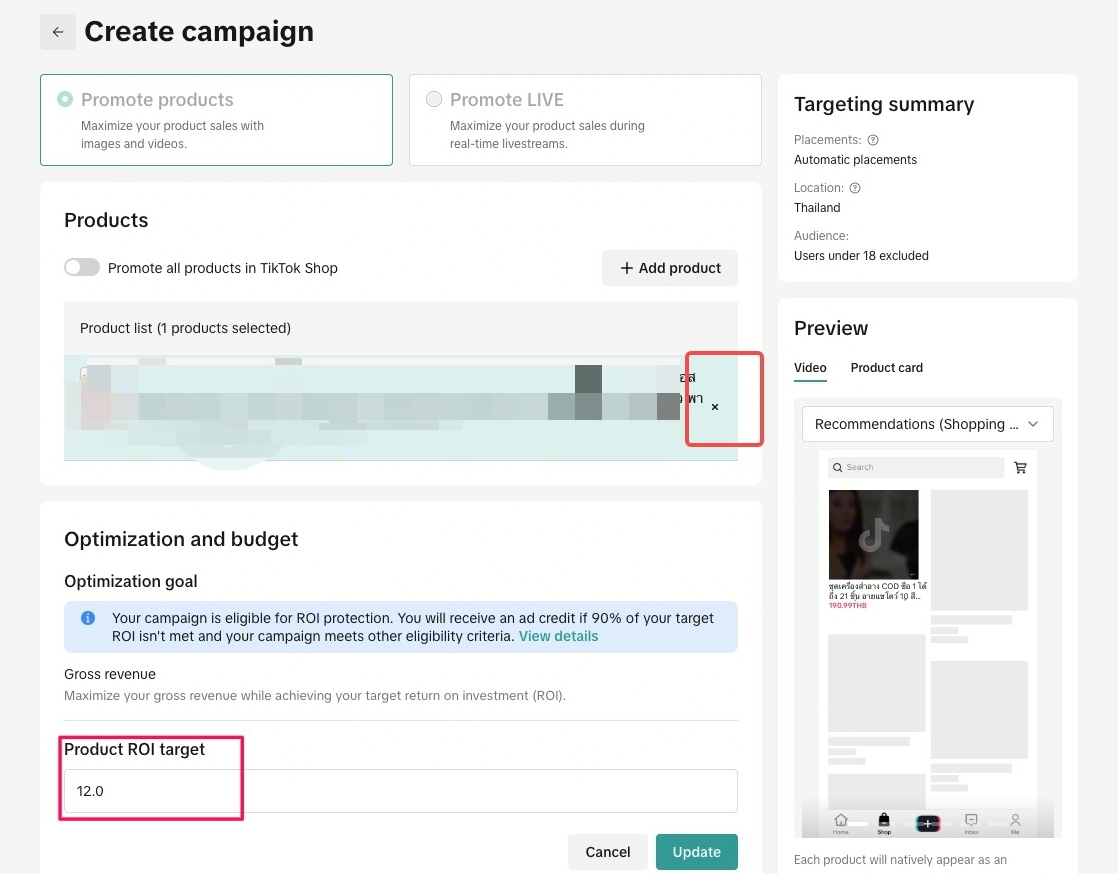 Editable fields include:
Please take note that if you have manually withdrawn your products, the system will not auto-create again, and retry is not supported. You’ll need to manually create a GMV Max campaign.
You can adjust this anytime.
Key Benefits
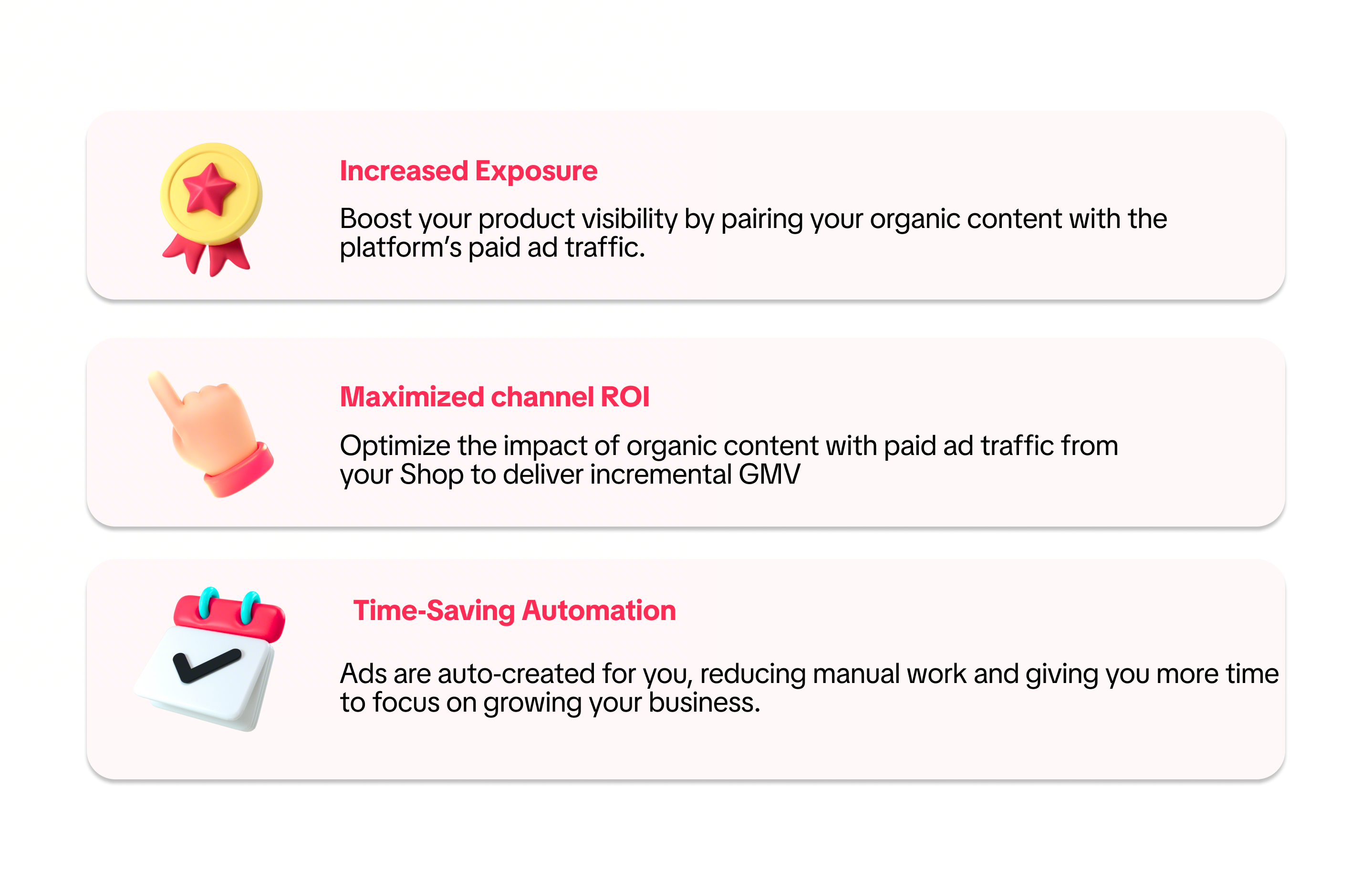
| Increased Exposure | Boost your product visibility by pairing your organic content with the platform's paid ad traffic |
| Maximised channel ROI | Optimize the impact of organic content with paid ad traffic from your Shop to deliver incremental GMV |
| Time-Saving Automation | Ads are auto-created for you, reducing manual work and giving you more time to focus on growing your business |
How it Works
Step 1: Register for a campaign
Go to Seller Center > Marketing > Campaigns.If the campaign is eligible for GMV Max ads, you'll see a new tag "GMV Max enabled" on the campaign list page. If your shop doesn’t have a GMV Max ads account, you can not register for the campaign until GMV Max account setup is complete.
Step 2: Review terms and confirm
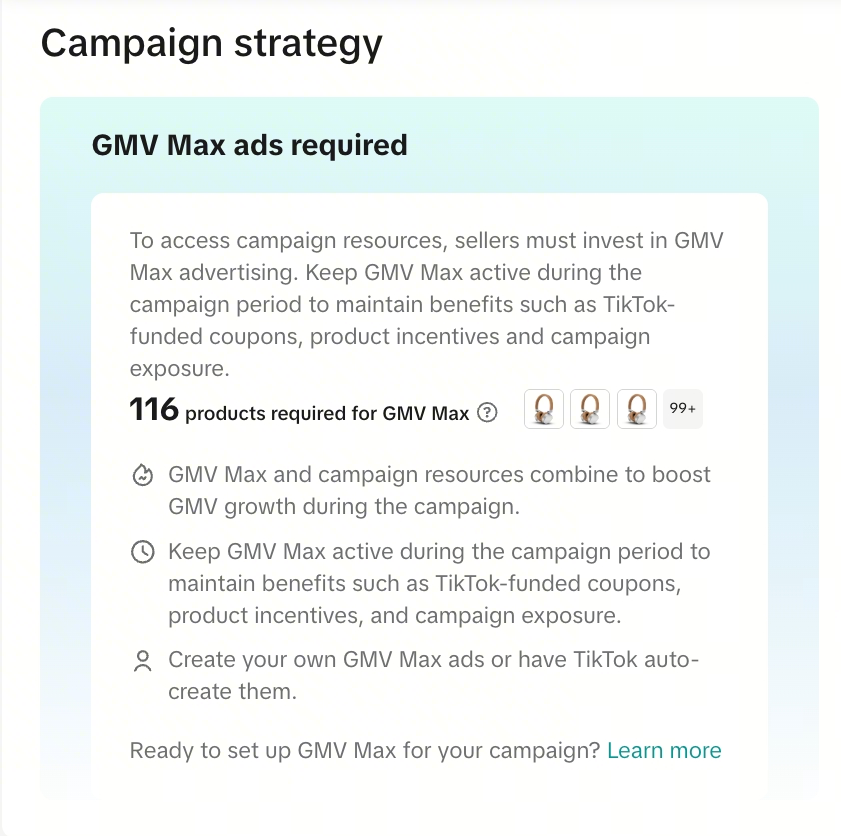
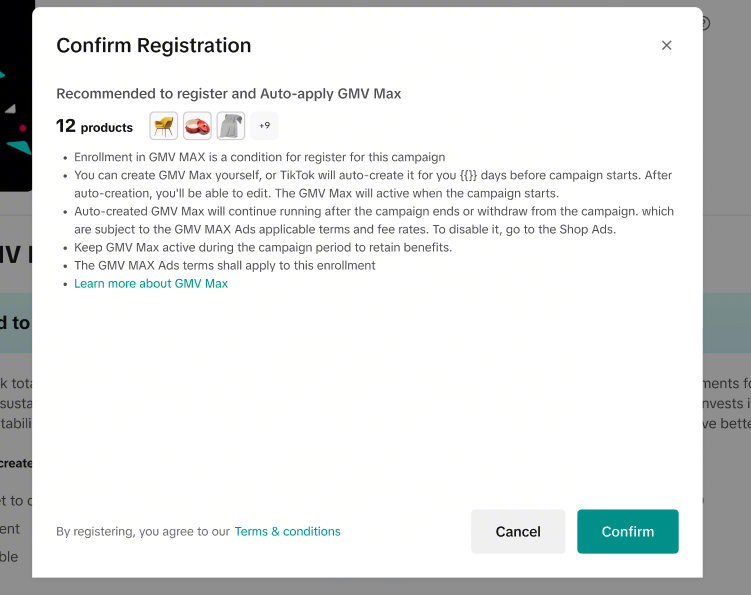
- On the campaign details page, you'll see a section explaining that GMV Max Ads are required for campaign registration.
- Please take note that you will need to keep the GMV Max Ads campaign running through the campaign period to maintain benefits such as platform-funded coupons, product incentives, and campaign exposure.
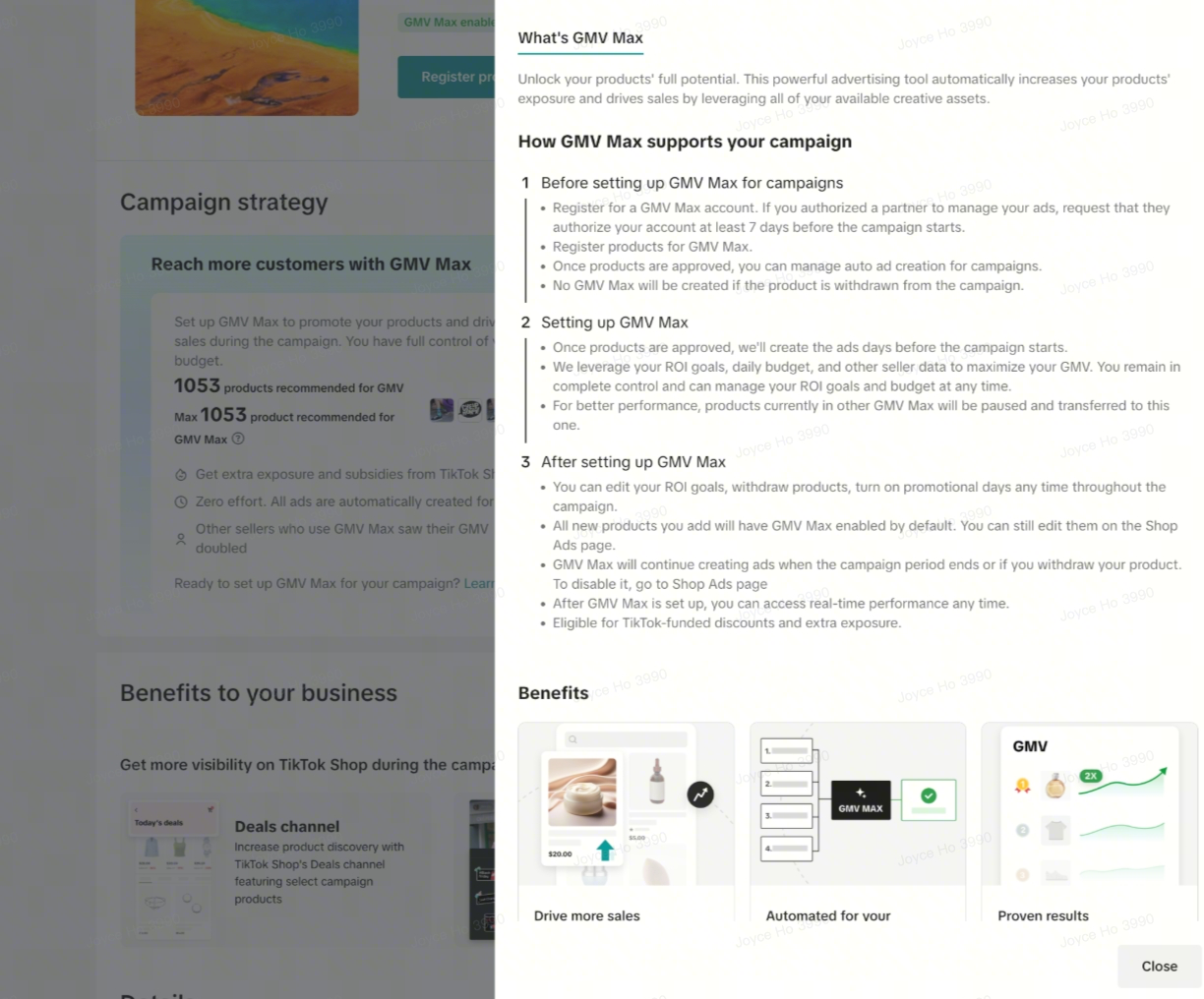
- You can either create a GMV Max Ads campaign yourself or one will automatically be created for you within 7 days prior to campaign start. To learn more about how GMV Max supports your campaign, click Learn More hyperlink for full details on the three stages of how GMV Max works.
- When confirming registration, the GMV Max Ads campaign information will be shared again. Click the "Register" button to proceed.
Step 3 : Register your product
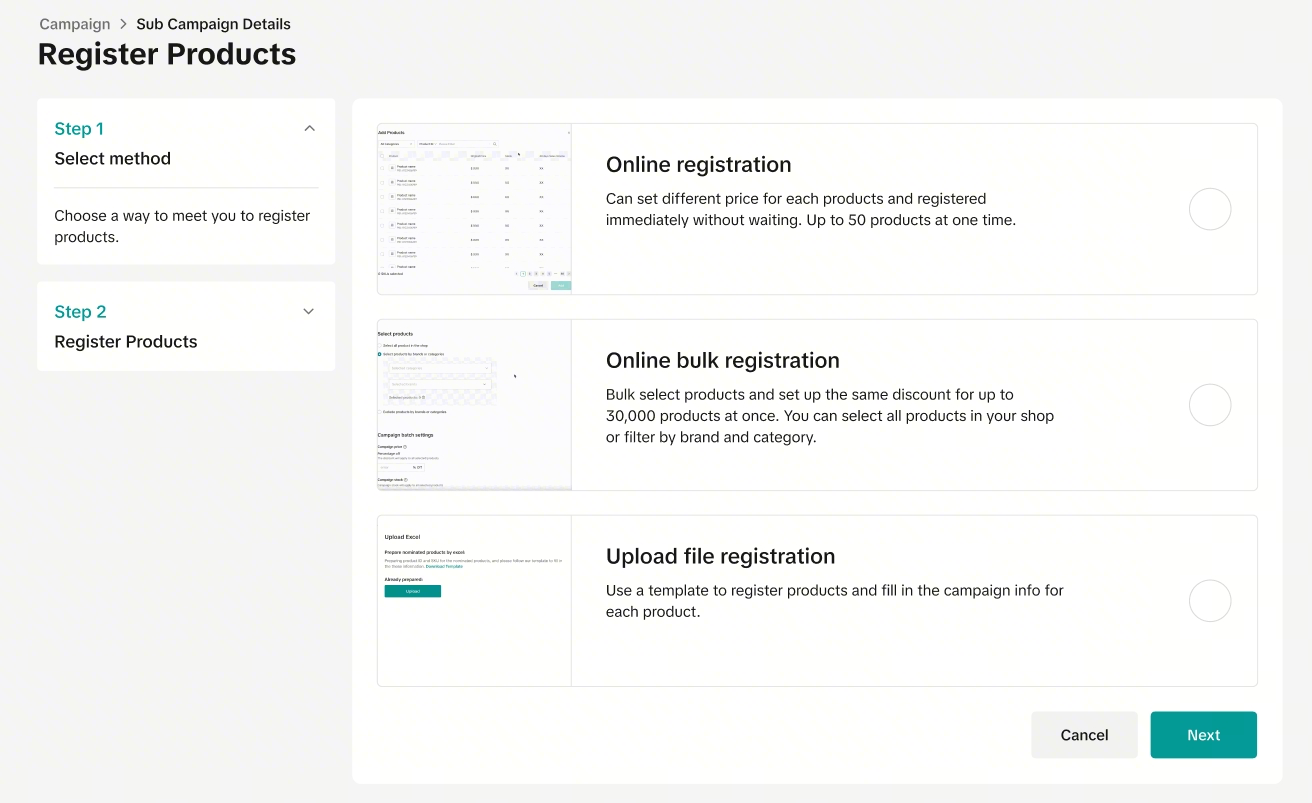
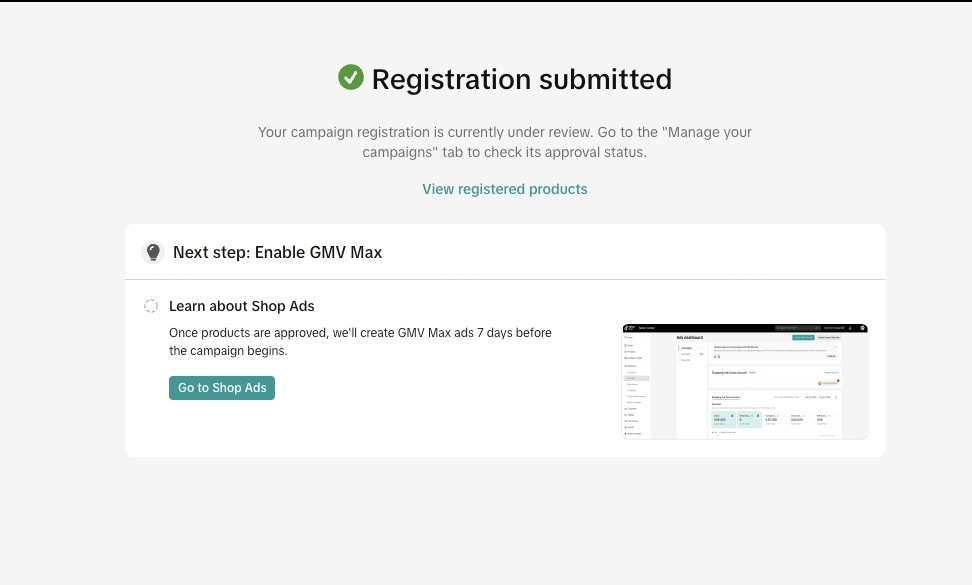
You’ll go through the standard campaign registration flow to register your products.- Once you've added all your products to register, click "Sumbit" to proceed.
- Only products that don’t already have a GMV Max campaign will have a GMV Max Ads campaign automatically created within 7 days before the platform campaign begins. It may take up to 3 days for the GMV Max campaigns to be created for your registered products.
- These ads will start running once the platform campaign officially starts.
Step 4: Manage your GMV Max
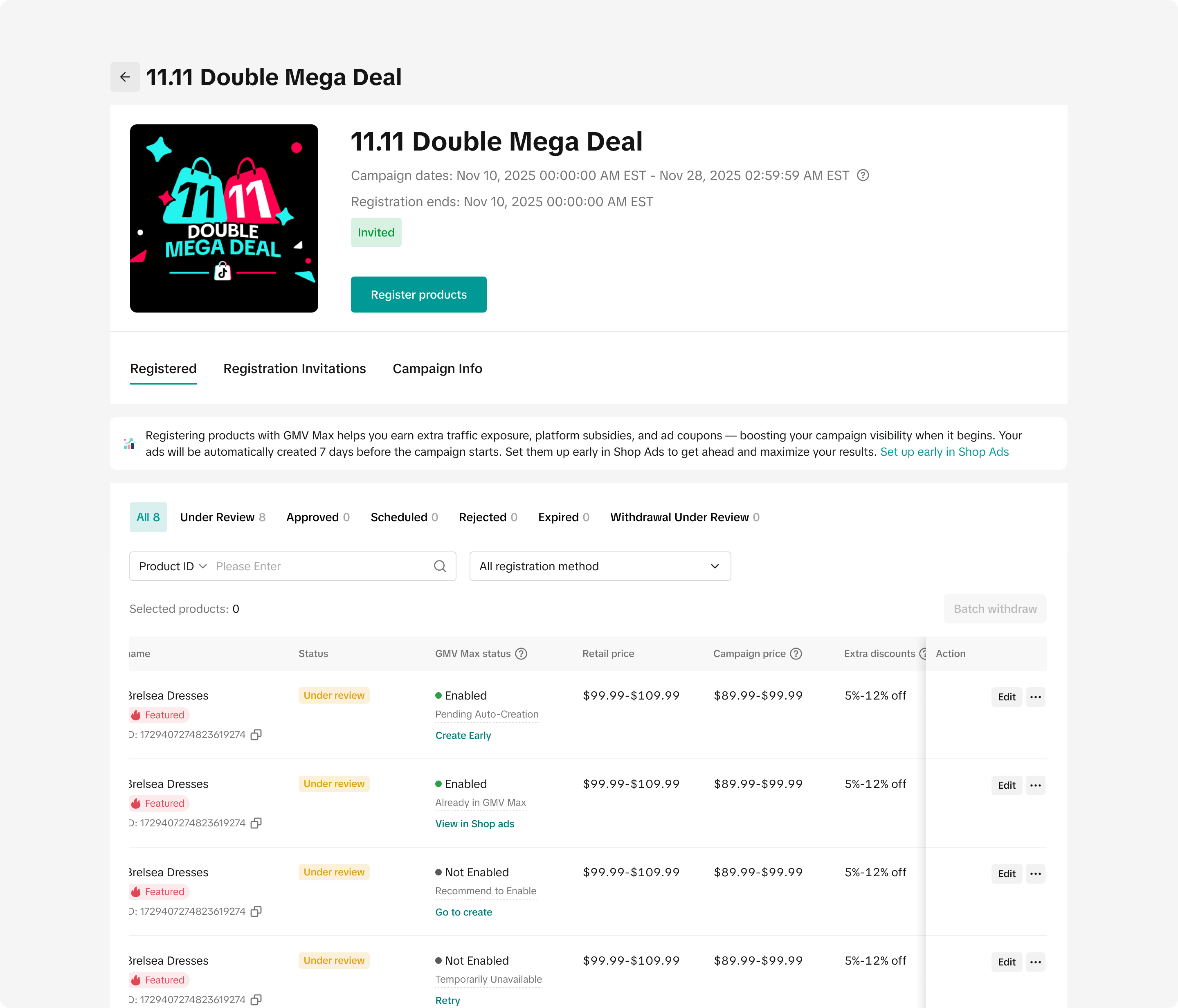
Go to Seller Center > Marketing > Campaigns > Manage your Campaigns- Once your products are approved, you will be able to see and manage them under the Sub-campaign's "Campaign products" tab.
- You can either create a GMV Max Ads campaign yourself or one will automatically be created for you within 7 days prior to campaign start.
- Once a GMV Max Ads campaign is created, the updated status will show in the "GMV Max status" column and you can manage it from the Shop Ads page.
Note : All products under platform campaigns must maintain an active GMV Max campaign. If GMV Max is disabled, the product will lose eligibility for platform benefits, including subsidies (vouchers and subsidies) and traffic support.On the Shop Ads Page, you can recognize auto-created campaigns in two ways:- They’ll display a “Bundle Promotion” tag.
- The campaign name will begin with the prefix “TTS Campaign” (you can rename it at any time).
- There is a maximum number of 400 products per GMV Max Campaign. If there are more than 400 products registered into a campaign, a second "TTS Campaign" GMV Max campaign will be created.
Step 5: Editing Auto-Created Campaigns
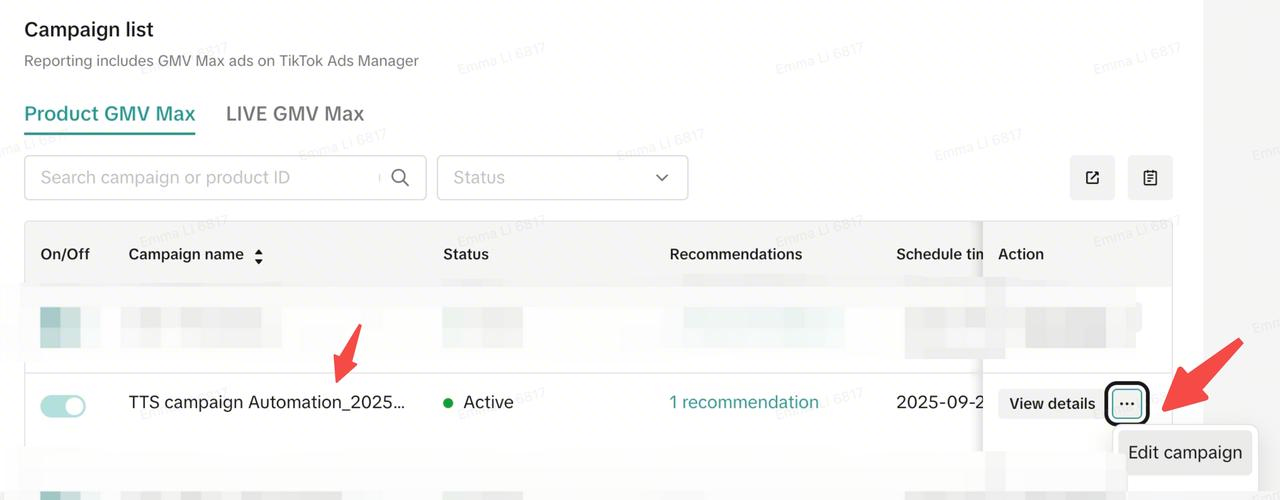
You can make edits by clicking expanding "View details" and selecting "Edit campaign"Editable fields include:- Add more products to the campaign.
- Adjust ROI targets to better align with your goals.
- Change daily budgets as needed.
- You can add new creative, but you cannot replace the auto-generated creative.
- Campaign schedules cannot be changed.
GMV Max status table
| GMV Max Status | GMV Max Sub-status | Action | What does this mean? |
| Enabled | Already in GMV Max | View in Shop ads | This product is already present in an active GMV Max campaign. No action is needed. |
| Enabled | Pending auto-creation | Go to enable | This product is currently not in any active GMV Max campaign, so one will be auto-created for it within 7 days prior to the campaign start date. You can also manually create a GMV Max campaign yourself by clicking on "Got to enable" |
| Not Enabled | Auto-creation failed | Go to enable | Auto-creation of a GMV Max campaign for this product failed and will try retry. You can also manually create a GMV Max campaign yourself by clicking on "Got to enable" |
| Not Enabled | Recommended to enable | Go to enable | This product is currently not enabled for GMV Max campaign auto-creation. Please enable it to auto-create a GMV Max campaign for this product and to receive associated campaign benefits. |
FAQs
- Q: What if I don’t have an Ads account set up?
- Q: What happens if my product does not have GMV Max Ads or if I withdraw my product from GMV Max Ads?
- Q: Can I opt out of automatic GMV Max Ads creation?
Please take note that if you have manually withdrawn your products, the system will not auto-create again, and retry is not supported. You’ll need to manually create a GMV Max campaign.
- Q: What happens if automatic GMV Max Ads campaign creation fails?
- Q: What if GMV Max was created but later stopped (e.g., ad authorization canceled)?
- Q: What if adding or removing products from GMV Max fails?
- Q: What happens when the promotion campaign ends?
- Q: Can I create a GMV Max campaign manually instead of using the automatic feature?
- Q: Do I need to have an advertising account to use this feature?
- Q: Who funds the auto-created ads?
- Q: What is the scope of automation?
- Q: Are ads created immediately after registration?
- Q: What if I exit before ads creation?
- Q: Can I adjust product selection before ad creation?
- Q: How is the ROI recommended?
You can adjust this anytime.
- Q: What can sellers modify after ads are created?
- Q: What if I withdraw from the campaign after ads are created?
- Q: If products are deleted from an ad, will they be recreated?
- Q: What happens if ad settings don’t meet platform rules?
Có thể bạn cũng quan tâm về
- 1 lesson
How to join campaign on TikTok Shop
Sellers will learn about "the types of TikTok Shop campaigns" and delve into the correct "steps to j…
Livestream Campaign
Livestream Campaign This article teaches you how to use Livestream Campaigns to increase traffic an…

Health & Beauty Sellers: Campaign Season Policy Tips & Trick…
Show off your best glow this campaign season. Follow these tips to avoid violations, boost your sal…

Featuring LIVE Specials
This article teaches you how to feature your LIVE Specials Vouchers through your Official and Market…

LIVE Specials
LIVE Specials This article teaches you what LIVE Specials are, how it works, as well as how the LIV…

Marketing Benefits Package - Payments
This article introduces the different payment methods available for our Marketing Benefits Packages.…