【Video】Affiliate Guide-Seller Side
07/07/2023
Overview
This document is aimed at providing a step-by-step guidance of Affiliate for sellers. Follow the four simple steps to help you build efficient Affiliate connection with creators. In addition, we provide a list of commonly asked questions and answers in the end.Seller perspective flow on Affiliate
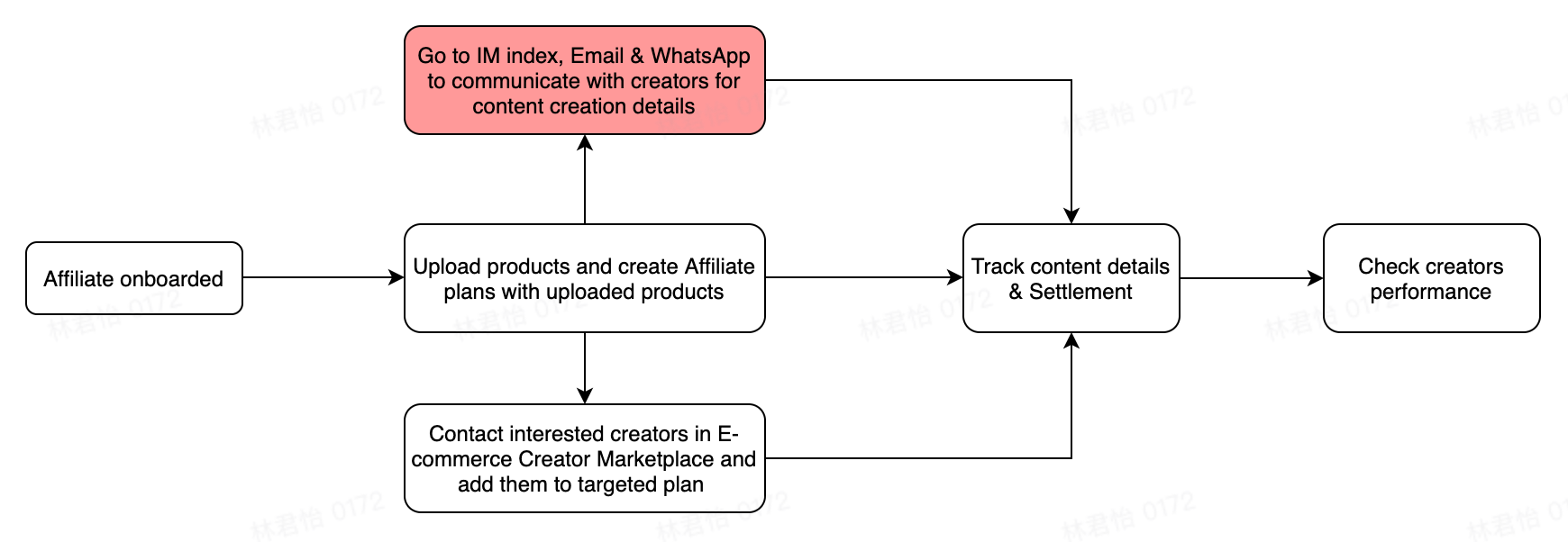
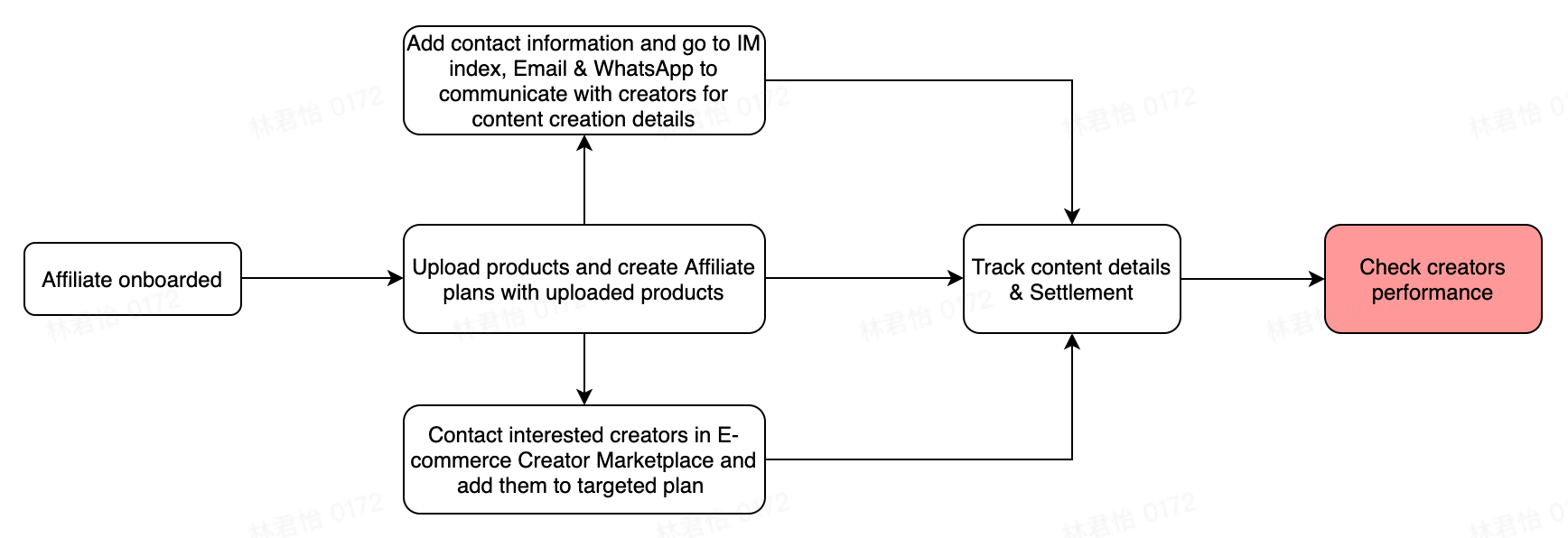
The Affiliate process from the seller perspective is shown below: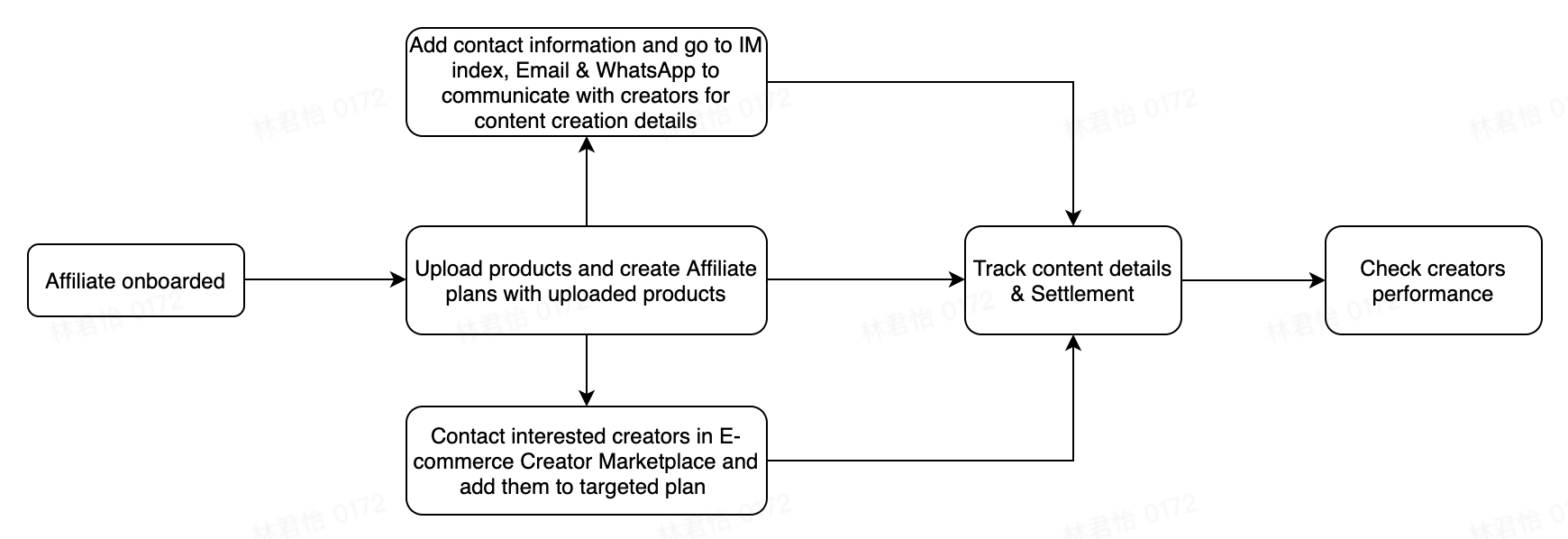
STEP1: Create Affiliate Plan
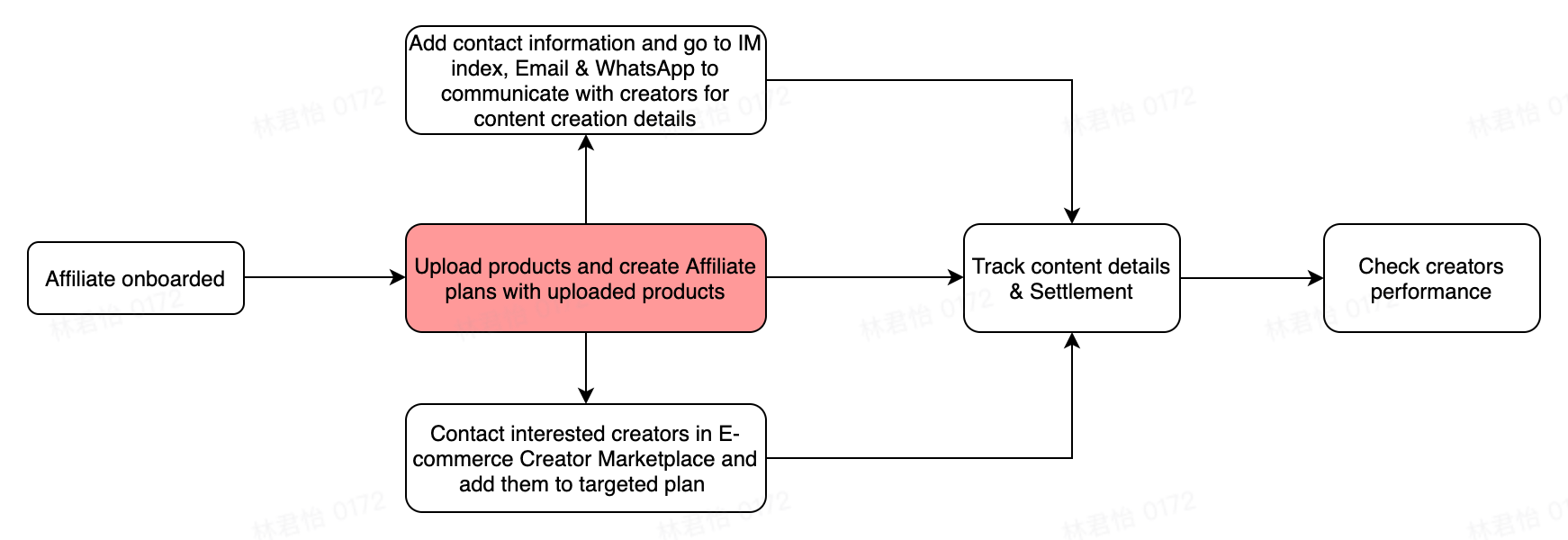
Key Terms:
- An Open Plan is visible to all creators who are qualified for Affiliate. Creators interested in the according products will apply for selling the products and can start doing so once their applications are approved.
- A Targeted Plan allows you to invite targeted creators to promote products for you. Creators can start promotion after they accept your invitation.
- A Shop Plan enables you set a universal commission rate for all products in the seller center and the priority of displaying commission ratio for a product in different plans is "Targeted Plan> Open Plan> Shop Plan".
| Targeted plan | Open Plan | Shop Plan | |
| Products | Selected products from the seller | Selected products from the seller | All products from the seller |
| Commission rate | Specific Commission rate | Specific Commission rate | Universal Commission rate |
| Creator | To a specific creator | All creators | All Creators |
Open plan
Check this video:Steps | Instruction | Screenshot |
| Log on to TikTok Shop Seller Center, go to the 'Affiliate' page and click 'New Open Plan' at the top of the Open Plan page. | |
| Select one or more products with Live status and click "Next" to edit the plan.
| |
| Add commission rate and a description of the reason for promoting for each selected product.
| |
| A pop-up window will notify sellers whether the submission is successful after clicking 'submit'. | ||
| Click 'Manage Creators' at the top of the Open Plan page. | |
Manage creator application by clicking the 'Approve' or 'Reject' tab.
|
Targeted Plan
Check this video:Steps | Instruction | Screenshot |
| Log on to TikTok Shop Seller Center, go to the 'Affiliate' page and click 'New Targeted Plan' at the top of the Targeted Plan page. | |
| Select one or more products and click "Next" to edit the plan.
| |
| Add Plan name and plan description (optional).
| |
| Search creators by entering usernames and click 'Add' to add creators with e-commerce permission.
| |
| From here, you can manage creators and check their products adding status:
| |
Shop Plan
Steps | Instruction | Screenshot |
| Log on to TikTok Shop Seller Center, go to the 'Affiliate' page and select 'Shop Plan'. | |
| Enter the uniform commision rate for all products. | |
| Sellers can quit Shop Plan by clicking 'Quit plan' and a pop-up window will appear to notify sellers to make double-check. | ||
| From here, you can manage creators and check their products adding status:
|
STEP 2: Connect with Creators (Two Options)
Proactive Option: Go to E-Commerce Creator Connect and look for creators
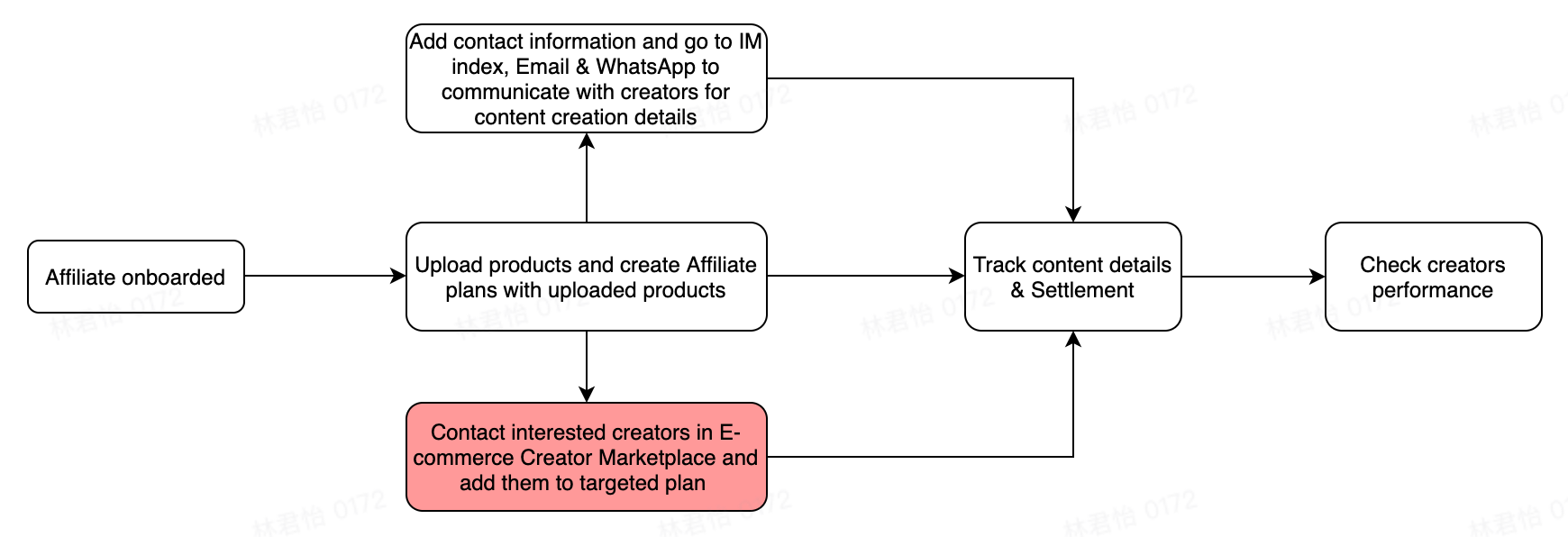
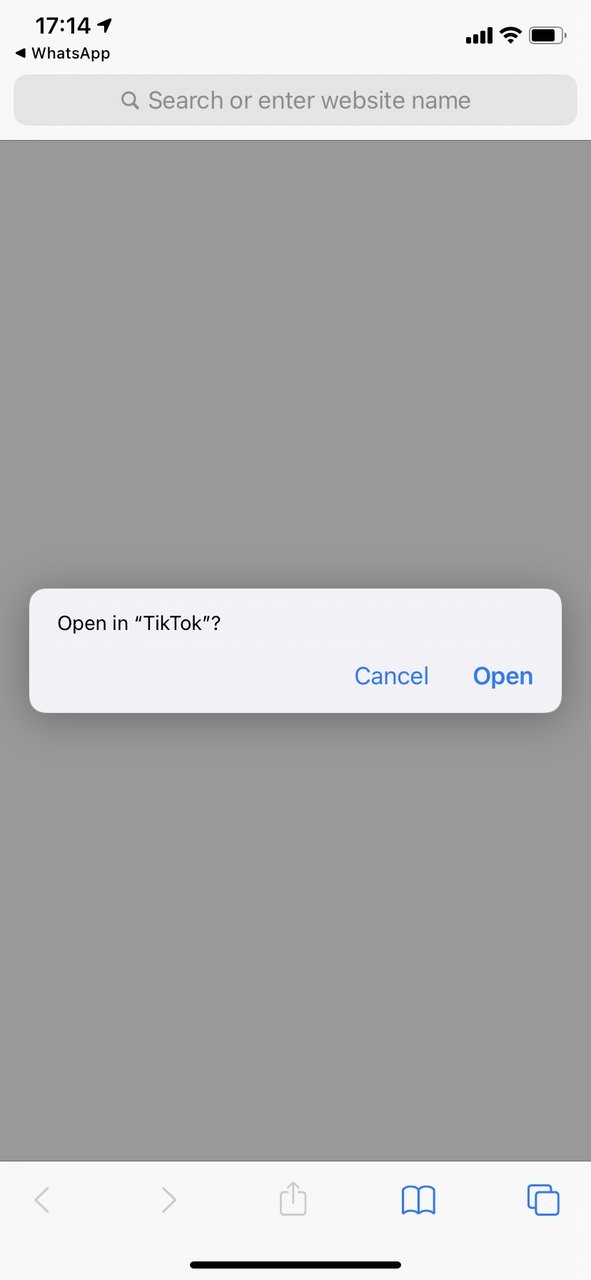
Share a product link with the creators to search on TikTok Shop
This is an option often for Ops team match-making, ops team or creators both can receive a product link sent by sellers to search on TikTok Shop for adding to Showcase.Steps | Instructions | Screenshot |
|
| Image 1 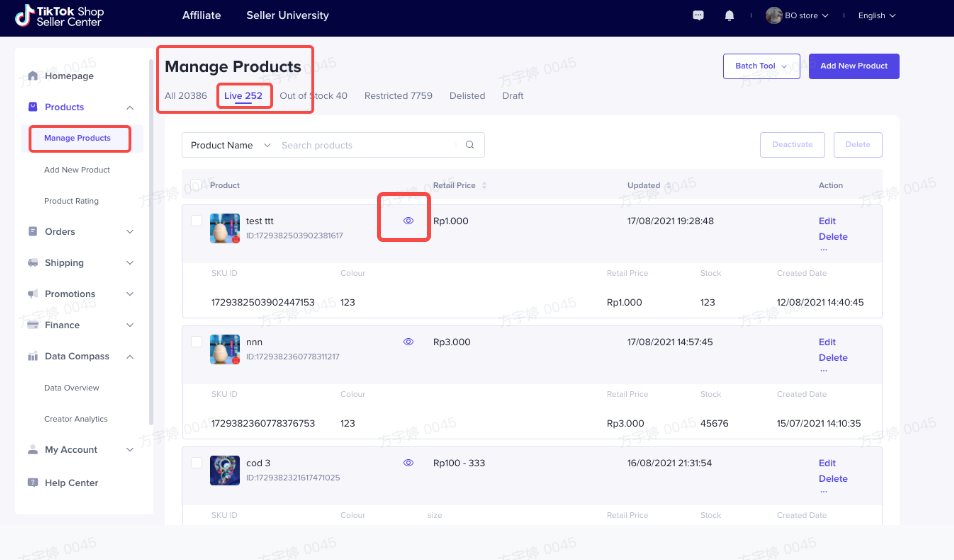 |
|
| Image 2 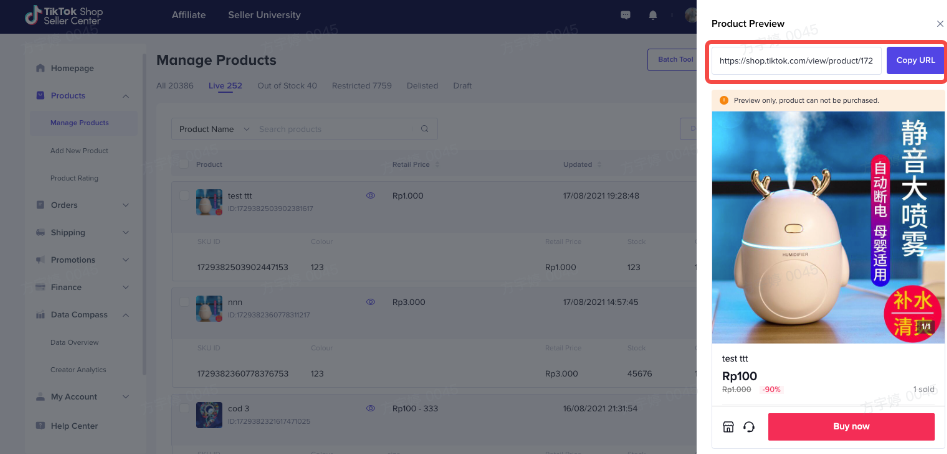 |
Steps | Instruction | Screenshot |
| Log on to TikTok Shop Seller Center, go to Affiliate > Find Creators. | 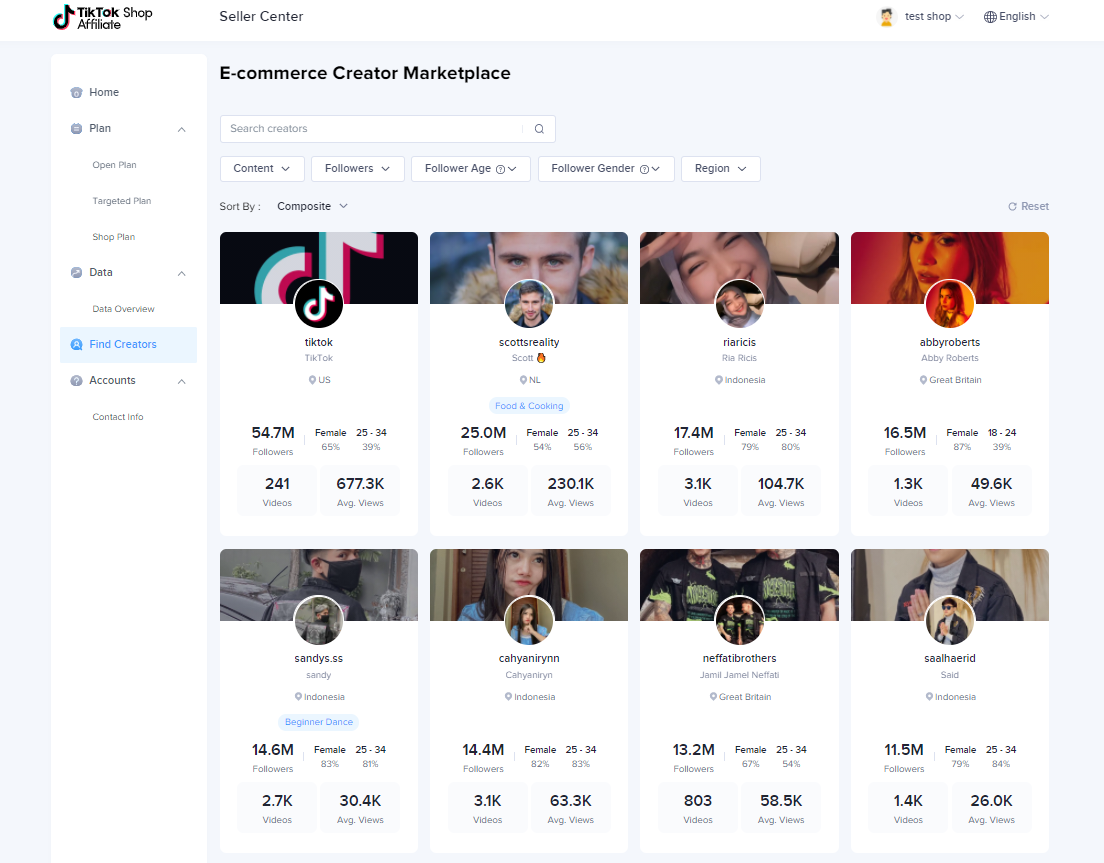 |
| Select the Region to look for creators in your region, and you can filter the creators list by Followers, Follower Age and Follower Gender. The filtered creator list can be sorted by creators' Followers, Videos Posted and Avg. video views. | 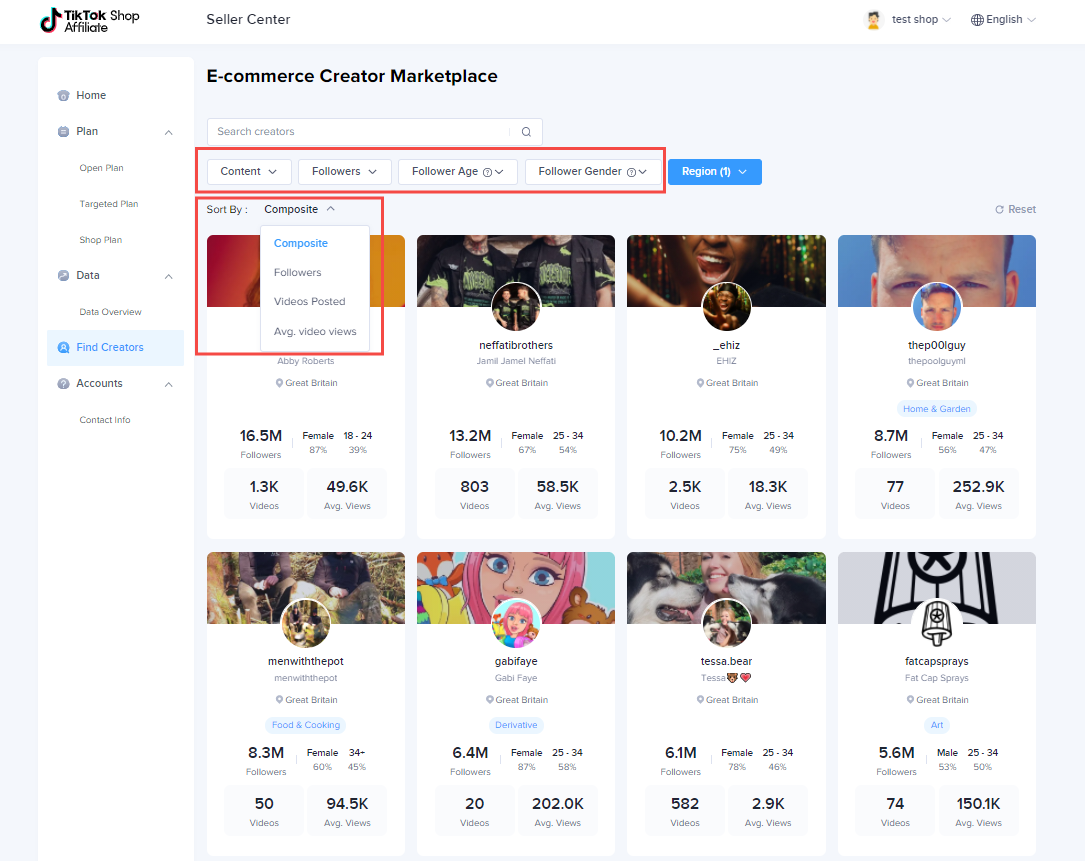 |
| Go to the targeted creator’s home page, and click 'Contact' to share your contact information and express your willingness to cooperate. | 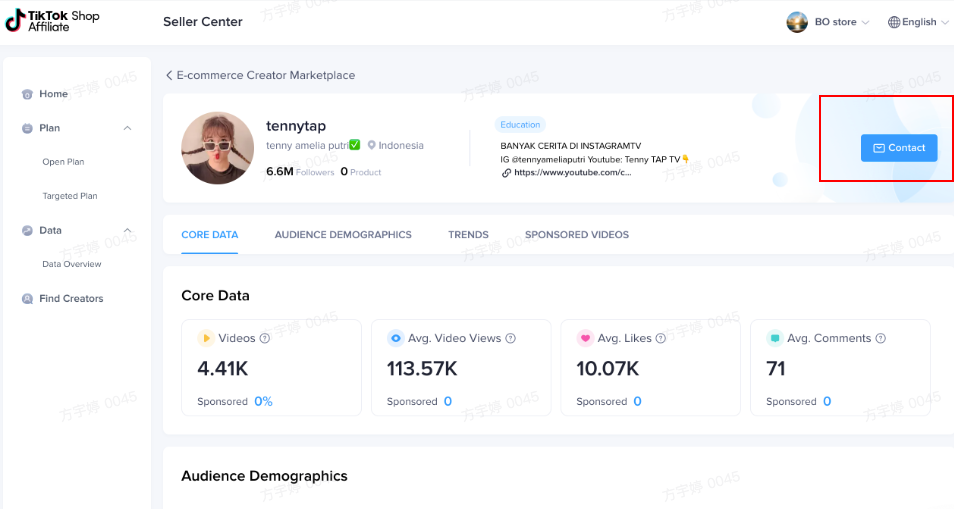 |
| After you invited creators, and get them accepted, you can add them to your targeted plan. (direct to targeted plan page will be ready in weeks) | 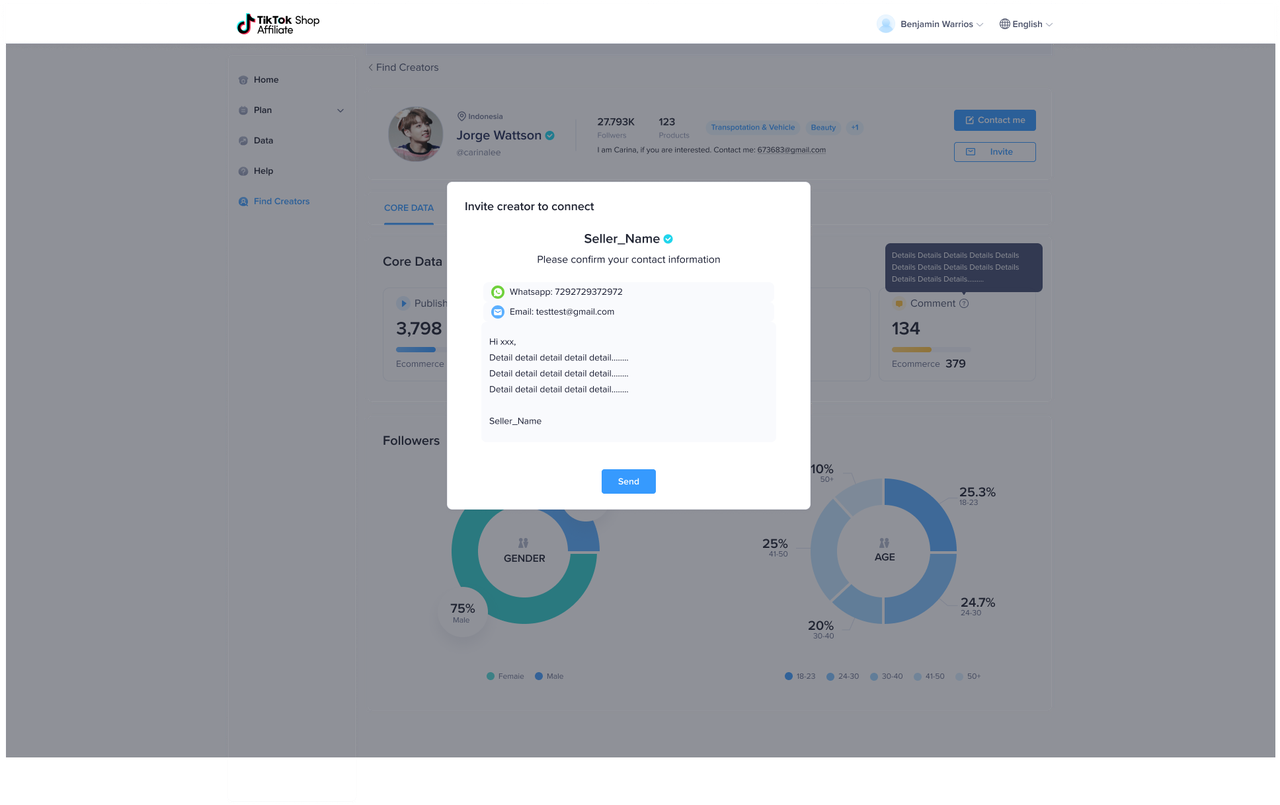 | |
Note for sellers:
| Option 1:
 | Image 1 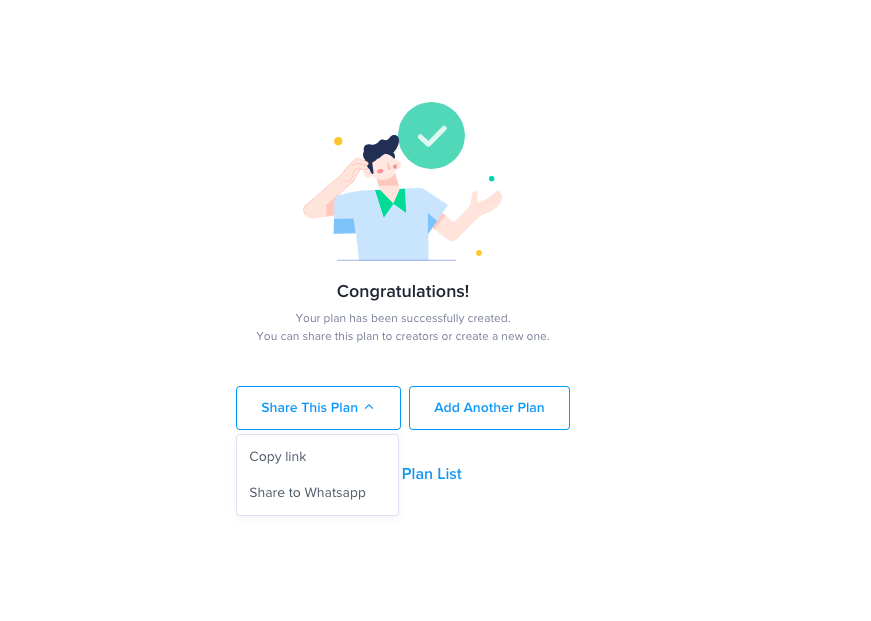 Image 2 Image 2 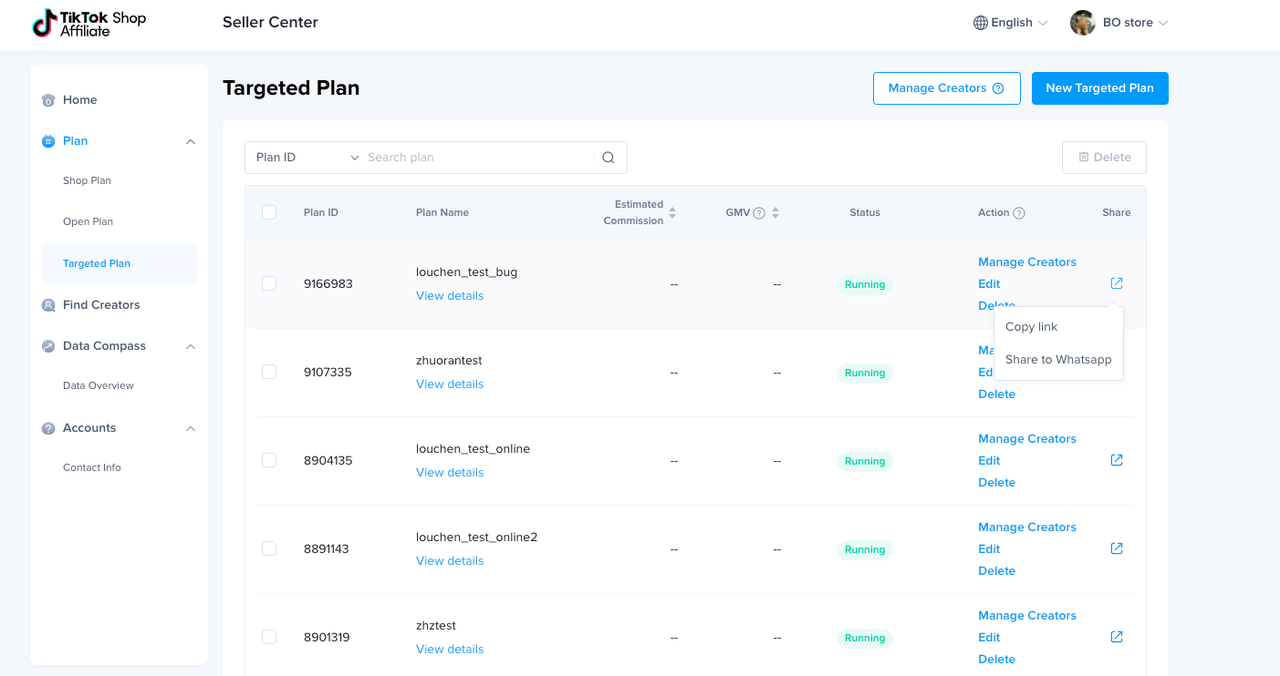 |
Reactive Option: Add your contact information in Seller center and be reached by creators
Steps | Instruction | Screenshot |
Route 1: Plan tab
| Log on to TikTok Shop Seller Center, go to the 'Affiliate' page and click "Start to Set Up" at the top.
| |
Route 2: Account Info tab
| Click "Set up" to fill in the contact information. | |
|
| |
| Go to ‘Contact Info’ tab, and click 'edit' button to edit WhatsApp Account and/or Email Address. | |
| Sellers can hide the contact information to creators by turning off the blue switch. | ||
| Go to your Seller center in Affiliate and check the top box for messages unread or go to "Manage orders" to select "contact buyer" | |
| Check your email & WhatsApp and communicate with creators for content creation details and settle on any details. |
STEP3: Payment & Settlement
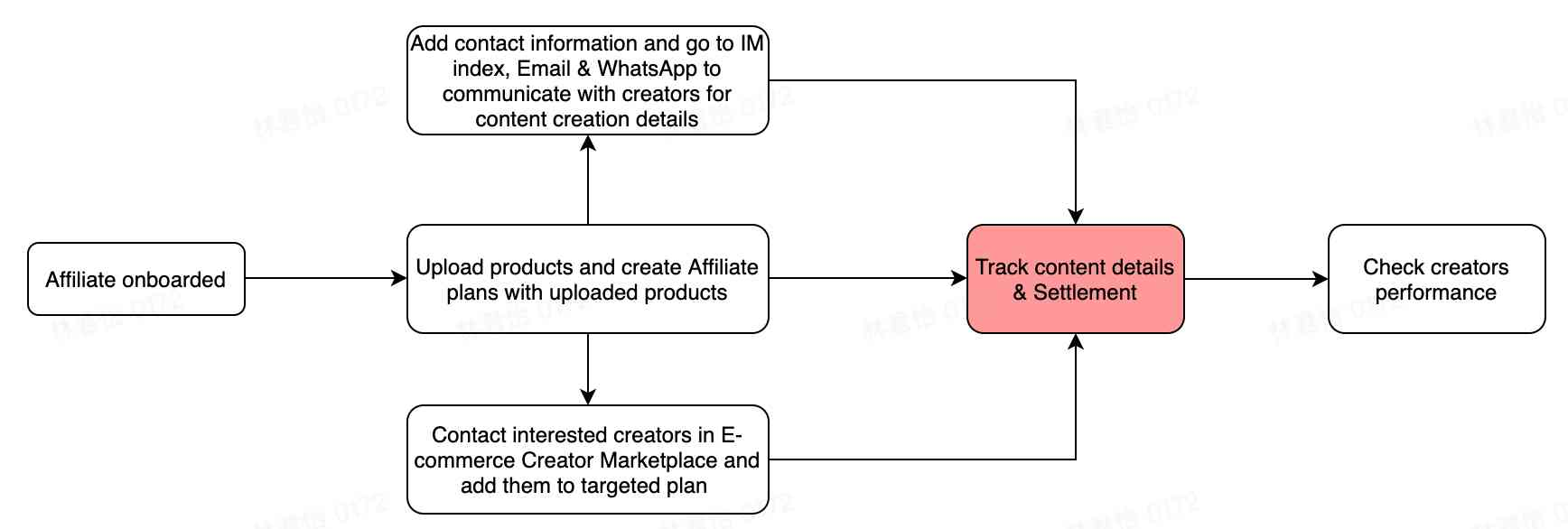 CPS commission is directly deducted from the merchants' payment in the third party settlement splitting, and assigned to corresponding creators, with the 2 settlement day of the 1st and 16th of each month.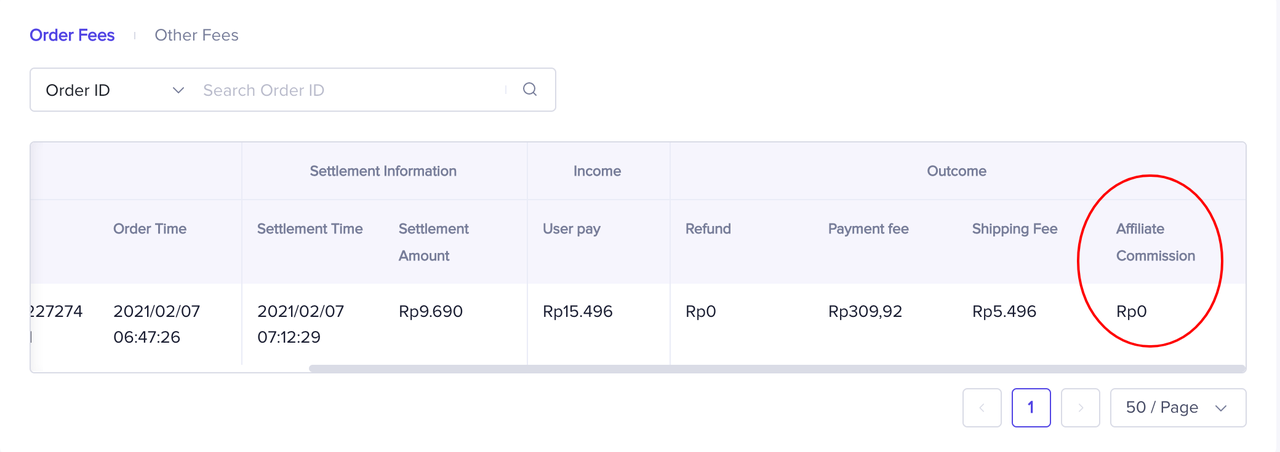
STEP4: Check your performance
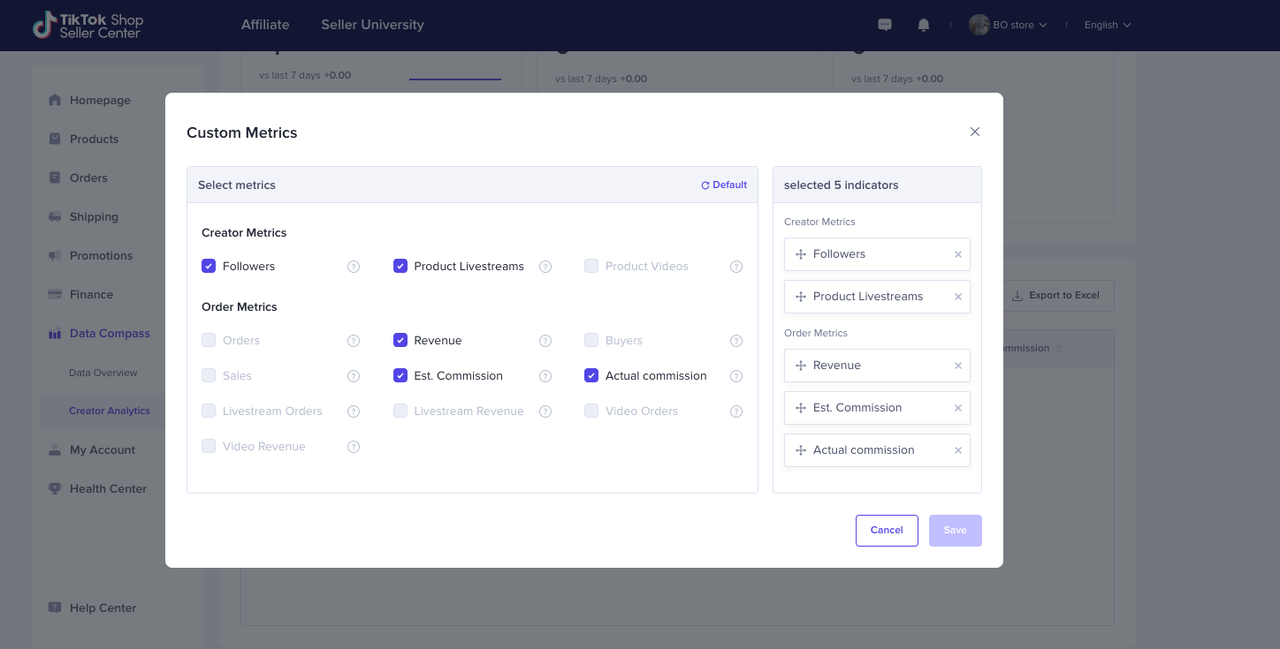
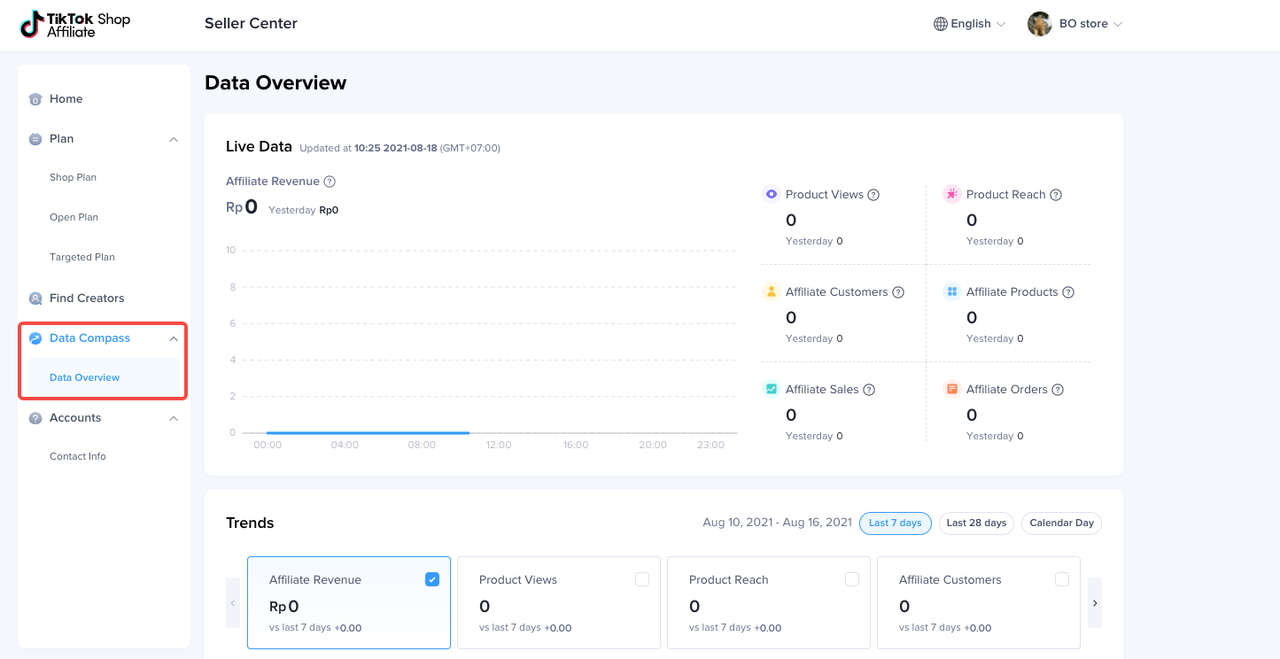
- You can view your overall Affiliate revenue under "Data Compass" on the left bar, and below will show the performance of all your plans.
- If you want to check your products & plan performance in a creator perspective, go to "Seller center" and check on "Creator Analytics" on "Data Compass", you will be able to see:
- All creators ranked based on their sales performance, commission you set, product they promote
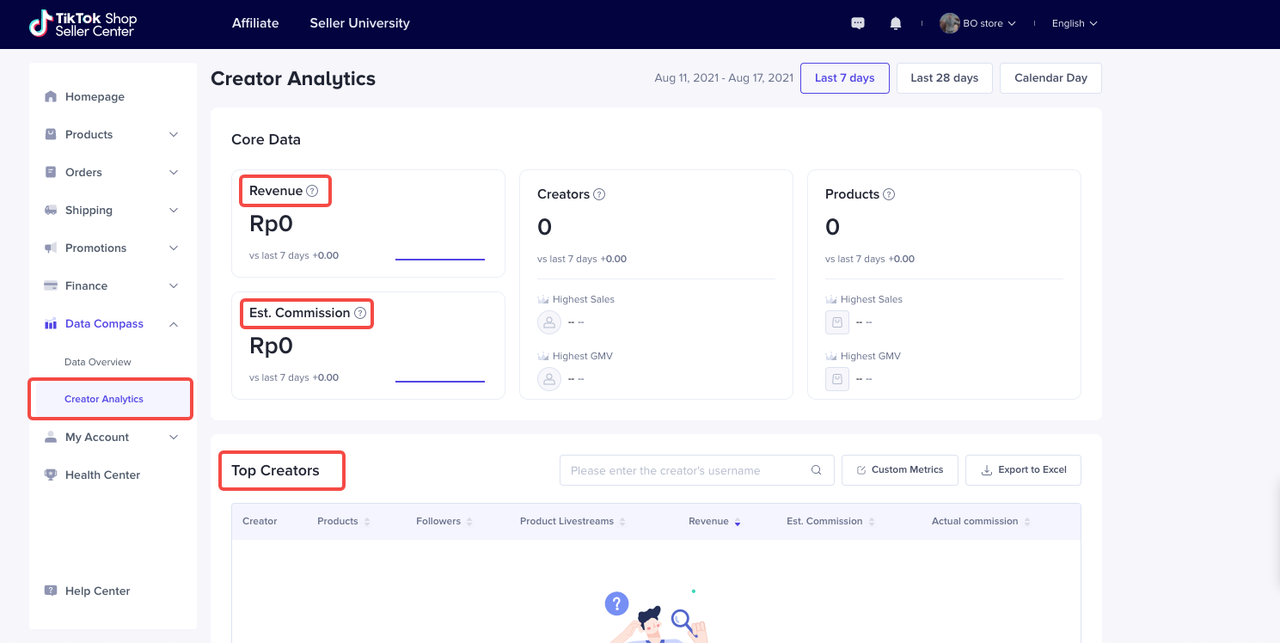
- Search creators and customize the metrics to check more details