

Pre-Orders
12/01/2025
What is the Pre-Order option?
Marking your goods as "Pre-Orders" allows you to set a fulfilment period ranging from 3 to 15 calendar days after order placement. This order type is perfect for custom-made/made-to-order items, pre-release products or products that are soon to be re-stocked!Note: Starting 1 January 2026, all pre-order goods are subject to an additional 2.14% service fee per product sold (on top of the commission fees charged). This fee is inclusive of taxes. This fee will not be charged when orders are cancelled, returned or refunded.
How do Pre-Orders work?
- Sellers must first mark their products as Pre-Order products
- They can then set a fulfilment period between 3 to 15 calendar days.
- This setting only applies to products marked as “Pre-Order.”
- If you wish for all your products to follow a pre-order timeline, you must mark each product individually. You can toggle off the Pre-Order option per product any time.
- You may set different fulfillment timelines for different products.
- This setting only applies to products marked as “Pre-Order.”
- Orders placed must be delivered within the fulfillment period set. Orders not delivered within this timeframe will be automatically cancelled by the platform, and refunded to the buyer.
Example
- A seller marks their product as a "Pre-Order" product with a 15-day fulfillment period.
- A customer places an order on January 1st, 2025.
- The seller must deliver the product by 11:59PM on January 16th, 2025 or the order will be automatically cancelled and refunded to the buyer.
How do I mark a product as a "Pre-Order" product?
You may do so via the Seller Center as follows:Products > Manage Products > Edit > Sales Information > Pre-order
Step 1: Navigate to Products -> Manage Products
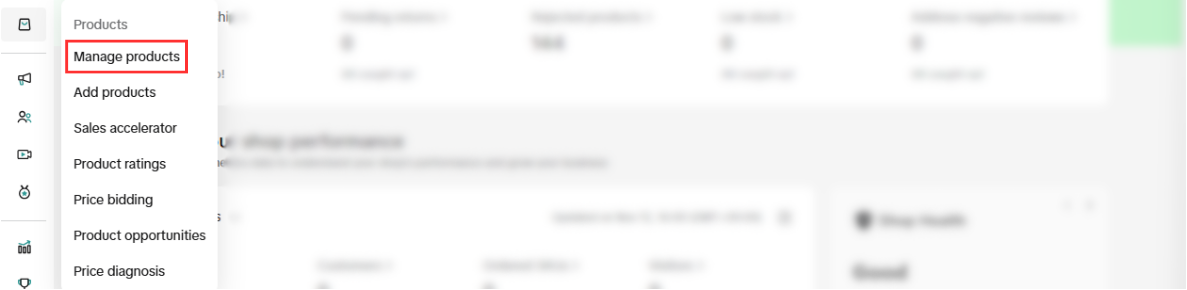
Step 2: Click on the "Edit" button for the product you wish to mark as "Pre-Order" or click on Add Product if it is a new product
Existing Product New Product
Step 3: Under "Sales Information", check the "Pre-order" box
Navigate to "Sales Information"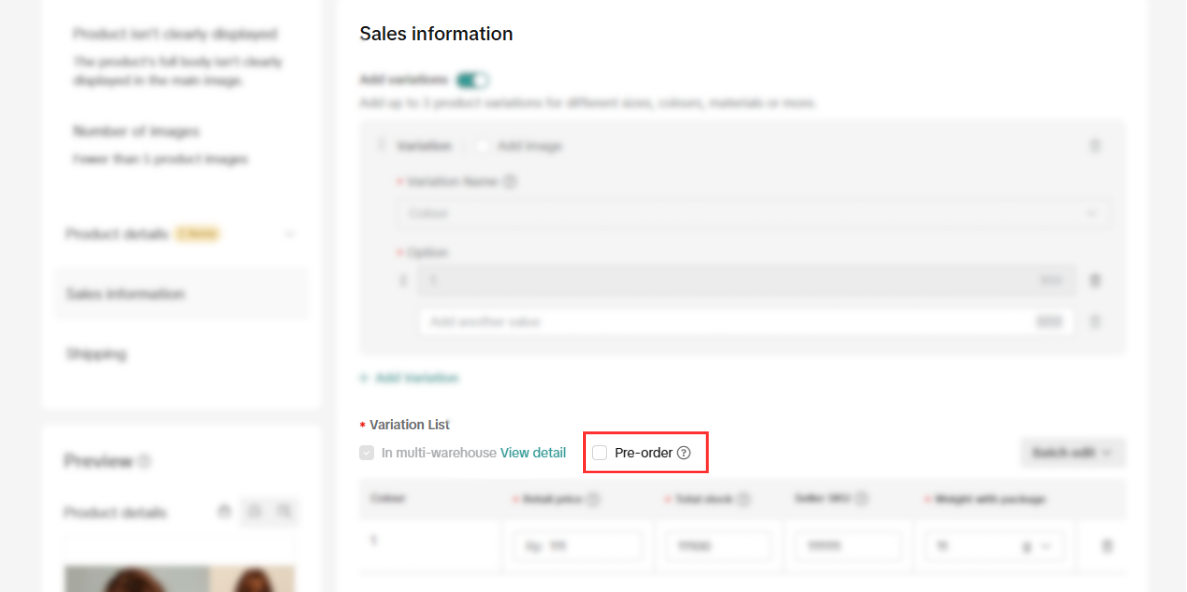 Check the "Pre-Order" box
Step 4: Under "Selling" click "Regular" and change it to "Pre-Order"
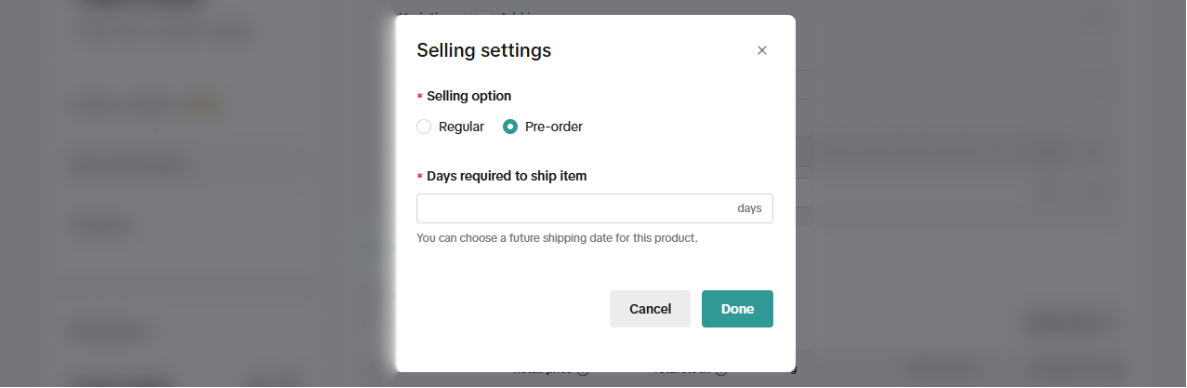
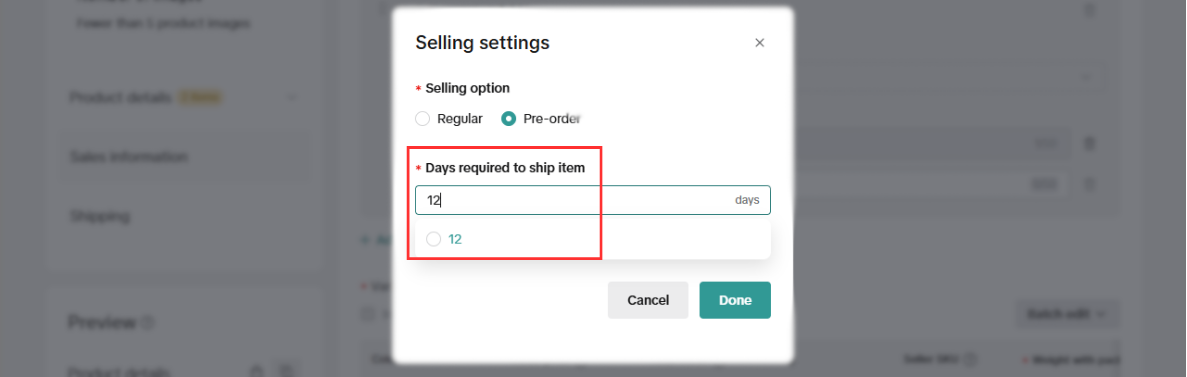
Step 5: Key in the "Days required to ship item"
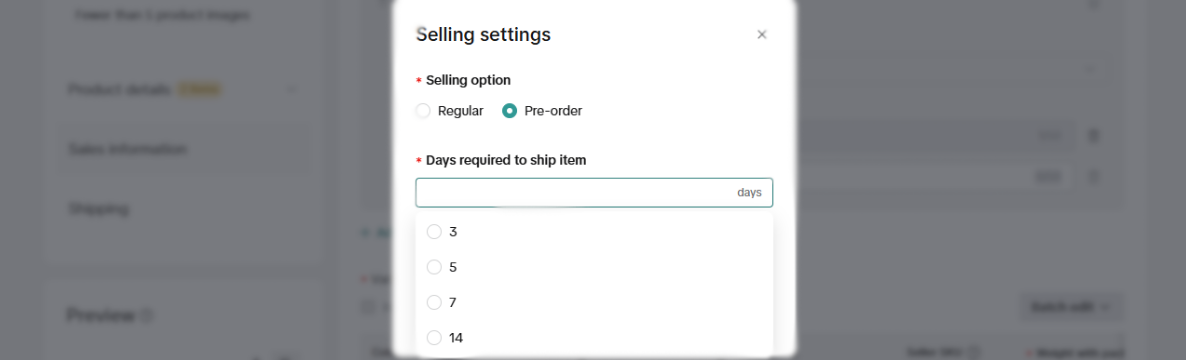 Note: If the option does not appear in the drop down, you may key it in like so:
 Congrats! Your product is now marked as a "Pre-Order" product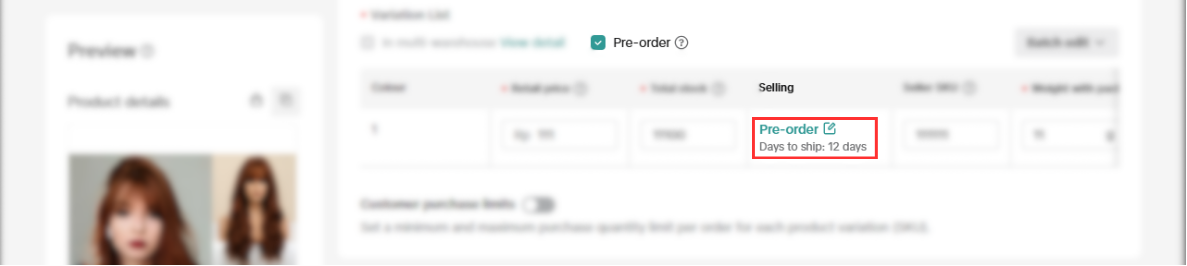
Anda mungkin juga tertarik
- 1 lesson
Setting Shipping Channel
Learn more about How to Setting Shipping Channel
- 1 lesson
Shipping & Order Management
The sellers will learn about the overall management of orders on TikTok Shop, starting from order ve…
Thailand Platform Shipping Fee Instruction
Thailand Platform Shipping Fee Instruction From 1 April 2025, the shipping fee will also be charged…

Order Fulfilment Timelines
Order Fulfilment Timelines (Effective 1 October 2025) Note: New fulfillment timelines have been appl…

How to Set Delivery Option for Fruits: Fresh Delivery
Only sellers identified as eligible by the platform will see Fresh Delivery available on Seller Cent…

A Complete Guide to 'Shipped via Platform'
In this article, we will guide you through the updated 'Shipped via Platform' shipping process, enab…

Manage shipping options for your shop
Available shipping service and providers In this section, we’ll explain the logistics services avail…

TikTok Shop Thailand Same Day Delivery Rate Card
TikTok Shop is launching a Same Day delivery service for selected cities. To support this service, a…
Ship By TikTok: Same Day Delivery
What is Same Day Delivery Same Day Delivery is a shipping service provided by TikTok Shop in partner…

A Complete Guide to 'Shipped by Seller (SOF)'
In this guide, we will walk you through the enhanced 'Shipped by Seller' shipping process. We've imp…